Learn about the innovations shaping CMS.

This article shows you how to implement the data layer in Google Tag Manager (GTM) for e-commerce tracking, covering all the 14 events that Google Analytics 4 (GA4) recognizes and that may occur in a customer’s journey.
Setting up e-commerce tracking in GA4 means having a perfectly functional data layer structure. With basic page tracking, GTM can grab most information from the page itself, but e-commerce needs precise product data, transaction details, and user interactions that only exist in your store’s backend.
This guide walks you through building a complete e-commerce data layer setup that captures every step of the customer journey.
If you’ve read our overview article on the data layer (“What is the data layer in Google Tag Manager”), you know the basics: the data layer is a JavaScript array of objects that holds information about what’s happening on your website. But e-commerce tracking takes this to another level of complexity.
Most of the data you need for e-commerce tracking isn’t visible. Everything related to product IDs, prices, inventory status, cart contents, or transaction details lives in your store’s database. So, the data layer is the link between your backend system and your tracking tools – without proper data layer implementation, you’re limited to tracking basic interactions like button clicks and page views. You won’t know which products people viewed, what they added to their carts, or how much revenue each transaction generated. So, your GA4 reports will show activity but no actual e-commerce insights.
The complexity comes from needing to track multiple products at once, each with its own set of attributes. A single page view might need to send data about 20 different products, each with over 10 parameters. That’s where the items array comes in: it’s the structured format that lets you send all this product information in an organized way.
Before you actually start writing data layer code (or asking your developer to write it), you need to understand how GA4 organizes e-commerce data. The heart of it is the items array: for every e-commerce event in GA4, it contains one or more product objects, where each object represents a single product with all its details.
Here’s what a simple items array looks like:
Even if someone only interacts with one product, it still goes in an array. This keeps the structure consistent whether you’re tracking one product or 50.
A) Event-level vs. item-level parameters
GA4 e-commerce data splits into two categories: event-level parameters and item-level parameters. The first describe individual products and go inside each object in the items array. Examples are:
Event-level parameters, on the other hand, describe the overall transaction or interaction. These sit outside the items array, and could be:
B) Required vs. optional parameters
For any event involving products, you must include either item_id or item_name for each product (preferably both, because using only item_name means you lose some attribution capabilities in GA4 reports).
For purchase events specifically, you must include:
For refund events, you only need:
Everything else enhances your data but won’t break your implementation if missing.
C) The 14 e-commerce events GA4 recognizes
GA4 has specific event names for e-commerce tracking and you must use them if you want e-commerce reports to be accurate. Here’s a list of all 14 events in the order they typically occur in a customer journey:
Keep in mind: when you’re actually implementing these events, don’t follow the customer journey order. Start with the events that are the most critical to your tracking, like purchase and add_to_cart. Only after testing and monitoring for a couple of weeks, add view_item and begin_checkout. Then expand to the remaining events.
There are many components to an e-commerce data layer push. Let’s take a look at why each of them matters:
You can add up to 27 custom parameters per item. GA4 collects all of them, but to use them in GA4 reports, you need to register them as custom dimensions. To do that:
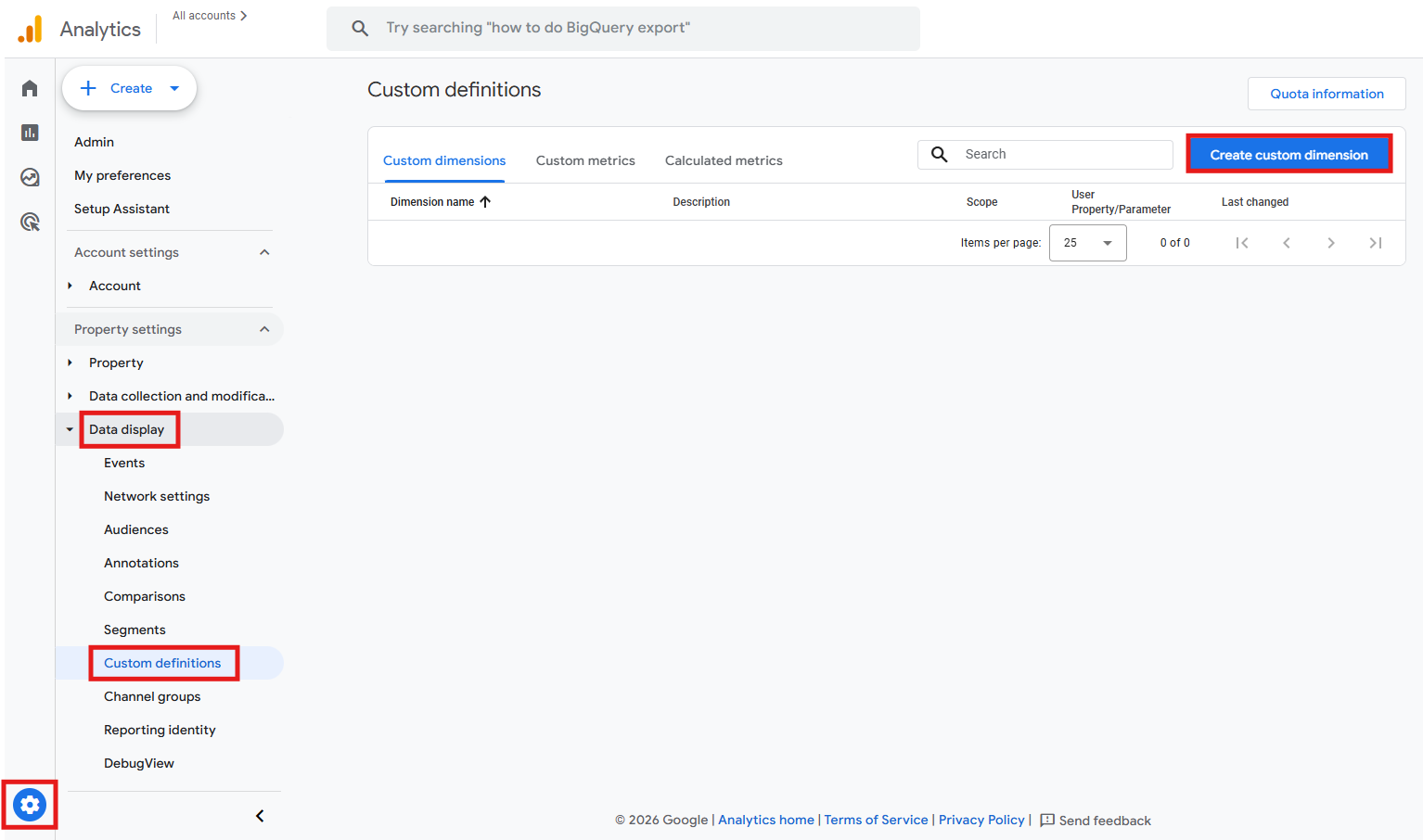
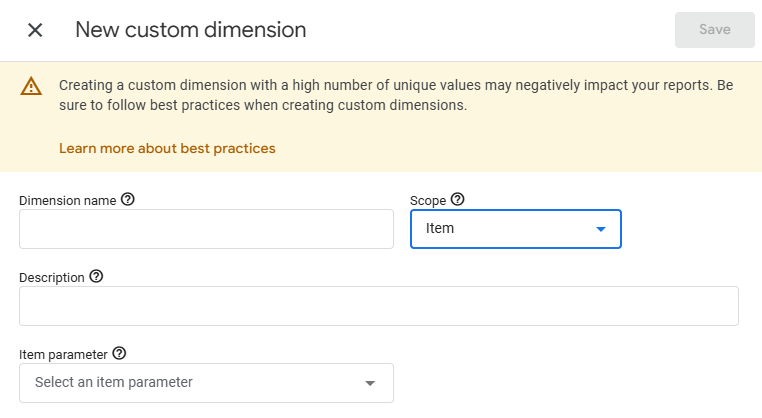
Tip: only register parameters as custom dimensions if you need to use them in reports. GA4 still collects them even if not registered.
Keep in mind: The free version of GA4 lets you register 10 custom parameters as item-scoped custom dimensions, while GA4 360 (the paid, enterprise version) allows 25. Unregistered parameters still flow to BigQuery (if you’ve connected it), but they won’t appear in the GA4 interface.
Now let’s get into the specifics of each major e-commerce event. The 14 events below follow the customer journey order to help you understand how they connect and what data flows from one stage to the next. For each event, we’ll show you when to fire it, what data to include, and what to watch out for.
But first, keep this in mind: although we’re now focusing on the information that should be pushed, before actually pushing any e-commerce event, you must clear the previous e-commerce object to prevent old data from contaminating new events. We provide more detail into this in the best practices section ahead.
A) view_item_list
This event fires when someone sees a list of products (including search results, category pages, or any other product listing).
All visible products in the list, up to a reasonable limit.
Don’t forget to give each list type a consistent name (in other words, set item_list_name). Without this, you won’t be able to see which lists drive the most engagement in GA4 reports.
B) select_item
This event fires when someone clicks a product from a list to view its details.
Only the product that was clicked. Keep the same item_list_name from the view_item_list event so GA4 can track the list’s click-through rate.
Don’t forget to include the list attribution (item_list_name and index). Without these, you can’t analyze which lists or positions drive the most clicks.
C) view_item
This event fires when someone lands on a product detail page.
Complete details about the product. If your product has variants (colors, sizes, etc.), make sure item_variant updates when someone selects a different option.
Get the parameters and categories right here, by including all levels that apply to your product. This data feeds into GA4’s item category reports.
D) add_to_cart
This event fires when someone adds a product to their cart.
window.dataLayer = window.dataLayer || [];
window.dataLayer.push({
event: 'add_to_cart',
ecommerce: {
currency: 'USD',
value: 79.99,
items: [{
item_id: 'SKU_12345',
item_name: 'Wireless Bluetooth Headphones',
item_category: 'Electronics',
item_category2: 'Audio',
item_brand: 'AudioTech',
item_variant: 'Black',
price: 79.99,
quantity: 1
}]
}
});
If someone clicks “Add to cart” three times on the same product, fire three separate events with “quantity: 1” each. Or, if your cart interface has a quantity selector, use the selected quantity. The key is that quantity represents how many units are being added in this specific action, not the total in the cart.
E) remove_from_cart
This event fires when someone removes a product from their cart or decreases the quantity.
window.dataLayer = window.dataLayer || [];
window.dataLayer.push({
event: 'remove_from_cart',
ecommerce: {
currency: 'USD',
value: 79.99,
items: [{
item_id: 'SKU_12345',
item_name: 'Wireless Bluetooth Headphones',
item_category: 'Electronics',
item_category2: 'Audio',
item_brand: 'AudioTech',
item_variant: 'Black',
price: 79.99,
quantity: 1
}]
}
});
If someone has 3 units in the cart and decreases to 2, fire this event with “quantity: 1”. If they remove all units, set quantity to however many were removed.
F) view_cart
This event fires when someone views their cart contents.
window.dataLayer = window.dataLayer || [];
window.dataLayer.push({
event: 'view_cart',
ecommerce: {
currency: 'USD',
value: 92.98,
items: [{
item_id: 'SKU_12345',
item_name: 'Wireless Bluetooth Headphones',
item_category: 'Electronics',
item_brand: 'AudioTech',
price: 79.99,
quantity: 1
},{
item_id: 'SKU_12346',
item_name: 'USB-C Charging Cable',
item_category: 'Electronics',
item_brand: 'TechPlus',
price: 12.99,
quantity: 1
}]
}
});
Every item currently in the cart with its current quantity. The value parameter should match the sum of “(price × quantity)” for all items.
G) begin_checkout
This event fires when someone starts the checkout process.
window.dataLayer = window.dataLayer || [];
window.dataLayer.push({
event: 'begin_checkout',
ecommerce: {
currency: 'USD',
value: 92.98,
coupon: 'SUMMER10',
items: [{
item_id: 'SKU_12345',
item_name: 'Wireless Bluetooth Headphones',
item_category: 'Electronics',
item_brand: 'AudioTech',
price: 79.99,
quantity: 1
},{
item_id: 'SKU_12346',
item_name: 'USB-C Charging Cable',
item_category: 'Electronics',
item_brand: 'TechPlus',
price: 12.99,
quantity: 1
}]
}
});
Just like view_cart, include all items going through checkout. If someone applied a coupon, include it at the event level.
H) add_shipping_info
This event fires when someone selects a shipping method.
window.dataLayer = window.dataLayer || [];
window.dataLayer.push({
event: 'add_shipping_info',
ecommerce: {
currency: 'USD',
value: 92.98,
shipping_tier: 'Standard Shipping',
items: [{
item_id: 'SKU_12345',
item_name: 'Wireless Bluetooth Headphones',
item_category: 'Electronics',
item_brand: 'AudioTech',
price: 79.99,
quantity: 1
},{
item_id: 'SKU_12346',
item_name: 'USB-C Charging Cable',
item_category: 'Electronics',
item_brand: 'TechPlus',
price: 12.99,
quantity: 1
}]
}
});
Use consistent names like “Standard Shipping”, “Express Shipping”, “Next Day”, etc.
I) add_payment_info
This event fires when someone selects a payment method.
window.dataLayer = window.dataLayer || [];
window.dataLayer.push({
event: 'add_payment_info',
ecommerce: {
currency: 'USD',
value: 92.98,
payment_type: 'Credit Card',
items: [{
item_id: 'SKU_12345',
item_name: 'Wireless Bluetooth Headphones',
item_category: 'Electronics',
item_brand: 'AudioTech',
price: 79.99,
quantity: 1
},{
item_id: 'SKU_12346',
item_name: 'USB-C Charging Cable',
item_category: 'Electronics',
item_brand: 'TechPlus',
price: 12.99,
quantity: 1
}]
}
});
Track the payment method type like “Credit Card”, “PayPal”, “Apple Pay”, etc. Don’t capture sensitive payment details, just the method type.
J) purchase
This event fires on the order confirmation page load, after the payment has been successfully processed. This is the event you absolutely cannot mess up, since your revenue reports, attribution models, ROI calculations, and Google Ads bidding strategies all rely on accurate purchase data. So, double-check every parameter, test with real transactions, and monitor it closely.
window.dataLayer = window.dataLayer || [];
window.dataLayer.push({
event: 'purchase',
ecommerce: {
transaction_id: 'T_12345',
value: 105.47,
currency: 'USD',
tax: 7.50,
shipping: 4.99,
coupon: 'SUMMER10',
items: [{
item_id: 'SKU_12345',
item_name: 'Wireless Bluetooth Headphones',
item_category: 'Electronics',
item_category2: 'Audio',
item_brand: 'AudioTech',
item_variant: 'Black',
price: 79.99,
quantity: 1
},{
item_id: 'SKU_12346',
item_name: 'USB-C Charging Cable',
item_category: 'Electronics',
item_category2: 'Accessories',
item_brand: 'TechPlus',
price: 12.99,
quantity: 1
}]
}
});
These are all the required parameters:
Also, include tax and shipping separately, so you can see them broken out in reports.
If someone refreshes the “thank you” page or clicks a link in an email that takes them back to it, you don’t want to record the same purchase twice. The most reliable solution is server-side implementation (only push the purchase data layer when the page loads for the first time after a successful payment). If server-side implementation isn’t possible, you can use GTM trigger conditions to check the referrer. Only fire the purchase tag if the previous page was your payment processor or checkout page, not if someone navigated directly to the “thank you” page. GA4 also automatically deduplicates purchases with the same transaction_id within a 48-hour window, but don’t rely on this as your only prevention method.
K) refund
This event fires when you process a refund for a transaction. This almost always needs server-side implementation, since refunds typically happen in your admin panel rather than on your website.
window.dataLayer = window.dataLayer || [];
window.dataLayer.push({
event: 'refund',
ecommerce: {
transaction_id: 'T_12345',
value: 105.47,
currency: 'USD',
items: [{
item_id: 'SKU_12345',
item_name: 'Wireless Bluetooth Headphones',
price: 79.99,
quantity: 1
},{
item_id: 'SKU_12346',
item_name: 'USB-C Charging Cable',
price: 12.99,
quantity: 1
}]
}
});
window.dataLayer = window.dataLayer || [];
window.dataLayer.push({
event: 'refund',
ecommerce: {
transaction_id: 'T_12345',
value: 79.99,
currency: 'USD',
items: [{
item_id: 'SKU_12345',
item_name: 'Wireless Bluetooth Headphones',
price: 79.99,
quantity: 1
}]
}
});
The transaction_id must exactly match the original purchase. This is how GA4 knows which purchase to adjust.
L) view_promotion
This event fires when a promotion becomes visible to the user.
window.dataLayer = window.dataLayer || [];
window.dataLayer.push({
event: 'view_promotion',
ecommerce: {
items: [{
promotion_id: 'SUMMER_2024',
promotion_name: 'Summer Sale 2024',
creative_name: 'summer_banner_hero',
creative_slot: 'homepage_hero'
}]
}
});
M) select_promotion
This event fires when someone clicks on a promotion banner or link.
window.dataLayer = window.dataLayer || [];
window.dataLayer.push({
event: 'select_promotion',
ecommerce: {
items: [{
promotion_id: 'SUMMER_2024',
promotion_name: 'Summer Sale 2024',
creative_name: 'summer_banner_hero',
creative_slot: 'homepage_hero'
}]
}
});
Use promotion events for marketing banners and calls-to-action that aren’t specifically product listings. If you’re showing a grid of featured products, use view_item_list instead.
N) add_to_wishlist
This event fires when someone adds a product to a wishlist.
window.dataLayer = window.dataLayer || [];
window.dataLayer.push({
event: 'add_to_wishlist',
ecommerce: {
currency: 'USD',
value: 79.99,
items: [{
item_id: 'SKU_12345',
item_name: 'Wireless Bluetooth Headphones',
item_category: 'Electronics',
item_category2: 'Audio',
item_brand: 'AudioTech',
item_variant: 'Black',
price: 79.99,
quantity: 1
}]
}
});
The data layer structure is identical to add_to_cart (only the event name changes). If your website allows adding multiple items to a wishlist at once, include all items in the items array. If users can add items to multiple wishlists, consider adding a custom parameter to distinguish between them.
Now that you know what data to push to the data layer, you need to configure GTM to read that data and send it to GA4.
Note for Universal Analytics (UA) users: if you’re currently using Enhanced Ecommerce with UA, you can migrate gradually rather than rebuilding everything from scratch. GA4 can read the Enhanced Ecommerce data layer structure with some limitations. However, this article focuses on implementing the full GA4 data structure to take advantage of new features. We go over the specifics of UA’s Enhanced Ecommerce data model migration in a different article.
A) The ecommerce.items variable
You’ll need variables in GTM that point to your e-commerce data, and the most important one is the ecommerce.items variable. Here’s how to create it:
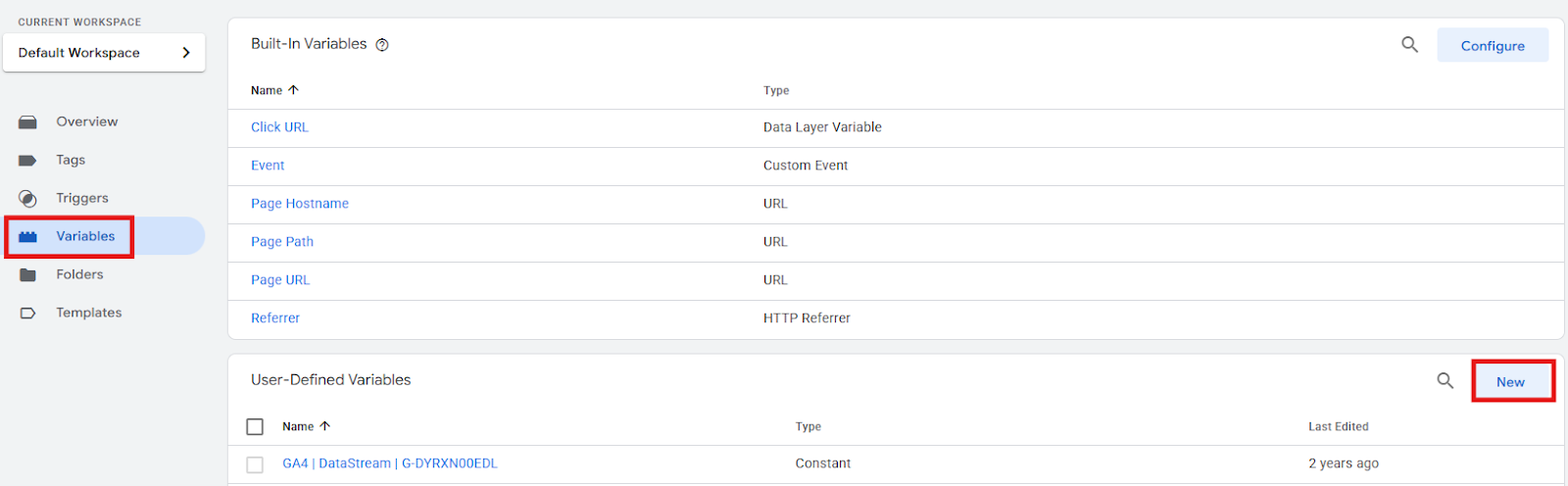
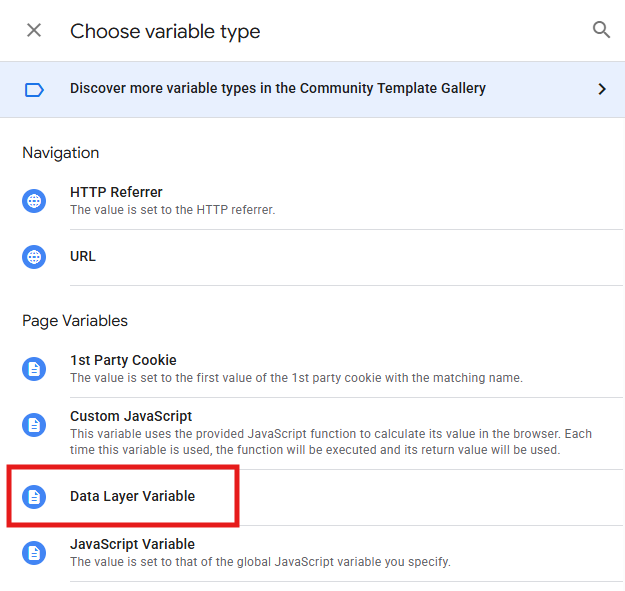
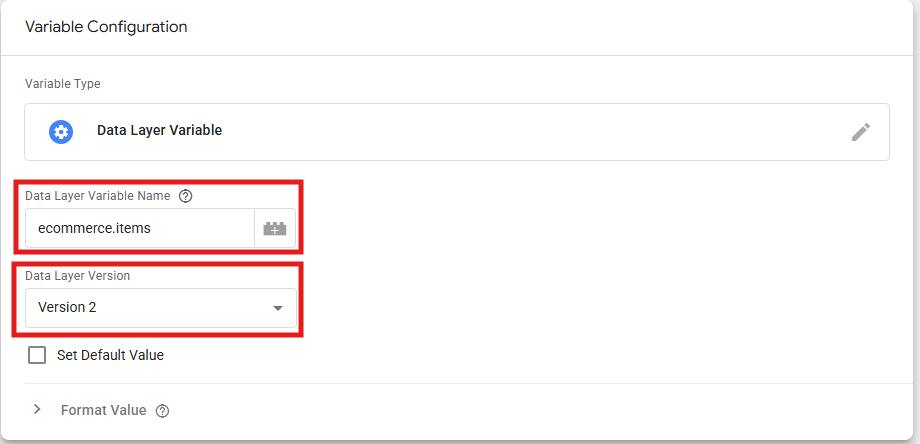
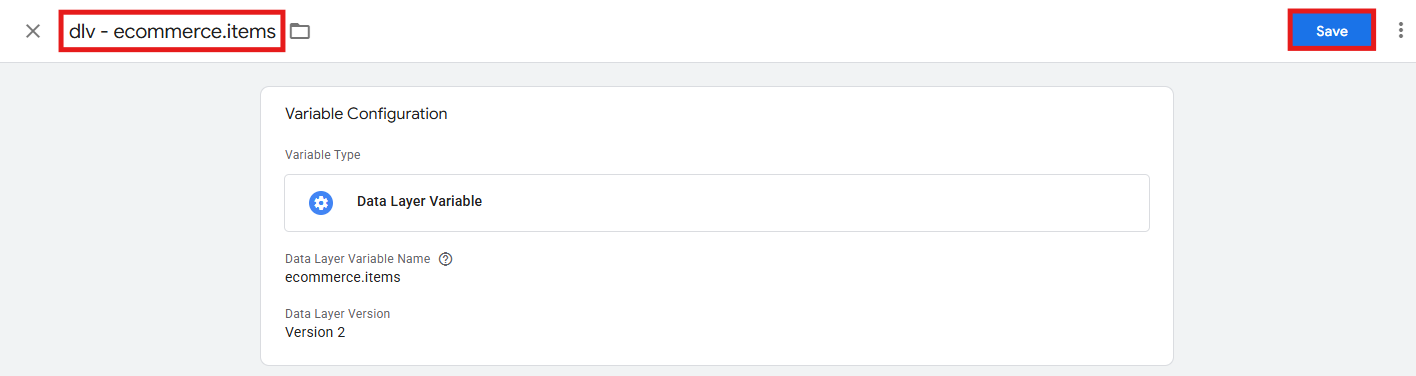
Keep in mind: always use Version 2 for e-commerce variables, because it only reads from the most recent data layer push, while Version 1 uses recursive merge (meaning old values from previous events can contaminate new events).
B) Event-level parameter variables
For parameters outside the items array, create separate variables. Examples include:
Name: dlv - ecommerce.transaction_id
Data Layer Variable Name: ecommerce.transaction_id
Name: dlv - ecommerce.value
Data Layer Variable Name: ecommerce.value
Name: dlv - ecommerce.currency
Data Layer Variable Name: ecommerce.currency
Name: dlv - ecommerce.coupon
Data Layer Variable Name: ecommerce.coupon
Note: advanced users can also use a custom JavaScript variable that returns the entire e-commerce object, avoiding the need to create multiple individual variables. However, the approach shown here is more straightforward for testing and debugging.
C) Creating the GA4 event tags
Now let’s build the tags that send this data to GA4. First, if you don’t already have a Google Tag, create one (this process is described in detail in the article “How to set up Google Tag Manager on your website”).
Then create your e-commerce event tags like this:

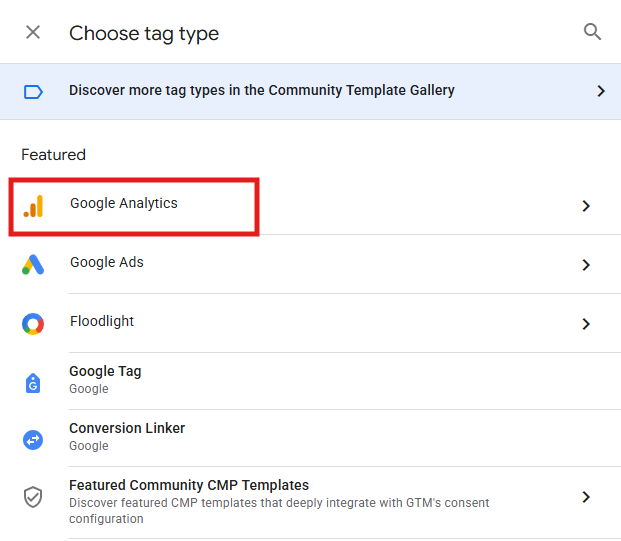
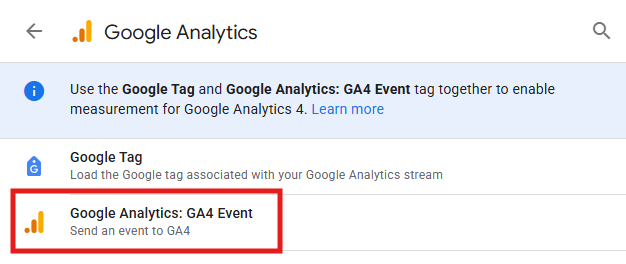
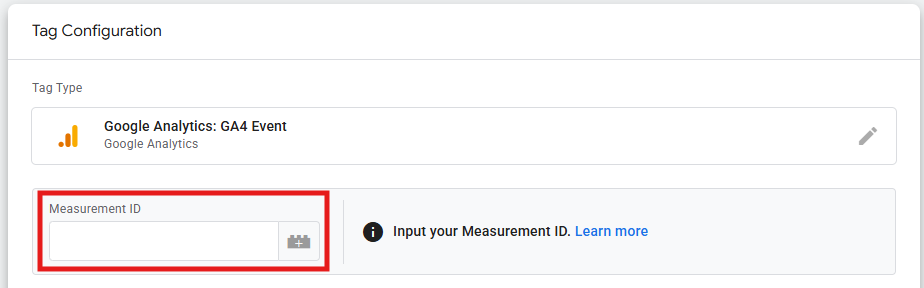
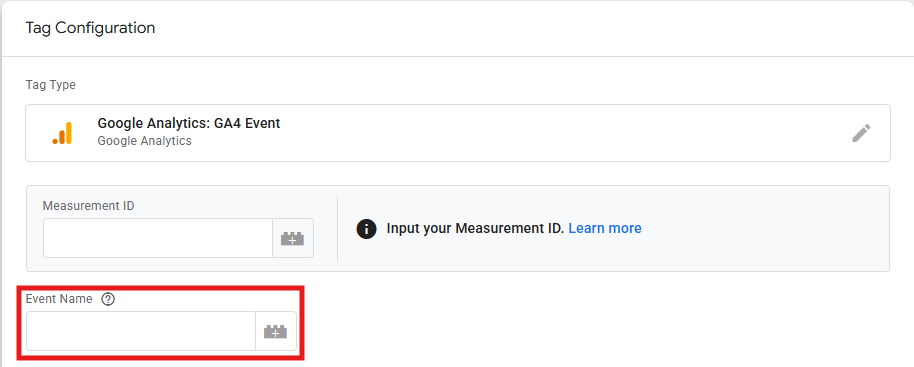
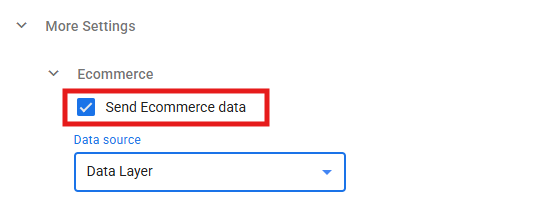
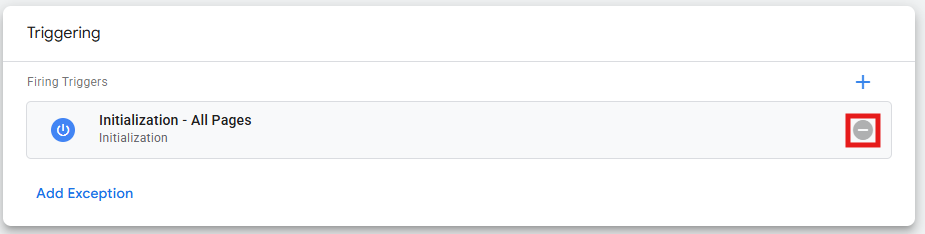

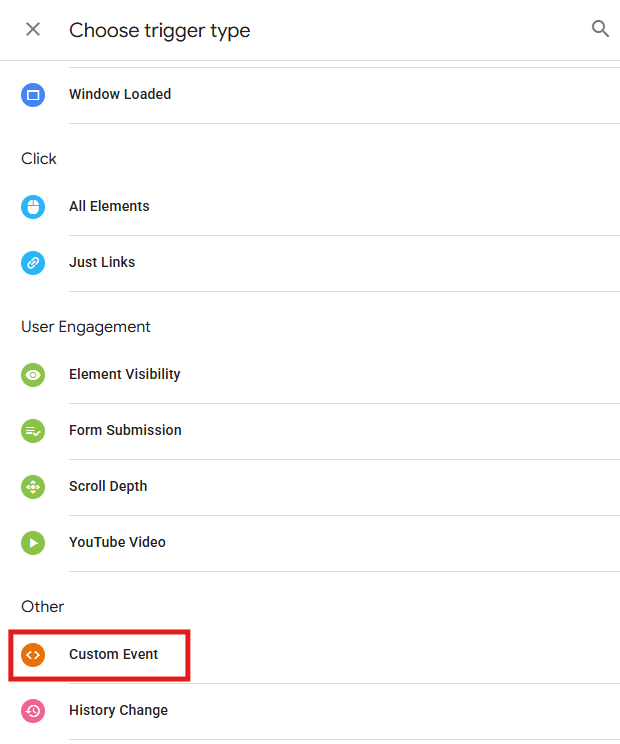
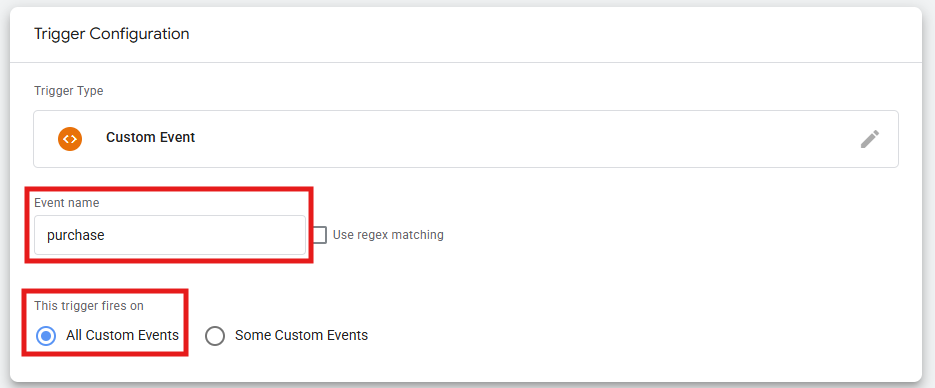
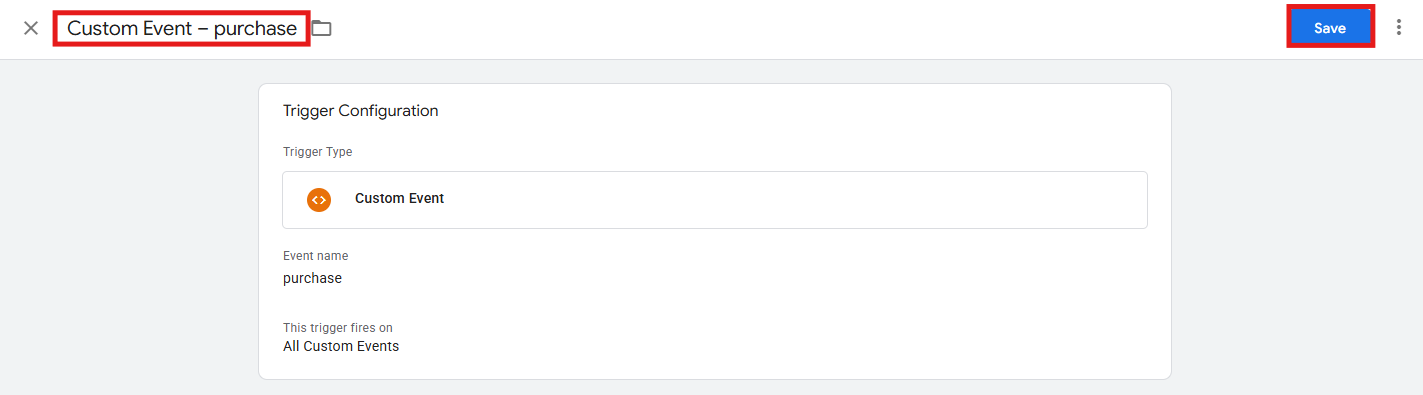
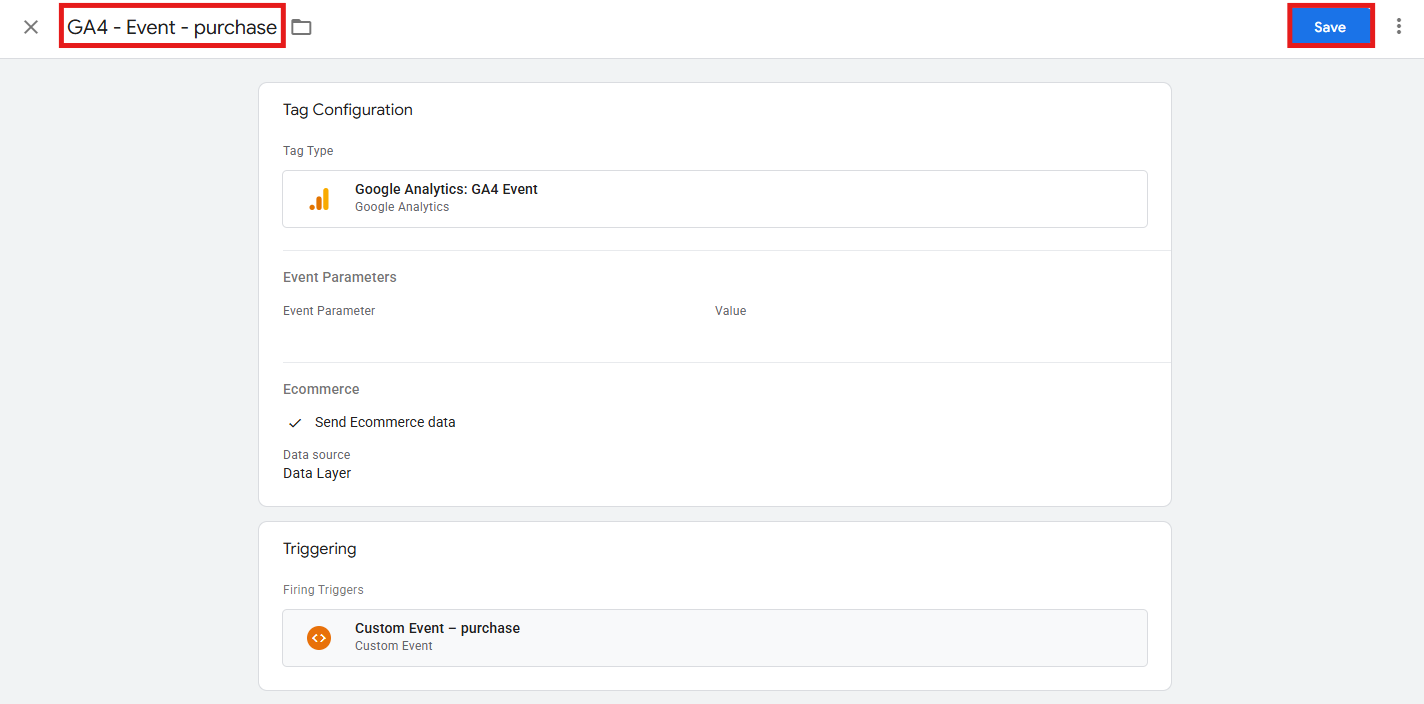
Tip: you have two approaches for managing e-commerce tags – either create one tag per event type, or create a single GA4 Event tag that uses a variable for the event name and dynamically pulls all parameters. We recommend starting with one tag per event, because it’s more straightforward, especially when you’re testing and debugging.
Once you’ve configured your GTM tags, test them before publishing anything:
A) Test in GTM Preview mode
In GTM, click Preview in the top right corner. Enter your website URL and browse to a page where an e-commerce event should fire (like a product page or cart). In the Tag Assistant panel on the left, you’ll see events as they fire. Click on an event (like view_item) and check that your GA4 event tag appears under “Tags Fired”. If it’s under “Tags Not Fired”, check your trigger configuration.
B) Verify data reaches GA4
GTM Preview mode shows that tags fired, but you also need to confirm GA4 actually received the data. In GA4, go to Admin > Data display > DebugView. With GTM Preview mode still active, browse your website and trigger e-commerce events. You should see these events appear in real-time in DebugView, so click on any event to see the associated parameters, items and user properties. Check that all expected parameters appear with correct values. If something’s missing or incorrect, go back to your data layer code or GTM configuration.
C) Check live data
After publishing your GTM container, wait 24-48 hours and check GA4 Reports > Monetization > Ecommerce purchases (for purchase events) or Reports > Monetization > Overview for other e-commerce activity. If data appears in DebugView but not in reports after 48 hours, double-check that you published your GTM container and that the Measurement ID in your tags matches your GA4 property.
Follow these tips and you’ll be able to avoid the most common implementation problems:
For e-commerce events, always use the dataLayer.push() method, because it can add data dynamically after the page loads. It looks something like this:
window.dataLayer = window.dataLayer || [];
window.dataLayer.push({
event: 'add_to_cart',
ecommerce: { /* ... */ }
});
Every e-commerce data layer push must include an event key. GTM Custom Event triggers listen for this event value, so without it, your tags won’t fire:
window.dataLayer.push({
event: 'add_to_cart',
ecommerce: { /* ... */ }
});
Before pushing a new e-commerce event, clear any previous e-commerce data. This is critical because GTM’s data layer uses a merge strategy by default – basically, values persist unless explicitly cleared, causing incorrect data to reach GA4. This two-step push (clear, then add) should happen before every single e-commerce event. It looks like this:
window.dataLayer.push({
ecommerce: null
});
window.dataLayer.push({
event: 'add_to_cart',
ecommerce: { /* new data */ }
});
If you send a parameter for a product in one event, make sure you send it in all events. This matters because GA4’s reports group and filter by these parameters, so inconsistent data means products won’t group correctly in reports. The best approach to ensure consistency is pulling product data from a single source for all events.
GA4 expects specific data formats for certain parameters. For example: numbers/prices must be included without currency symbols; quantity represents whole units, so it must be a whole number; product names, IDs, and other text values should be in single quotes (not double quote marks).
Most of data layer implementation requires developer help – the key, here, is to communicate your vision and goals as effectively as possible. How?
Make a specific request. Don’t just generally say “I need e-commerce tracking”. Give your developer exactly what they need to implement, so:
Now that you’ve got the foundations of how to work with the data layer, here’s how you can put it into practice in a structured and thoughtful way:
Don’t implement all 14 e-commerce events at once and don’t follow the customer journey order. Start with purchase and add_to_cart first, because these are your critical foundation events. Once those are working correctly and you’ve verified revenue tracking matches your actual sales, add view_item and begin_checkout. Finally, expand to the remaining events.
Make sure to do weekly checks on your e-commerce reports in GA4 (to detect anomalies), regularly compare GA4 revenue to your e-commerce platform, verify transaction count, and look for products showing as “(not set)” or missing dimensions. You can also create alerts in GA4 for unusual patterns, such as revenue drops, transaction spikes, etc.
Do it quarterly or whenever your website undergoes major changes. In these audits, re-test all e-commerce events in Preview mode, check for new JavaScript errors affecting the data layer, verify that new products or categories are tracking correctly, and update documentation.
As we’ve seen in article “BigQuery for marketers: what is it and how can it help you?”, BigQuery gives you access to raw, event-level data. So, if you’re serious about e-commerce analytics, use it to analyze customer purchase patterns with SQL, build custom funnel reports (beyond GA4’s limitations), combine e-commerce data with other business data, and create predictive models for customer lifetime value.
Server-side GTM moves data processing from the browser to your own server infrastructure. As we’ve seen in article “How to set up GA4 via GTM server-side tagging”, benefits include improved data accuracy (no ad blockers), better page load performance, enhanced data security, and extended cookie lifespans. This requires technical infrastructure and ongoing costs, so it’s typically relevant for larger e-commerce operations or those with strict data governance requirements.
E-commerce data layer implementation takes effort, but it’s worth the investment and it sure takes your tracking to a whole new level. Our recommendation is: follow the phased approach above, verifying each stage thoroughly before expanding.
With proper data layer implementation, you’ll see exactly which products people viewed before purchasing, how list placement affects conversion rates, and which checkout step loses the most customers. That’s the kind of business intelligence that drives real growth.

Copyright © Better Data Today | Privacy policy | Terms and Conditions