Is your monthly BigQuery bill higher than you’d like? BigQuery gives you a generous amount of usage for free, but costs can go up significantly when you start running regular queries, creating dashboards, and accumulating months of data.
If this is happening to you, don’t worry! Most teams can lower BigQuery costs by 50 to 70% with just a few well-thought-out changes. You won’t need to simplify your analysis or decrease query performance – in fact, these cost-saving changes usually make your queries faster. But first, let’s figure out where your money is being spent and what you can do about it.
Understanding BigQuery pricing
Before you can optimize costs, you need to understand what you’re actually paying for. BigQuery charges for two things:
- Storage: how much data you keep. It can include:
- Active storage: $0.023 (~€0.020) per gibibyte (GiB) per month.
- Long-term storage: $0.016 (~€0.014) per GiB per month.
- First 10 GiB free every month.
- Query processing: how much data your queries scan. It may include:
- On-demand pricing: $6.25 (~€5.33) per tebibyte (TiB) of data processed (standard in most regions).
- BigQuery editions pricing: capacity-based pricing where you pay per slot-hour used (typically makes sense for high-volume, consistent workloads above a few thousand dollars per month).
- First 1 TiB free every month.
What’s completely free?
These are the BigQuery operations you don’t need to account for in any location:
- Batch loading data.
- Exporting data.
- Deleting tables, views, or datasets.
- Queries that result in errors.
- Previewing data (using the Preview tab).
- Metadata operations.
- Cached queries.
What’s the catch?
Query costs add up fast if you’re not careful. A single SELECT * query (simple command to retrieve data from BigQuery) on a year’s worth of GA4 data can easily process 50+ GiB (that’s about $0,30 (~€0.26) per query). Imagine that you run that 100 times a month and you’re looking at $30 (~€25.60) just from inefficient queries.
Storage cost optimization strategies
Storage costs are typically 10-15% of your total BigQuery bill, but they’re the easiest to control. Below are a few proven strategies you can implement.
1) Set expiration period for temporary data
If you’re creating staging tables or test datasets, set an expiration date so they don’t sit around costing you money indefinitely. To do that:
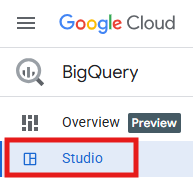
- In your Google Cloud Console, go to BigQuery Studio.
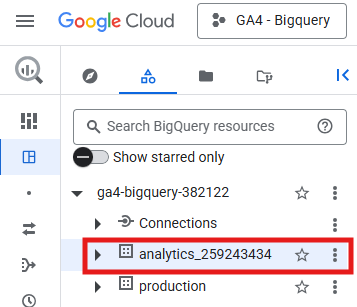
- Select the dataset you wish to configure.
- In the Details tab, click Edit Details (pencil icon).

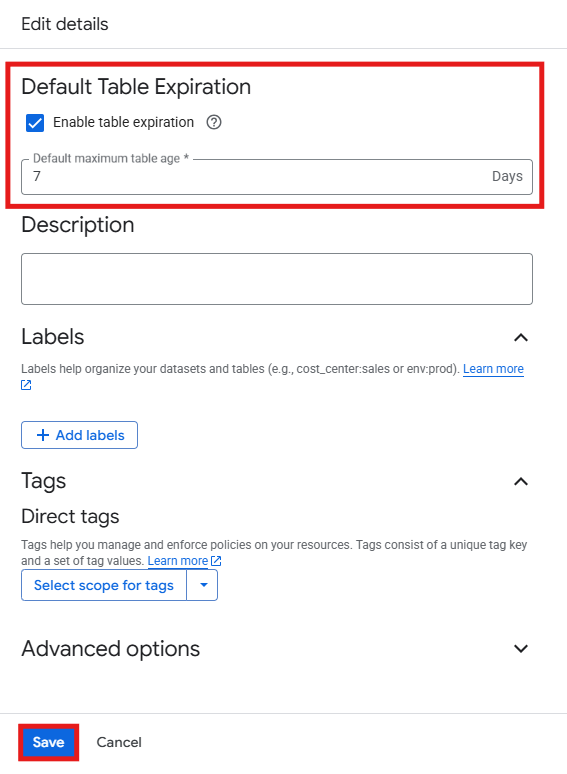
- Under Default Table Expiration, make sure the “Enable table expiration” box is checked and then enter the number of days (e.g., 7 for 7 days). In the end, Save.
2) Use automatic long-term storage discounts
Did you know that if you don’t touch a table for 90 consecutive days, BigQuery automatically cuts your storage cost by 50%? However, any change you make resets that 90-day timer. If you have older tables and want to add data to them, it’s better to add to a totally new partition within the table, rather than modifying old ones.
3) Switch from logical bytes to physical bytes billing
This is a great way to reduce costs for GA4 data, but most marketers don’t do it. By default, BigQuery charges for logical bytes (the uncompressed size of your data). However, BigQuery itself stores the data in a much, much smaller, compressed form. That’s like being charged for a massive apartment when your furniture only occupies one room.
With physical bytes billing, you pay for the actual compressed size. Physical bytes cost $0,04 (~€0.034) per GiB (compared to the logical rate of $0.023 (~€0.020) per GiB), but because GA4 data compresses so well, you typically save 60-80% on storage costs. This table clarifies the key differences:
| Logical bytes billing | Physical bytes billing | |
|---|---|---|
| What you’re charged for | Uncompressed data size | Actual compressed size on disk |
| Active storage cost | $0.023/GiB per month | $0.04/GiB per month |
| Long-term storage cost | $0.016/GiB per month | $0.02/GiB per month |
| Cost per GiB | Lower | Higher (double) |
| Total cost for GA4 | Higher | Lower (due to compression) |
How to switch to physical bytes billing:
First of all, keep in mind that this is a one-way change, so you can’t switch back to logical billing. If you consider that it’s a change worth making, follow these steps:
- Check your compression ratio.
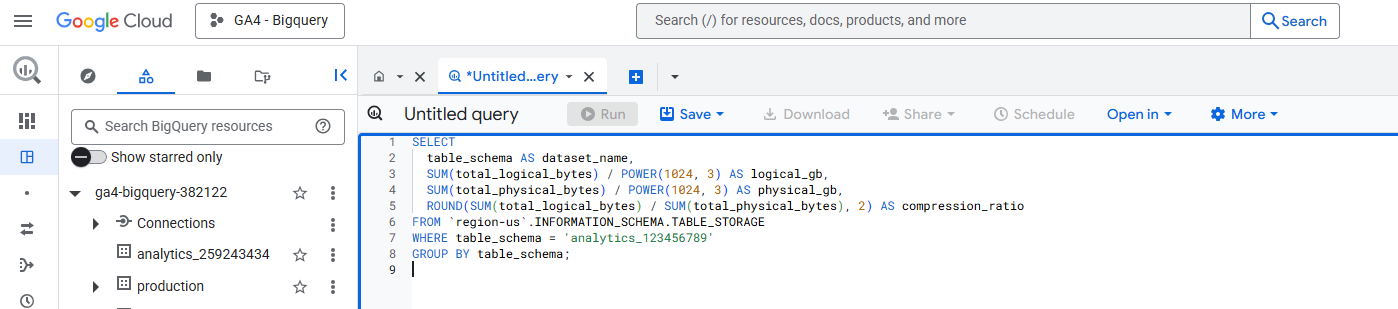
Open BigQuery Studio and run the following query to see how much your GA4 data actually compresses (don’t forget to replace “analytics_123456789” with your GA4 dataset name):
SELECT
  table_schema AS dataset_name,
  SUM(total_logical_bytes) / POWER(1024, 3) AS logical_gib,
  SUM(total_physical_bytes) / POWER(1024, 3) AS physical_gib,
  ROUND(SUM(total_logical_bytes) / SUM(total_physical_bytes), 2) AS compression_ratio
FROM `region-us`.INFORMATION_SCHEMA.TABLE_STORAGE
WHERE table_schema = 'analytics_123456789'
GROUP BY table_schema;
- Calculate your savings
If your compression ratio is above 2x, you’ll save money:
- Compression ratio of 10x = ~80% savings.
- Compression ratio of 5x = ~60% savings.
- Compression ratio of 2x = break-even (no savings, but no loss).
Here are a few real-world examples with typical GA4 compression (10x ratio):
| Data volume | Logical billing | Physical billing | Savings |
|---|---|---|---|
| 100 GiB logical > 10 GiB physical | 100 GiB × $0.023 = $2.30/month | 10 GiB × $0.04 = $0.40/month | 80% |
| 500 GiB logical > 50 GiB physical | 500 GiB × $0.023 = $11.50/month | 50 GiB × $0.04 = $2.00/month | 80% |
| 1 TiB logical > 100 GiB physical | 1,000 GiB × $0.023 = $23.00/month | 100 GiB × $0.04 = $4.00/month | 80% |
- Switch to physical bytes billing
Once you’ve confirmed it makes sense, run this command:
bq update -d --storage_billing_model=PHYSICAL your-project-id:analytics_123456789
Don’t forget to replace “your-project-id” with your actual Google Cloud project ID and “analytics_123456789” with your GA4 dataset name.

4) Delete data you don’t need
Sounds obvious, but really take some time to ask yourself: do I really need five years of raw GA4 data in BigQuery? Most marketing analysis focuses on the last 12-24 months, so consider archiving older data to Cloud Storage or deleting it entirely. You can always keep aggregated summaries of historical data while removing the raw event-level details.
Query cost optimization strategies
Query processing typically accounts for 85-90% of BigQuery costs, so this is where the real savings happen. Here are a few proven strategies you can leverage:
1) Stop using SELECT *
SELECT * is the single most expensive habit in BigQuery. Imagine your GA4 table has 50 columns, but you only need five for your dashboard: SELECT * forces BigQuery to read all 50 columns and charge you for it, even though you’re immediately throwing away 45 of them. What you can do to make this process much more efficient and cost-effective is select only the specific columns you actually need for your analysis.
Example:
-
Costly query (processes 2.5 GiB)
SELECT * FROM `project.analytics_123456789.events_20241201` WHERE event_name = 'page_view'; -
Optimized query (processes 0.3 GiB)
SELECT
  event_timestamp,
  user_pseudo_id,
  event_name,
  (SELECT value.string_value
   FROM UNNEST(event_params)
   WHERE key = 'page_location') AS page_url
FROM `project.analytics_123456789.events_20241201`
WHERE event_name = 'page_view';
It’s the same query but with 8x less data processed, which means an immediate 8x cost reduction.
2) Filter by date using _TABLE_SUFFIX
GA4 exports create daily tables named like events_20260102, events_20260204, etc. So, when querying multiple days, use _TABLE_SUFFIX to limit which tables BigQuery scans.
Example:
-
Costly query (scans the entire year, 365 tables)
SELECT * FROM `project.analytics_123456789.events_*` WHERE event_date >= '20260102'; -
Optimized query (only scans the last 30 days)
SELECT *
FROM `project.analytics_123456789.events_*`
WHERE _TABLE_SUFFIX BETWEEN
  FORMAT_DATE('%Y%m%d', DATE_SUB(CURRENT_DATE(), INTERVAL 30 DAY))
  AND FORMAT_DATE('%Y%m%d', CURRENT_DATE());
This technique alone can reduce query costs by 90% if you’re typically analyzing recent data rather than entire historical datasets.
3) Create flattened tables for dashboards
GA4’s raw export uses nested event_params arrays, which means every query has to unnest those arrays to access parameters like page_location or session_id. This process is computationally expensive, but luckily, the solution is simple: create a daily job that flattens the most important event parameters into columns, which then creates a session-level or user-level summary table.
Example of daily flattening query:
CREATE OR REPLACE TABLE `project.dataset.sessions_daily`
PARTITION BY session_date
CLUSTER BY user_pseudo_id, source, medium
AS

SELECT
  PARSE_DATE('%Y%m%d', event_date) AS session_date,
  user_pseudo_id,
  (SELECT value.int_value
   FROM UNNEST(event_params)
   WHERE key = 'ga_session_id') AS session_id,
  (SELECT value.string_value
   FROM UNNEST(event_params)
   WHERE key = 'source') AS source,
  (SELECT value.string_value
   FROM UNNEST(event_params)
   WHERE key = 'medium') AS medium,
  COUNTIF(event_name = 'page_view') AS pageviews,
  COUNTIF(event_name = 'purchase') AS conversions,
  SUM(ecommerce.purchase_revenue) AS revenue
FROM `project.analytics_123456789.events_*`
WHERE _TABLE_SUFFIX = FORMAT_DATE('%Y%m%d', DATE_SUB(CURRENT_DATE(), INTERVAL 1 DAY))
GROUP BY session_date, user_pseudo_id, session_id, source, medium;
This query processes data once per day. Then your dashboards query the clean, flattened table instead of the raw GA4 export, reducing query costs by 70-90%.
4) Use partitioning and clustering on aggregated tables
If you’re creating your own summary or session-level tables, always partition them by date and cluster by high-cardinality fields. Partitioning is like filing your data into separate folders by date – when you need January’s data, BigQuery opens just the January folder instead of searching through the entire filing cabinet. Clustering then organizes items within each folder, making specific searches even faster. If you combine both techniques, you can reduce query costs by 50-90%, depending on your filtering patterns.
5) Leverage query result caching
BigQuery automatically caches query results for 24 hours, which means that if someone runs the exact same query within that window, BigQuery serves the cached result at no cost. This is particularly useful for dashboards accessed by multiple team members, so make sure caching is enabled (it’s on by default) and encourage your team to reuse queries rather than writing slightly different variations.
Keep in mind: caching is defined per-user and per-project by default. To share cache across users, have everyone use a single service account for dashboard queries.
6) Preview data instead of querying
When exploring a table structure or checking recent data, use the Preview tab in BigQuery’s console instead of running SELECT * LIMIT 10. Previews are completely free and don’t count against your query quota.
Setting up cost controls and monitoring
You’re now aware of storage and query processing cost optimization strategies, but that doesn’t mean you shouldn’t implement cost controls right from the start. These are a few worth mentioning:
1) Set maximum bytes billed limits
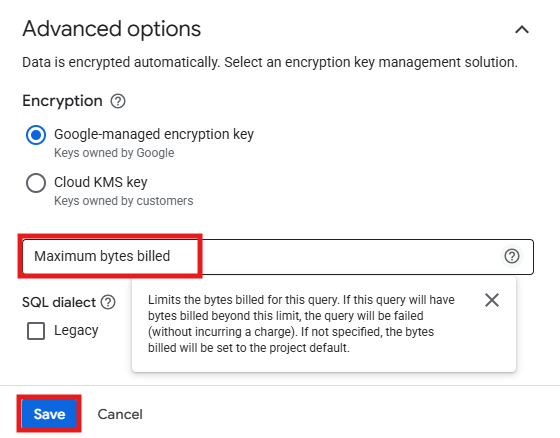
BigQuery lets you set a maximum number of bytes a query can process. If a query would exceed that limit, it fails before processing any data and before charging you anything. To do that:
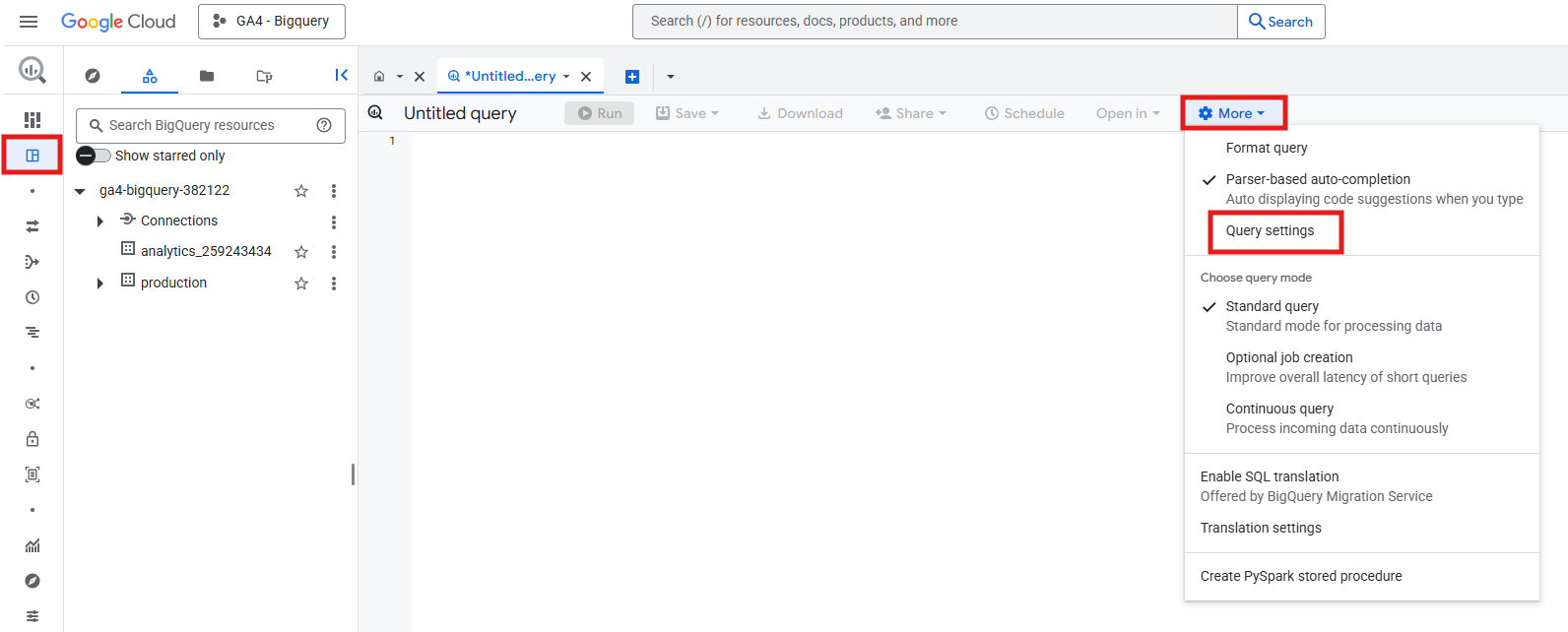
- In BigQuery Studio, go to More > Query settings.
- Scroll down and, under Advanced options, look for a section called “Maximum bytes billed”. Set a custom bytes limit – a reasonable starting point is 100 GiB per query, which prevents accidental full-table scans while allowing most queries to run. Then, Save.
2) Create budget alerts in Google Cloud
This is a very simple and effective measure. In the Google Cloud Console, do as follows:
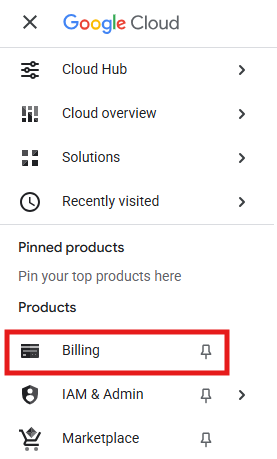
- Click the navigation menu (three horizontal lines in the top-left corner).

- Go to Billing.
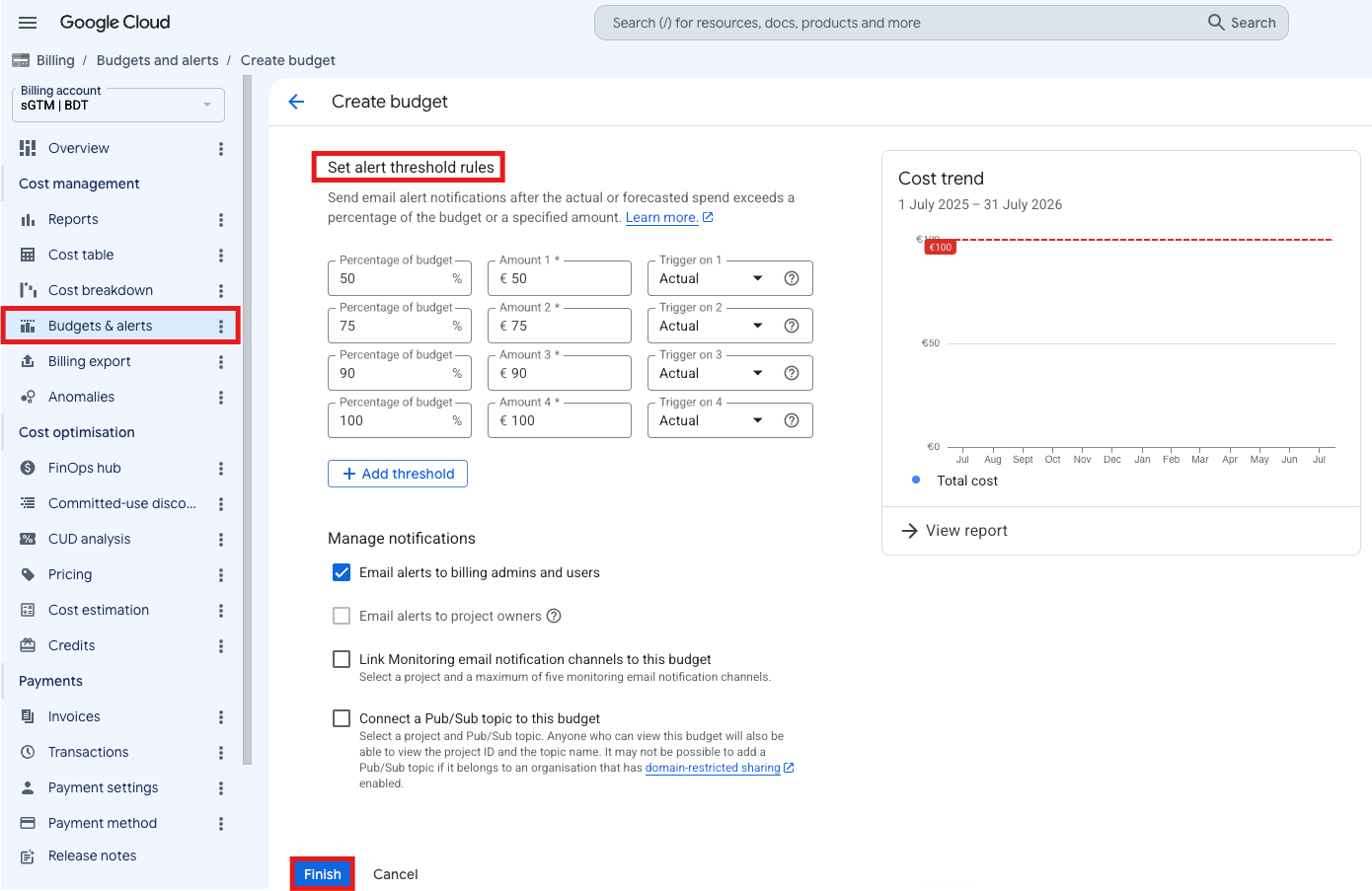
- Click Budgets & alerts and set up alerts at different thresholds (e.g., 50%, 75%, 90% of your monthly budget). This way, you’ll get email notifications before costs get out of hand.
3) Require partition filters on tables
For partitioned tables, you can enforce that all queries must include a partition filter. This prevents anyone from accidentally querying years of data when they only needed a week. Example:
ALTER TABLE `project.dataset.table_name`
SET OPTIONS (require_partition_filter = TRUE);
4) Monitor costs with INFORMATION_SCHEMA
BigQuery’s INFORMATION_SCHEMA views let you track query costs over time. Run the following command monthly to identify which team members or queries are driving the most cost, then provide targeted coaching on optimization techniques:
SELECT
  user_email,
  SUM(total_bytes_processed) / POWER(1024, 4) AS total_tib_processed,
  SUM(total_bytes_processed) / POWER(1024, 4) * 6.25 AS estimated_cost_usd
FROM `region-us`.INFORMATION_SCHEMA.JOBS_BY_PROJECT
WHERE creation_time >= TIMESTAMP_SUB(CURRENT_TIMESTAMP(), INTERVAL 30 DAY)
  AND job_type = 'QUERY'
  AND state = 'DONE'
GROUP BY user_email
ORDER BY total_tib_processed DESC;
A practical cost optimization workflow
Let’s put this all together into a concrete implementation plan for GA4 data:
Day 1
Switch to physical bytes billing
Run the compression ratio query from the physical bytes billing section. If your ratio is above 2x, switch your GA4 dataset to physical bytes billing, which typically saves 60-80% on storage costs immediately.
Week 1
Create your flattened session table
Identify the 10-15 event parameters you use most often in analysis. Write a query (using BigQuery's scheduled queries feature) that flattens these parameters daily into a session-level table. Partition by date, cluster by user_pseudo_id and your top traffic dimensions (source, medium, campaign).
Week 2
Update dashboards to use flattened tables
Point your dashboards and regular reports to the flattened session table instead of the raw GA4 export. This is where you'll see the biggest query cost reduction, often 70-90%.
Week 3
Audit and optimize ad-hoc queries
Use the INFORMATION_SCHEMA query above to identify your team's most expensive queries. Work with heavy users to optimize their queries using the techniques we've covered.
Ongoing
Set up cost monitoring
Configure budget alerts, set maximum bytes billed limits, and review your billing dashboard monthly.
When to consider BigQuery editions
Most marketing teams should stick with on-demand pricing, because it’s simpler and the free option is quite generous. However, if you have high-volume workloads and your monthly BigQuery bill consistently exceeds a few thousands, it’s worth evaluating BigQuery editions.
There are three to choose from:
-
Standard
Flexible capacity with no baseline commitment (autoscaling only), so you only pay for the slots you use. It’s best for development, testing, and workloads with unpredictable patterns. Limited to 1,600 slots per reservation and lacks BigQuery ML support.
-
Enterprise
All the Standard features plus guaranteed baseline slots with autoscaling, no slot limits. Includes BigQuery ML, enhanced security controls, VPC Security Controls, and zone-level compute redundancy and disaster recovery. Commitments available with 20% (1 year) or 40% (3 years) discounts.
-
Enterprise Plus
Everything in Enterprise with customer-managed encryption keys, compliance controls, and region-level compute redundancy and disaster recovery.
Example: if you’re processing more than 2 petabytes (PB), approximately 2000 TiB, of data per month at $6.25 (~€5.33) per TiB (approximately $12,500 (~€10,668) monthly on-demand), Enterprise edition with a commitment could reduce your costs while providing additional features.
Tip: you can also use a hybrid approach, which includes editions for predictable production workloads and on-demand for ad-hoc analysis.
Where to start if you’re new to BigQuery?
There are different ways to make BigQuery cheaper, so you don’t have to follow all of them at once. If you’re fairly new to this, start with whatever is costing you the most and prioritize based on how much you’re spending:
- If storage costs are the highest: switch to physical bytes billing, set table expirations, and get rid of older data you don’t need.
- If query costs are the highest (most common): stop using SELECT *, create flattened session tables, and use _TABLE_SUFFIX to filter by date.
- If you’re just getting started: set up cost monitoring first, including budget alerts and limits to how much a query can cost. Then optimize little by little, beginning with the queries and dashboards you use most.
Within a month, you should find BigQuery costs much easier to understand and control, and significantly cheaper.