Google Search Console and GA4 are essentially two sides of the same coin. GSC tells you how people find your website, and GA4 reveals what they do once they arrive. Using both gives you a complete picture of your website’s performance and helps answer questions like: what search terms bring visitors? Which pages appear in searches but don’t convert? And where should I focus on improving content or UX first?
We’ll show you how to link a GA4 web stream to your Search Console account and how to make GSC reports appear inside GA4. This will help you plan your next steps for content and marketing.
Why link GA4 to Search Console?
If you can see your Search Console data – such as queries (search terms), impressions, and clicks – within GA4, you’ll know what people were looking at in Google before they clicked on your website. That information is really valuable for working out next steps, for example:
- Ideas for new content.
- Keywords to use on your existing or future pages.
- Marketing strategies and how much to spend on increasing website traffic.
How to link GA4 to GSC?
1) Prerequisites
This is a fairly simple process, but you must meet a few conditions first. Make sure:
- Your GA4 property has at least one web data stream.
- You have either Admin or Editor access to the GA4 property.
- You are a verified owner or have full user access to the Search Console property.
- Both your GA4 and GSC properties are collecting data from the same website/source.
2) Implementation
Now, follow these steps:
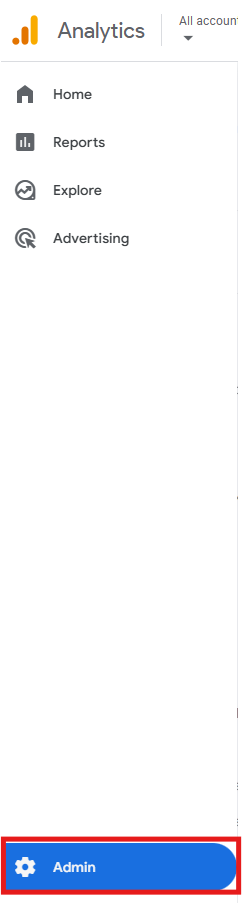
- In your GA4 property, in the main menu on the left, go to Admin.
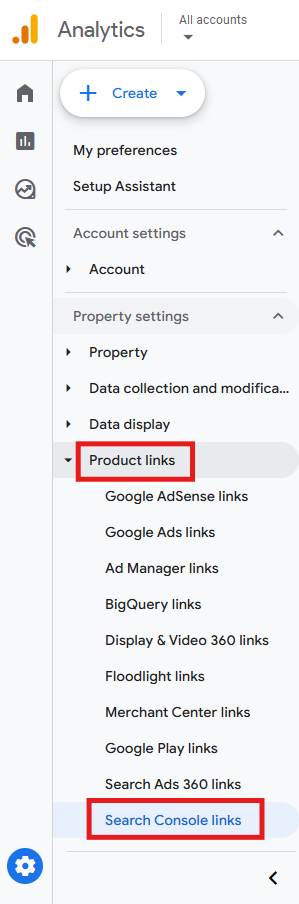
- Go to Product links > Search Console links.
- Click on Link.

- Click on Choose accounts.
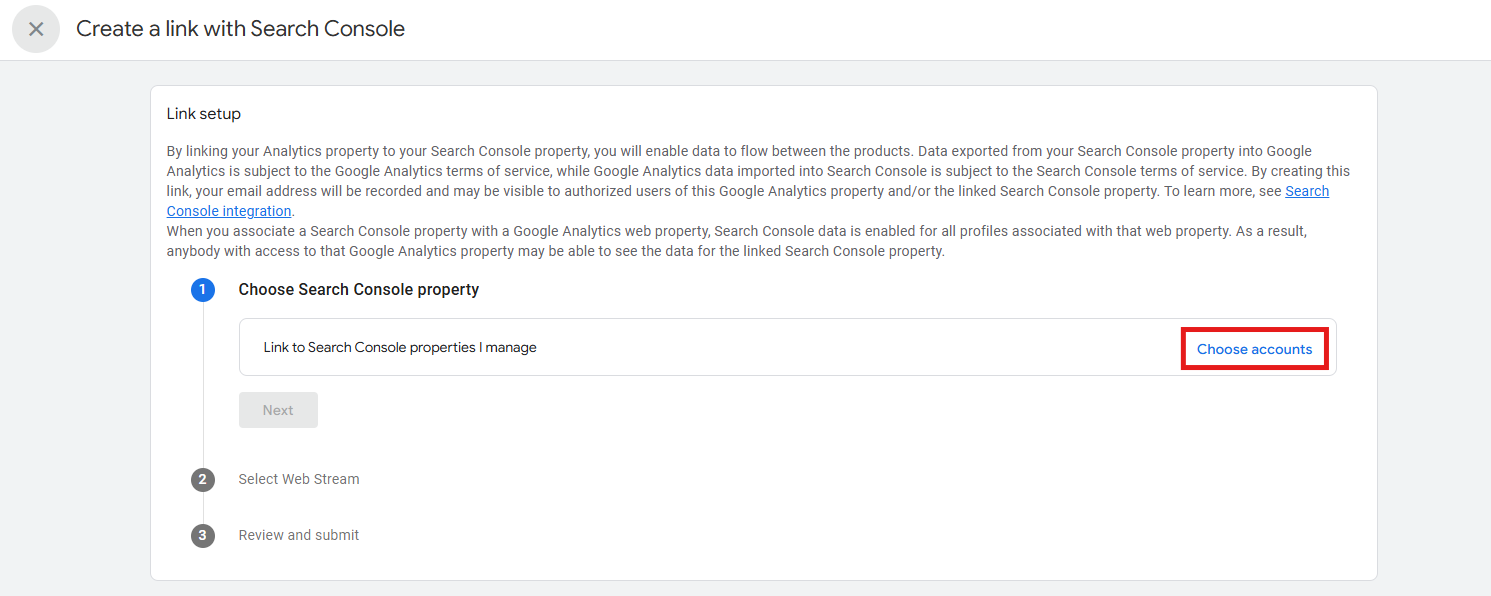
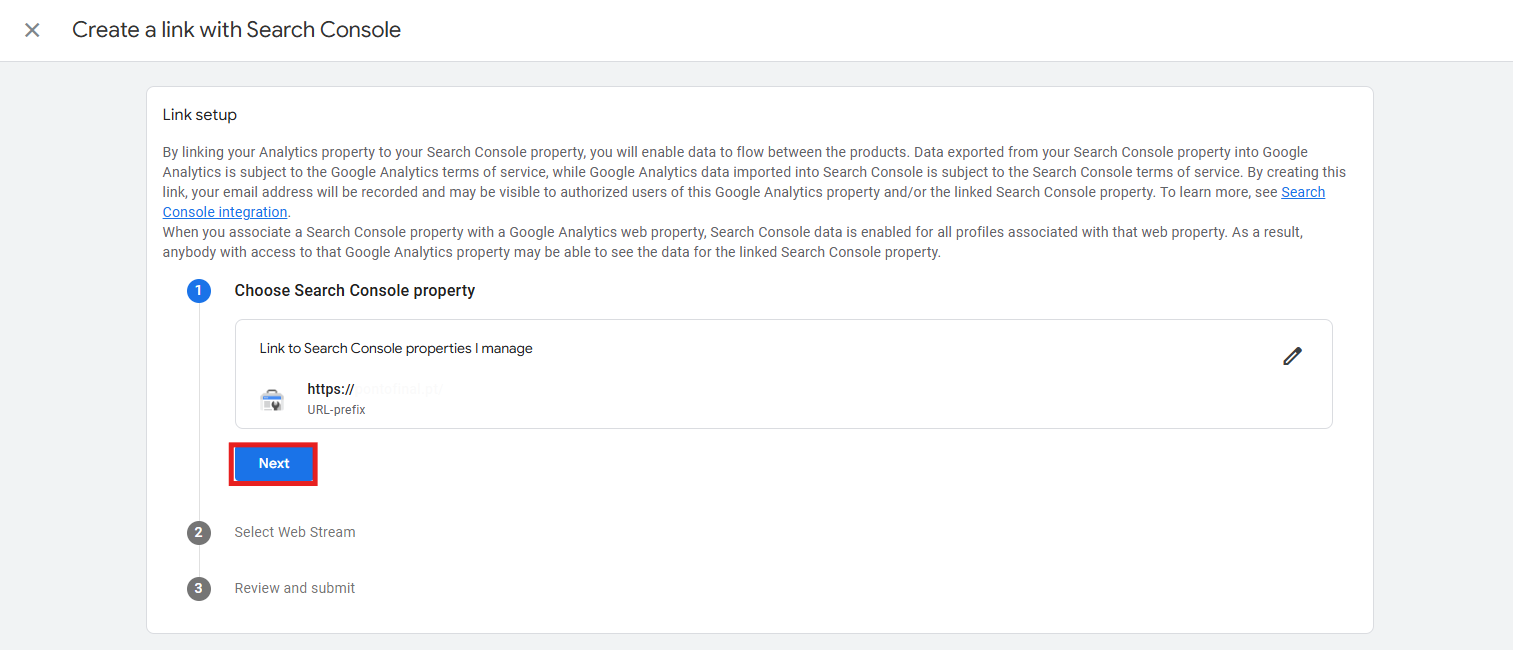
- Select the Search Console property you want and click Confirm.

- Click Next.
- Select a web stream.
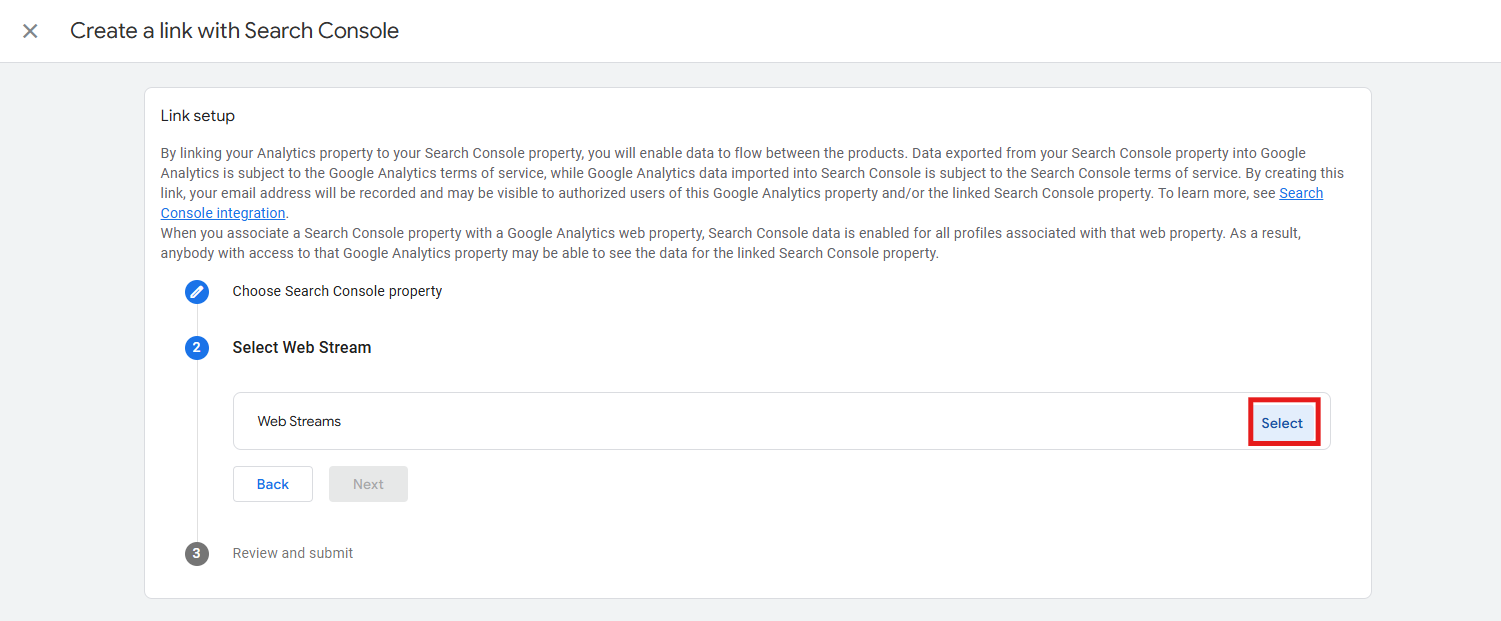
- Click on the web stream you want.

- Click Next.
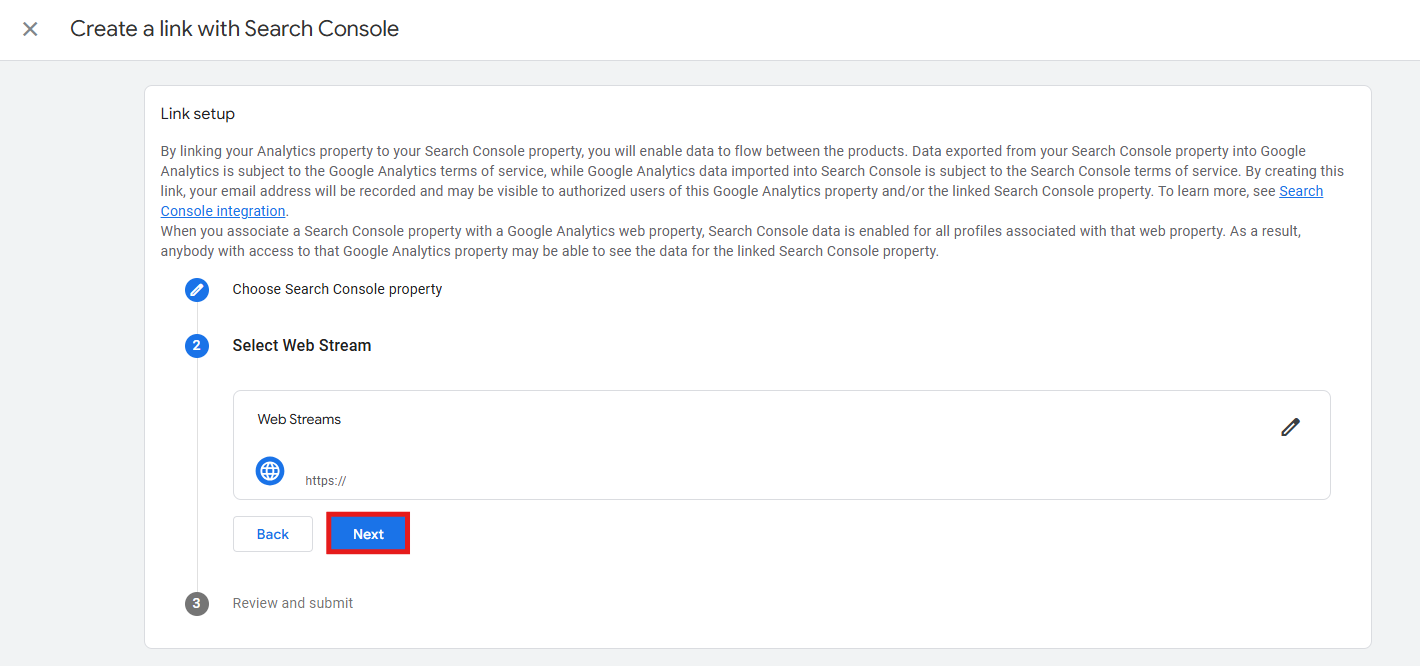
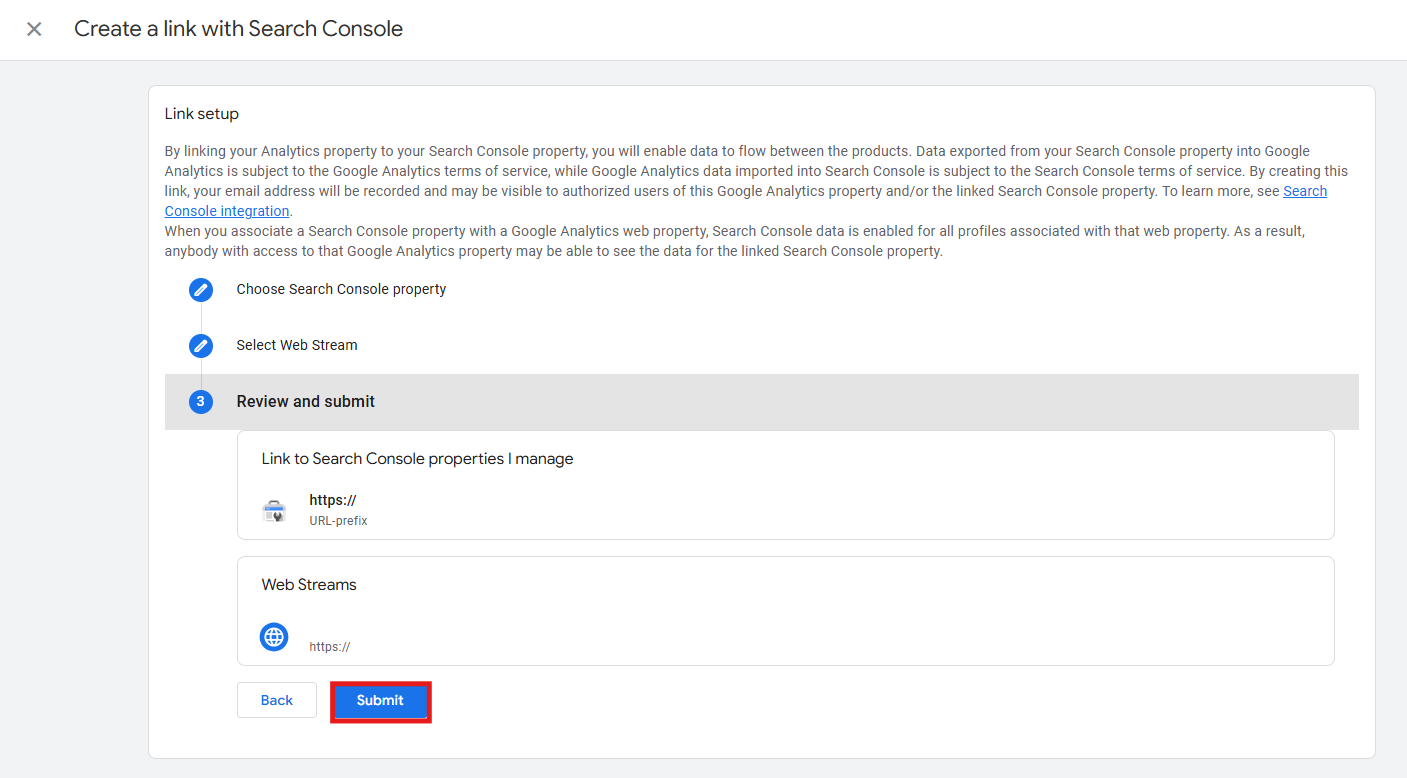
- Review your configuration and hit Submit.
- You’ll see a confirmation message saying Link Created.
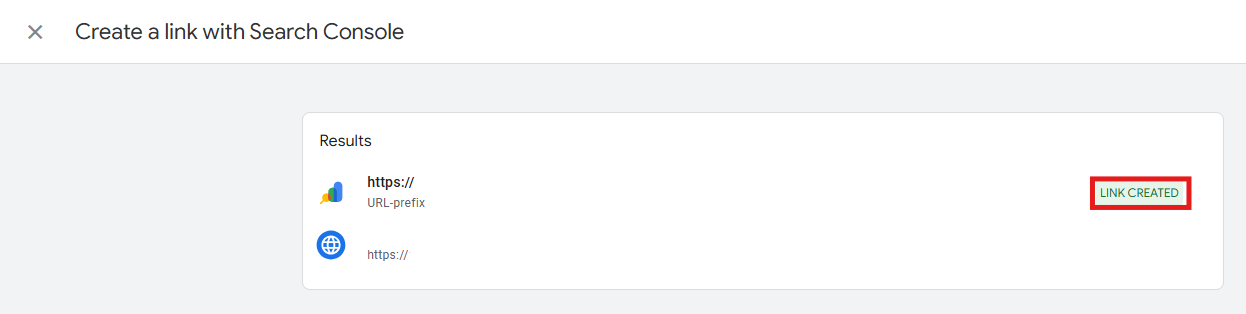
- Close that window and you should now see, in the list of Search Console links, the one you just created. The “link” button is now unclickable because you can only link a GSC property to one web data stream at a time, and vice-versa.

Keep in mind: you can’t edit a GSC link. If you need to make changes, you have to delete the existing link and create a new one.
How to get Search Console data in GA4 reporting
By default, GSC reports are not published in GA4. If you wish to do so, follow these simple steps:
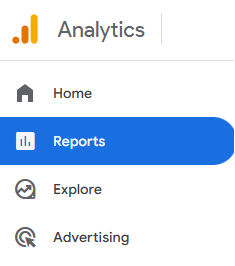
- In your GA4 property, in the main menu, click on Reports.
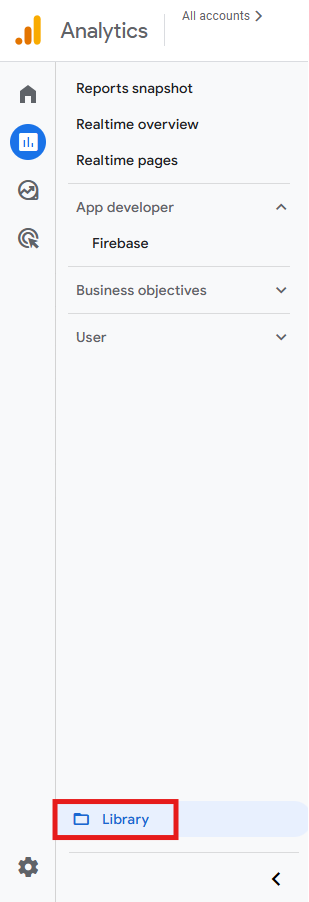
- Go to Library.
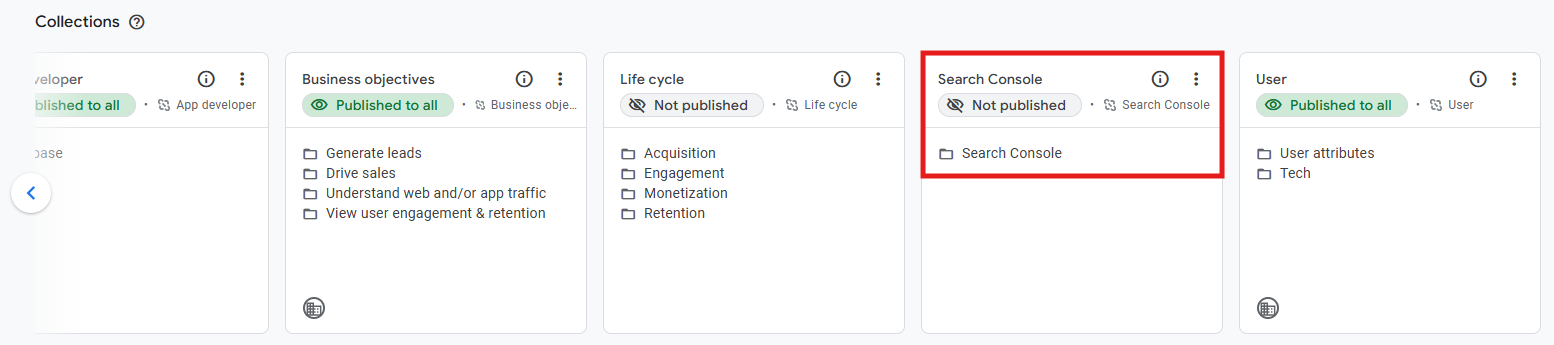
- Under Collections, search for a collection called Search Console (you may need to scroll to the right to see it).
- To publish that collection, click on the three dots symbol and then Publish.
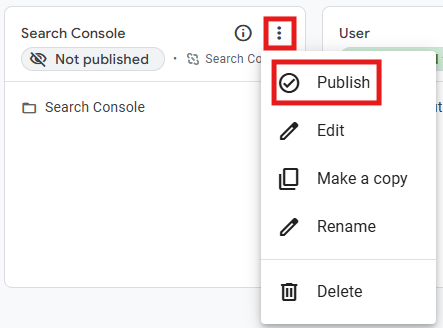
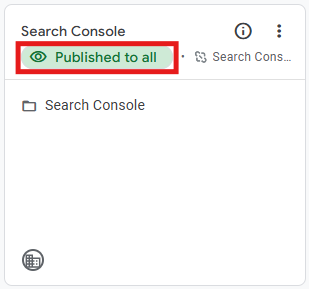
- Afterwards, you should see that collection identified as Published.
- In the menu, on the left-hand side, you should also see a new Search Console menu, where two reports are now available: Queries and Google organic search traffic.
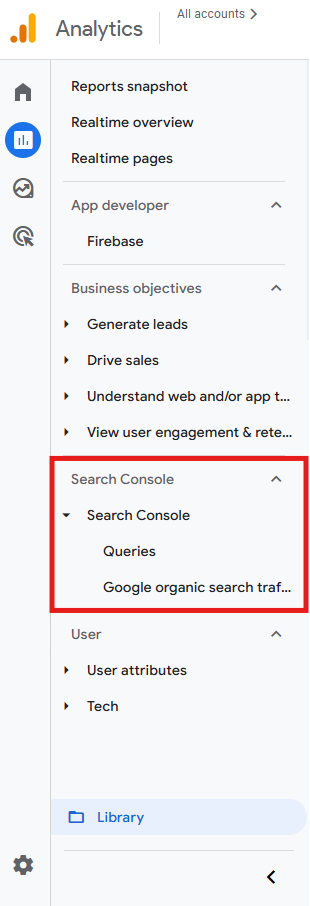
The queries report will help you find keyword gaps, while the Google organic search traffic report will show you landing pages that get traffic but don’t convert. If you pair these with GA4’s engagement reports, you’ll get incredibly valuable information.
Keep in mind: after connecting a GA4 property to a Search Console account,expect a few days before data starts appearing in GA4 reports. This is because Search Console needs time to collect the data first, then an additional 48 hours to sync it to GA4.
Final thoughts
Connecting your GA4 to Google Search Console is really easy, and the benefits are almost immediate. It not only shows you what visitors do on your website but also how they found it in the first place.
If you want to improve your ranking in Google (or other browsers’) search results, this is a hugely important piece of information.