You might have noticed something different in GTM’s interface recently. The overview page looks cleaner, part of the main menu is hidden behind a “Show more” toggle, and there’s a banner prompting you to “optimize” your container. Here’s what’s actually going on: Google is merging its two tagging products, the Google tag and Google Tag Manager, into a single platform. As part of that, your Google tags are being upgraded so they can work as GTM containers.
It sounds like a big shift, but what matters most for your daily work is that the technical upgrade is optional, so nothing changes until you choose to do it. While the new interface look applies to every container automatically, the structural changes to how your container works only happen if you want to.
To help you decide whether or not to commit to this upgrade, let’s go over what’s changing, what stays the same, and what the smart move is for your specific situation.
What is Google actually changing?
For years, the Google tag (the gtag.js snippet) and Google Tag Manager have been distinct products that shared the same domain. The update introduced in May 2026 unifies them into a single deployment model: in other words, Google tags are being upgraded to fully capable GTM containers. This means that a website with nothing but a plain Google tag can access the entire GTM interface and toolkit, including debugging tools and version control, without having to reinstall anything.
There are three elements to this update:
- A simplified User Interface (UI): it includes a redesigned overview page and a collapsible navigation menu.
- Container optimization: the opt-in structural change that impacts how your container sends data.
- Visual tagging: a codeless way to build events by clicking on live site elements.
Each of these elements may impact you differently depending on how you work, so let’s look at them carefully, one at a time.
1) What’s different in the new GTM interface?
The UI changes are making their way to all GTM containers, regardless of your decision on the Google tag update. Two things are worth noting:
-
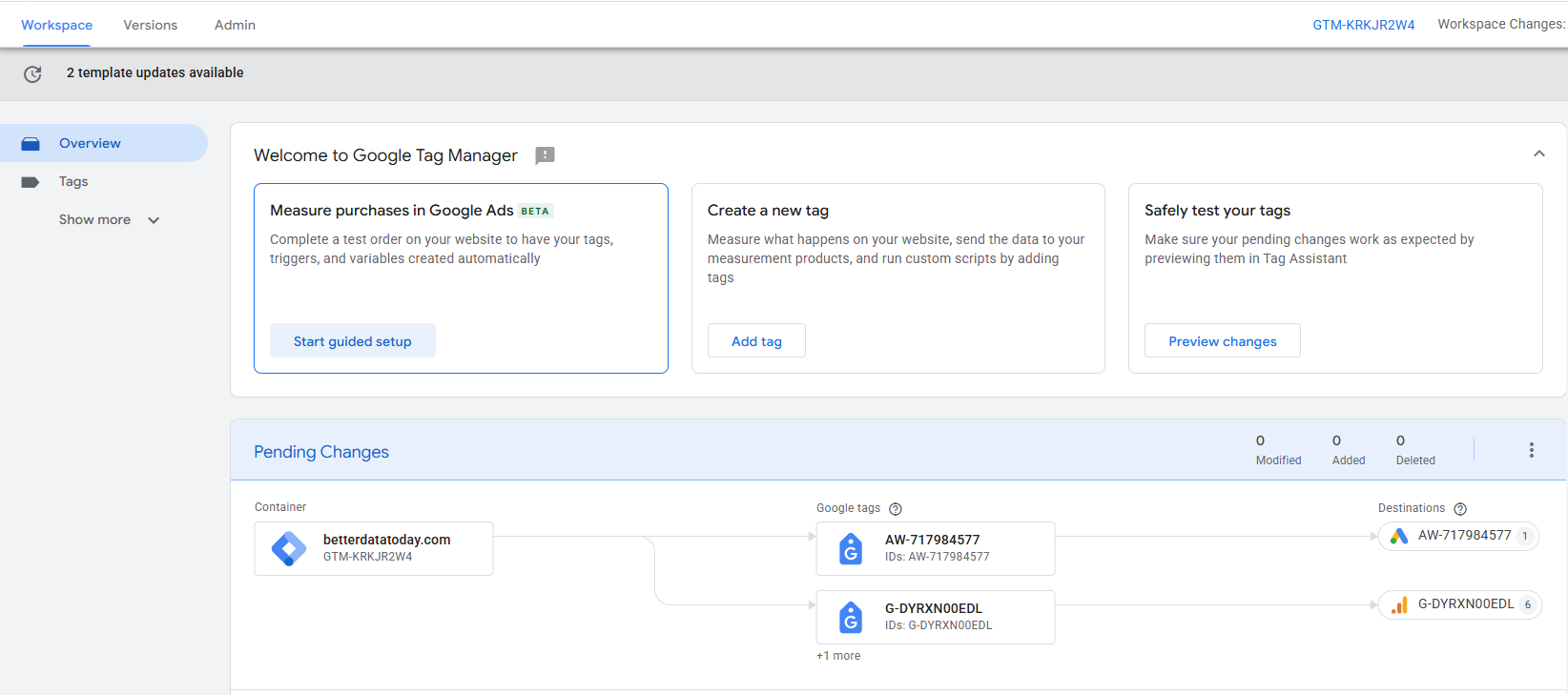
The overview dashboard is more condensed
Where there were once several blocks taking up space on the page, you now find a single table showing modified, added, and deleted entities in your current workspace, along with a view of your Google tags and their destinations. Once those tags are upgraded, the destination map is especially useful to get a quick picture of your data flow.
-
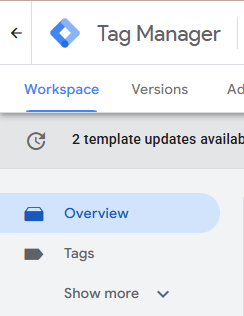
The left navigation is collapsible
By default, only “Overview” and “Tags” are visible; everything else (triggers, variables, folders, templates) is hidden behind a “Show more” toggle. However, your choice sticks until you decide to change it, meaning that if you click “Show more” once, the menu stays expanded until you decide to collapse it again.
2) What happens if you opt into the Google tags update?
If and when you accept the optimization prompt, GTM restructures how your Google tags deliver data. Under the previous system, each Google tag in your container loads gtag.js as an extra library to reach its Google destination, on top of the container script itself.
After the optimization, the container sends data directly to the Google destinations through a single container file – this removes the extra gtag.js loads that were a source of latency. Simply put, fewer scripts loading means a faster page, which is a big win for websites running multiple Google products.
Beyond the speed gain, there are other changes worth noting:
-
Centralized settings
Container-wide configurations and data flow map move into a new settings tab, which lists the Google destinations they apply to.
-
Simplified access
Once you optimize, the container is linked to your Google destination accounts automatically, with “Read” access granted by default. That makes the container visible inside your connected Google products without having to manually manage permissions (you can always adjust those at any point through user management).
-
No more gtag config command
New deployment snippets use a “gtm init” trigger in place of the hardcoded “gtag(‘config’, …)” line. For most users who deploy through GTM’s interface rather than editing snippets by hand, this is nothing to worry about. For those with a legacy website setup, however, the “init trigger” can be told to wait for the “config” command before firing dependent tags, to avoid breaks during the transition.
-
The container ID determines what a container can do
Functionality is now dictated by the ID used to load the container. A GTM-XXXXXX ID can provide the full range of tags, triggers, and variables, whereas a product ID like G-XXXXXX or AW-XXXXXX restricts the container to Google-provided tags and variables. That can be useful if you manage tagging for larger clients or inherit sites from other agencies (for example, a website with a G-XXXXXX ID in the snippet tells you that it was intentionally restricted and not misconfigured).
Will the update break any existing tags?
No. This change is purely structural, not behavioral, meaning your container keeps working exactly as it has until you decide to opt in. GTM won’t start sending data to GA4, Google Ads, or similar platforms on its own, and full support is maintained for your non-Google tags, such as the Meta Pixel or any custom HTML.
The on-page behavior of your Google tags doesn’t change after the upgrade either. All existing triggers and automation events are left intact, and you can preview every change before publishing it.
3) What is visual tagging all about?
Because the two tagging products are now unified, you also get a codeless way to set up tracking. This is a very interesting part of the update, but you should handle it with some caution. Basically, when an overlay opens on a live site, you can click the element you want to track, and GTM builds the tag and variables from the page’s CSS, without involving any code or the dataLayer.
For now, this feature is available in beta for purchase conversions in Google Ads, with more use cases to come. You can easily start using it through the “Welcome” card on the overview dashboard, but before you do, you need Edit access to the relevant GTM container; otherwise, the builder won’t be able to create the resources you need.
Then again, there is a trade-off to this shortcut feature: visual tagging relies on CSS selectors, and CSS selectors are fragile. They can break. Things like a theme update or a redesigned checkout process could silently ruin a setup built by clicking around. So, while this is a nice shortcut for low-stakes engagement events, for revenue-critical conversions like purchases, pushing data to the dataLayer is still the most reliable method.
Upgrade now, or wait?
Honestly, for most teams, there’s no rush. Since nothing changes until you opt in, you lose nothing by letting early adopters explore and expose any edge cases. But if you do decide to go ahead with optimizing your containers, here’s a suggested workflow:
-
Start with a low-risk container
Pick a client or property where a setback wouldn’t be costly, and put the optimization to the test there.
-
Preview before publishing
Use the Preview button to confirm your new centralized settings haven’t taken over any other configuration you rely on.
-
Keep an eye on the settings
Do so especially on containers that run multiple Google tags with unique values. Centralized defaults are convenient, sure, but you should check that they align with what each destination actually needs before rolling them out.
-
Then scale
Once you’re comfortable with how this optimization works, extend it to the rest of your properties.
Final thoughts
The GTM update comes down to this: if you opt in, you get faster pages, a cleaner interface, and a single place to manage shared settings, with preview and rollback options as a safety net; if you opt out, the way your container works won’t change, only the UI.
If you’re still working out what this means and how it could affect a particular client, the best first move is auditing the container IDs and the number of distinct Google tags they load. That tells you exactly how much you stand to gain from optimizing, and whether it’s worth doing it now rather than in a few months.