To really improve your business results – not just get more clicks – you’ll want to connect GA4 to Google Ads. This way, you’ll be able to see the metrics that are most important to you – things like purchases, leads, and user engagement. Plus, you’ll benefit from shared audiences, clearer ways to determine campaign attribution, and access to your Ads data directly within GA4.
If this is the natural next step in your tracking, this article shows how the two platforms relate to each other and how to connect them.
Why bother linking GA4 and Google Ads?
When GA4 and Google Ads are linked, Ads can use the conversions (key events) and audiences you have in GA4 to make its bidding more intelligent and improve remarketing. At the same time, GA4 will show your Ads click numbers and their cost alongside your other traffic sources. This allows you to achieve:
-
Smarter bidding to optimize conversions
If you send GA4 key events (your conversions) to Google Ads, the algorithms that decide which ads to show can do more than focus on clicks and instead target actual business outcomes.
-
Remarketing and exclusions
Create audiences in GA4 (for instance, people who leave items in their cart or customers who have bought from you recently) and use them in Google Ads for targeting, exclusions, or with Remarketing Lists for Search Ads (RLSA).
-
Combined reporting
See your Google Ads clicks, impressions, and cost within GA4’s reports so that you can compare the performance of your paid advertising to organic search, email, and direct visits.
-
Less manual work
Because GA4 and Ads will tag things automatically and share audiences, you’ll have fewer spreadsheets to manage, fewer data inconsistencies, and a single source of truth about how your campaigns are doing.
Before you start…
Connecting your GA4 property to Google Ads is fairly straightforward, but before you do anything, be sure of these two things:
- You have a GA4 property set up correctly and “Editor” level access to it.
- You have a Google Ads account set up properly and “Admin” level access to it.
If both of those are true, you can continue.
1) Linking GA4 to Google Ads (in the GA4 interface)
Follow this step-by-step guide:
- Navigate to your GA4 property by following this link.
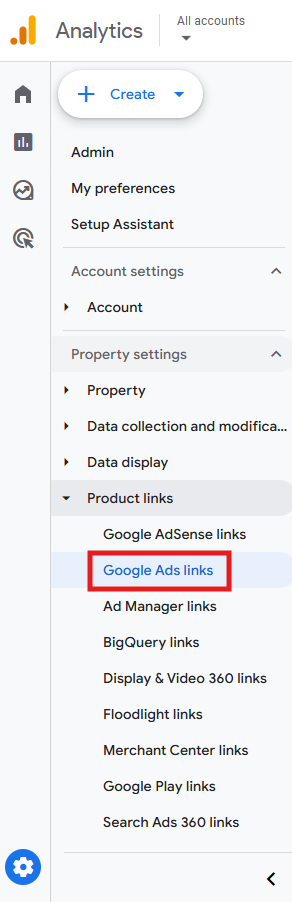
- Go to Admin > Product links > Google Ads links.
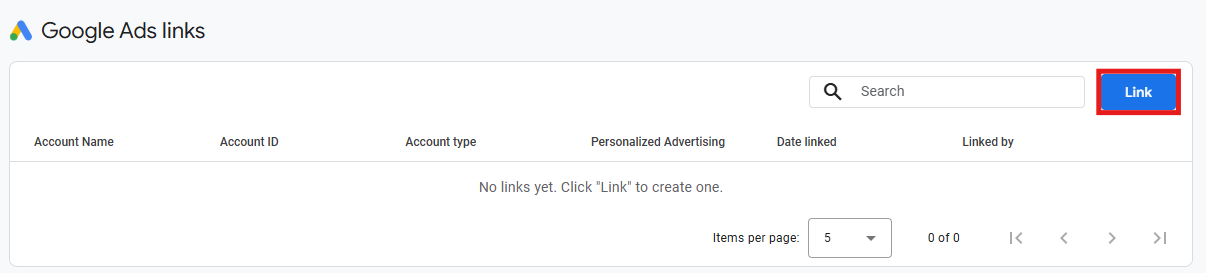
- Click on Link.
- Click on Choose Google Ads accounts.
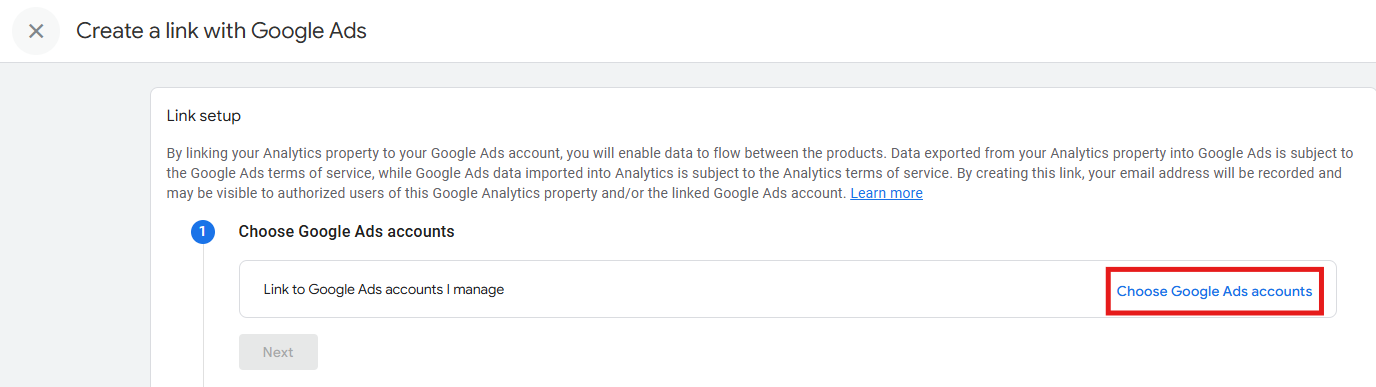
- A list of the accounts you have “Admin” access to will show up. Select the Google Ads account you wish to link to your GA4 property and hit Confirm.

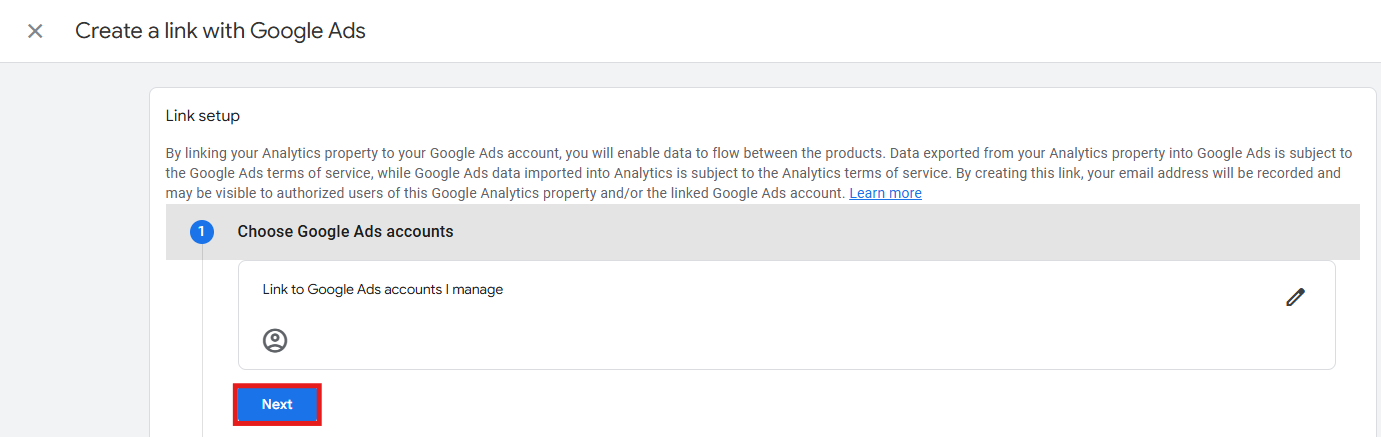
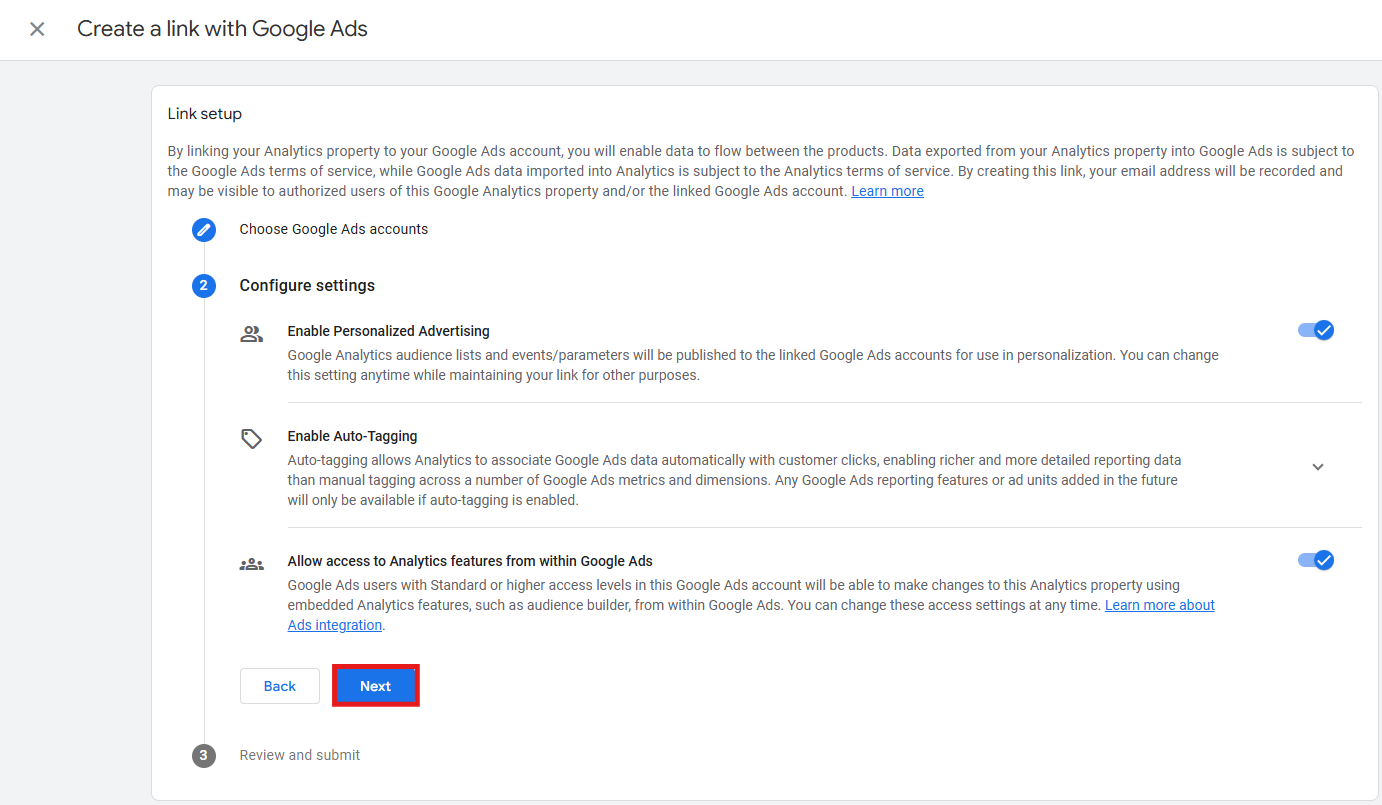
- Under Link setup, click on Next.
- Configure settings like Personalized Advertising, Auto-Tagging, and Access to Analytics features from within Google Ads and click on Next – we recommend keeping all three enabled. Know that disabling these settings has a few impacts:
- If you disable Personalized Advertising, GA4 audience lists and remarketing events/parameters won’t be published to the linked Google Ads account.
- If you disable Auto-Tagging, Analytics won’t automatically associate Google Ads data with customer clicks.
- If you disable Access to Analytics features from within Google Ads, users with standard or higher access levels in the linked Google Ads account won’t be able to make changes to the Analytics property using embedded Analytics features, such as audience builder, from within Google Ads.
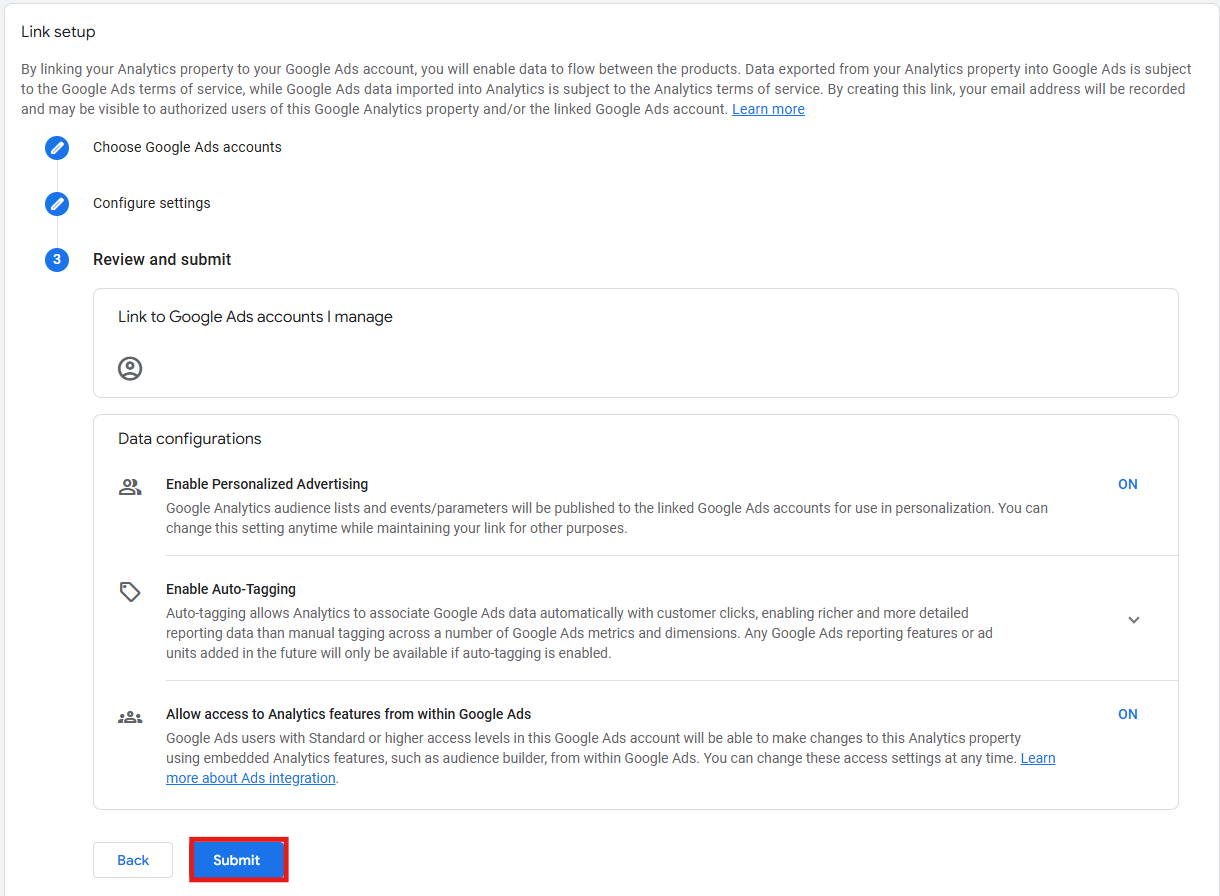
- After a final review of your configuration settings, hit Submit.
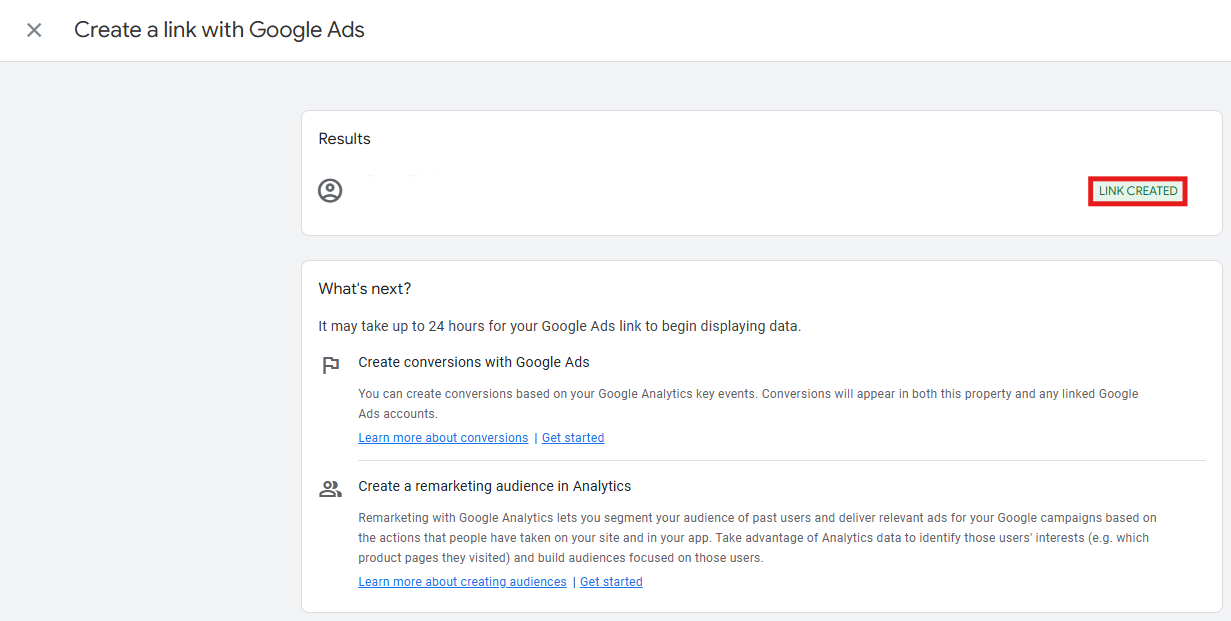
- In the next screen, a “Link Created” message should serve as confirmation that your GA4 property is now linked to your Google Ads account. However, keep in mind that it may take up to 24 hours for Ads data to appear in your GA4 reports.
2) Linking GA4 to Google Ads (in the Google Ads interface)
Prefer Google Ads as a starting point? Then do this:
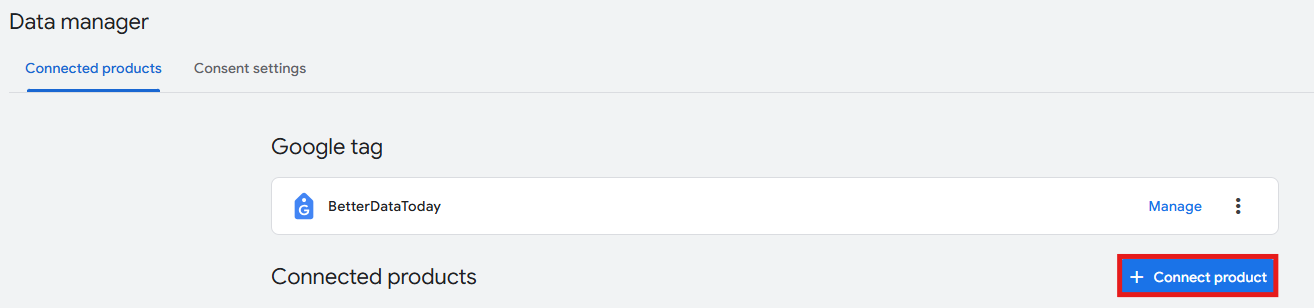
- In the main menu (left side of the screen), click on Tools > Data manager.
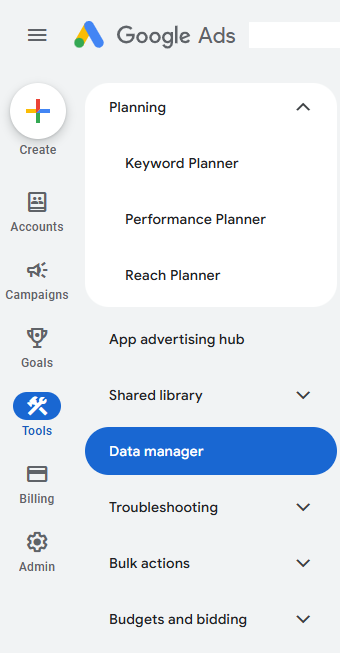
- Click on + Connect Product.
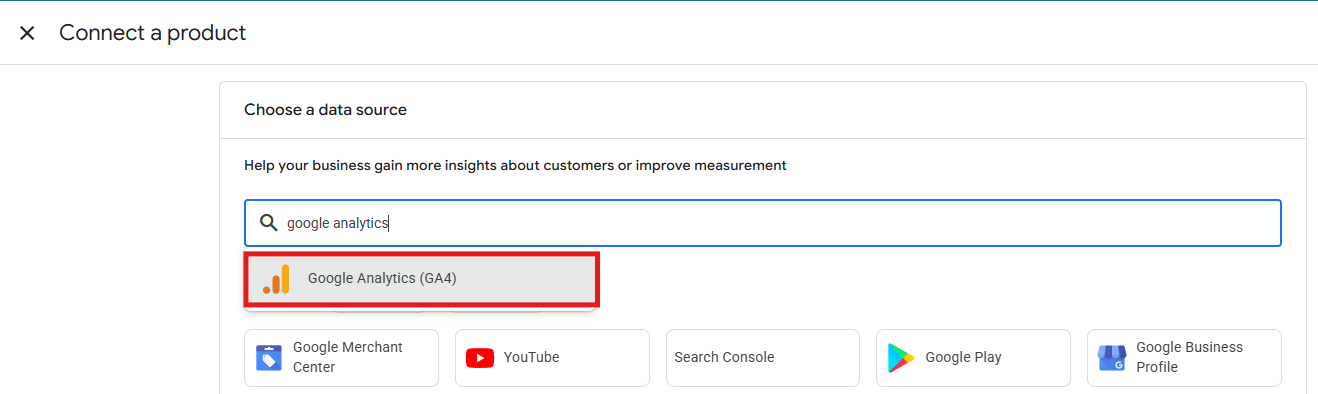
- Choose Google Analytics (GA4) as the data source.
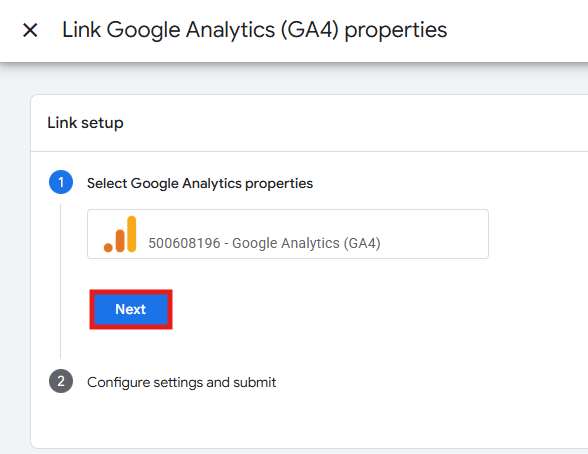
- Under Link setup, a list of all the GA4 properties you have “Edit” access to will show up. Select your GA4 property and click Next.
-
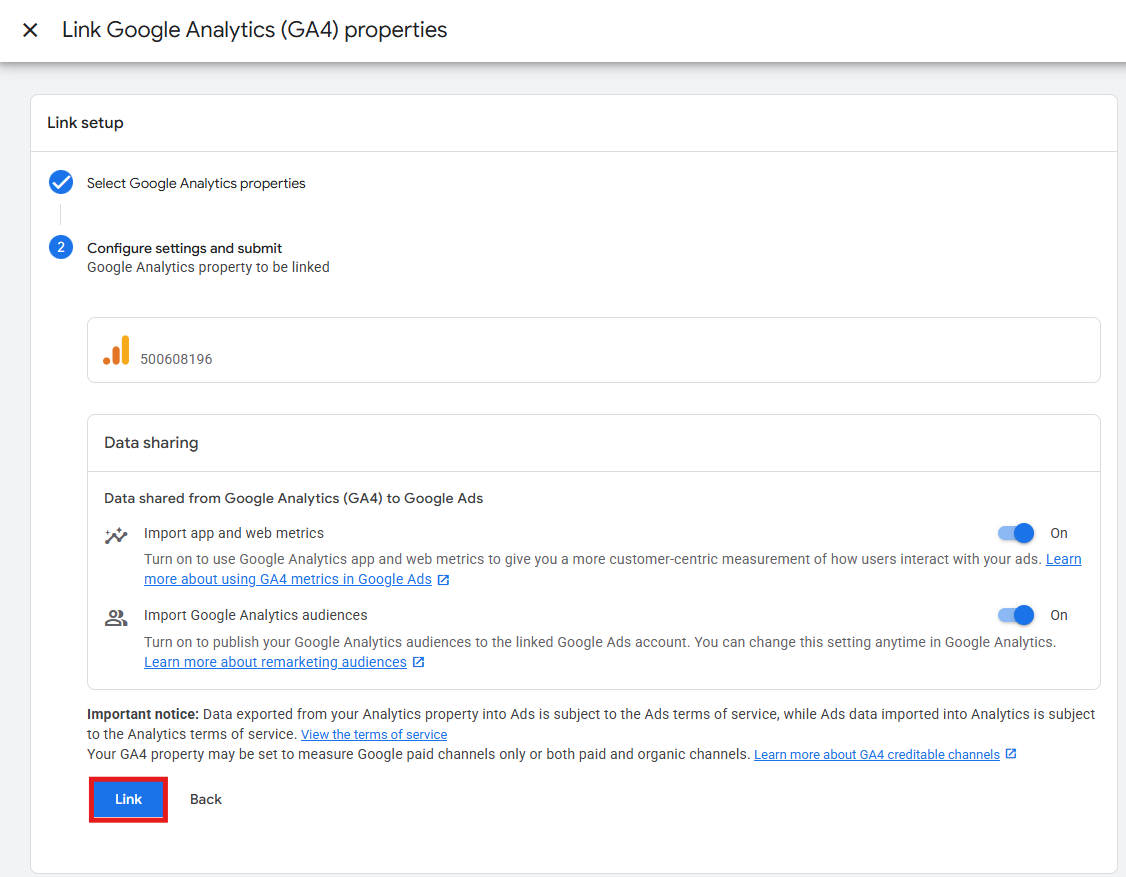
Review the following settings (we recommend enabling both of them):
- Import app and web metrics (it lets you import GA4 conversions later).
- Import Google Analytics audiences (required for audiences/remarketing).
Click Link. It can take a few hours for the connection to fully propagate.
3) Finding Google Ads data in GA4
Once both platforms are linked, here’s where your Ads data shows up in GA4:
-
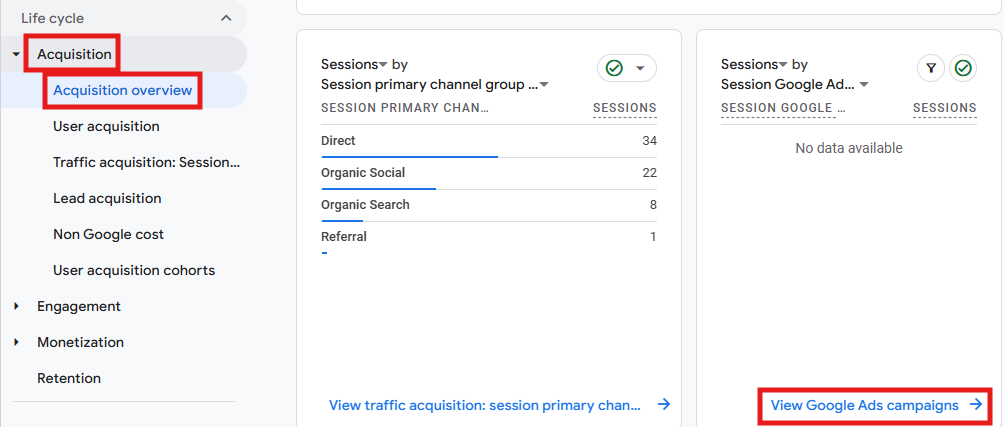
Reports > Acquisition > Acquisition Overview
Under the main graphic, you’ll see a board with the option View Google Ads campaigns. Click on it, and you’ll get a report with Google Ads metrics like clicks, cost, cost per click, return on ad spend, among others.
-
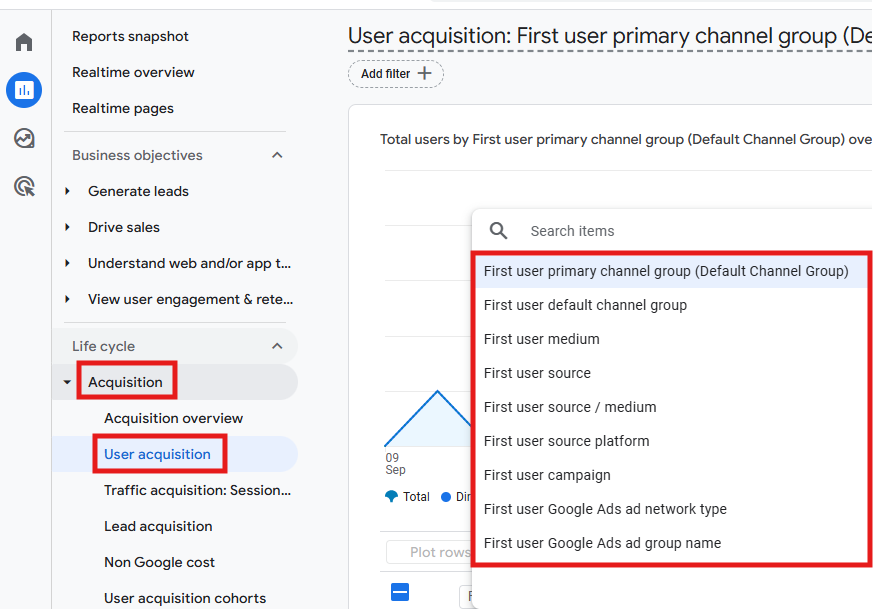
Reports > Acquisition > User acquisition
Below the main graphic, under the search bar, filter by Google Ads dimensions – but keep in mind that you won’t see cost metrics here.
-
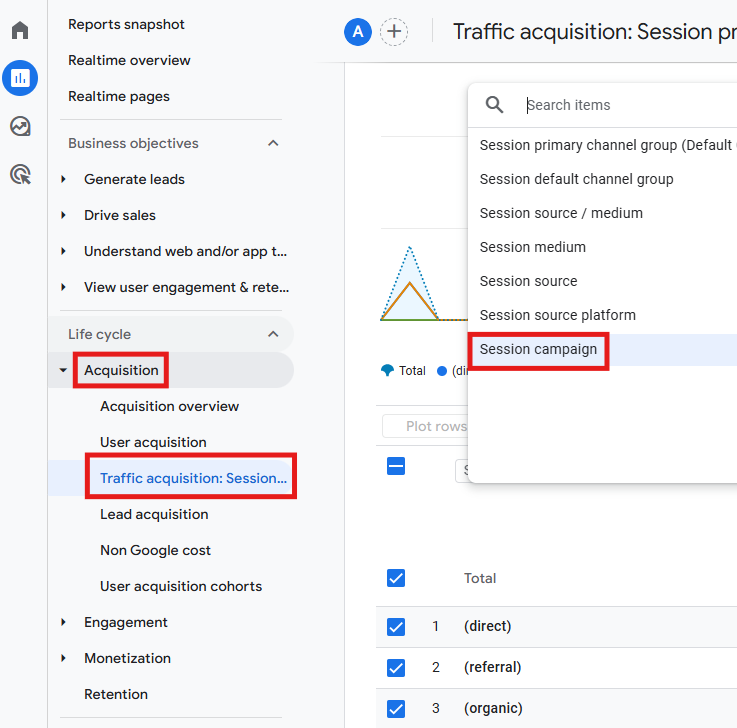
Reports > Acquisition > Traffic acquisition
Filter by Session campaign dimension – this includes other campaigns being tagged with UTMs (not Ads-only), and you won’t see any Google Ads-specific metrics here.
-
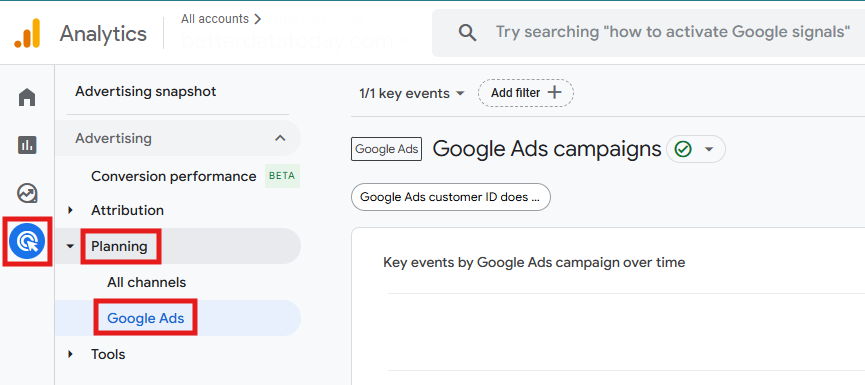
Advertising > Planning > Google Ads
In the GA4 main menu, there is also a specific area for Google Ads reports. Here, you can get data on key events by Google Ads campaign over time, and other relevant metrics.
-
Explorations
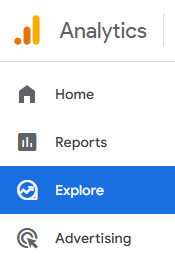
In the GA4 main menu, click on Explore. With this feature, you can build custom tables/funnels using dimensions like Google Ads Campaign, Ad group, Query match type, and your GA4 conversions.
Keep in mind: Ad costs, clicks, and impressions can take several hours to appear in reports. Conversions follow normal GA4 processing/attribution and may update for a couple of days.
4) Alternative tracking method: Google Ads tag
If you’re starting to use the Google Ads tag (rolled out in 2025), you can monitor conversions using an Ads-native tag and, if you like, include some additional parameters. This way of tracking is a good idea when:
- You want all your conversion tracking done within Google Ads (with as little reliance as possible on GA4).
- You need to send very specific parameters to Ads and simplify setup.
- You prefer that Google Ads does its own modelling and adjusts bids based on its own data.
Tip: having GA4 and Ads working together is still ideal for cross-channel analysis and audience building. The Ads tag is a clean alternative when you want to improve Ads performance and include parameters.
How to install the Google Ads tag
The best way to install the Google Ads tag is to use Google Tag Manager (GTM). We’re assuming you’ve already got the basic Google tag firing on all your website pages (if you haven’t, check out the article “How to set up Google Tag Manager on your website”). In GTM, make sure you also have a Conversion Linker tag on every page, because it’s necessary for Google Ads to correctly track which ads led to conversions.
Now, follow these steps:
- Start in Google Ads by creating (or locating) your conversion action. To do it, go to Goals > Summary > + Create conversion action.
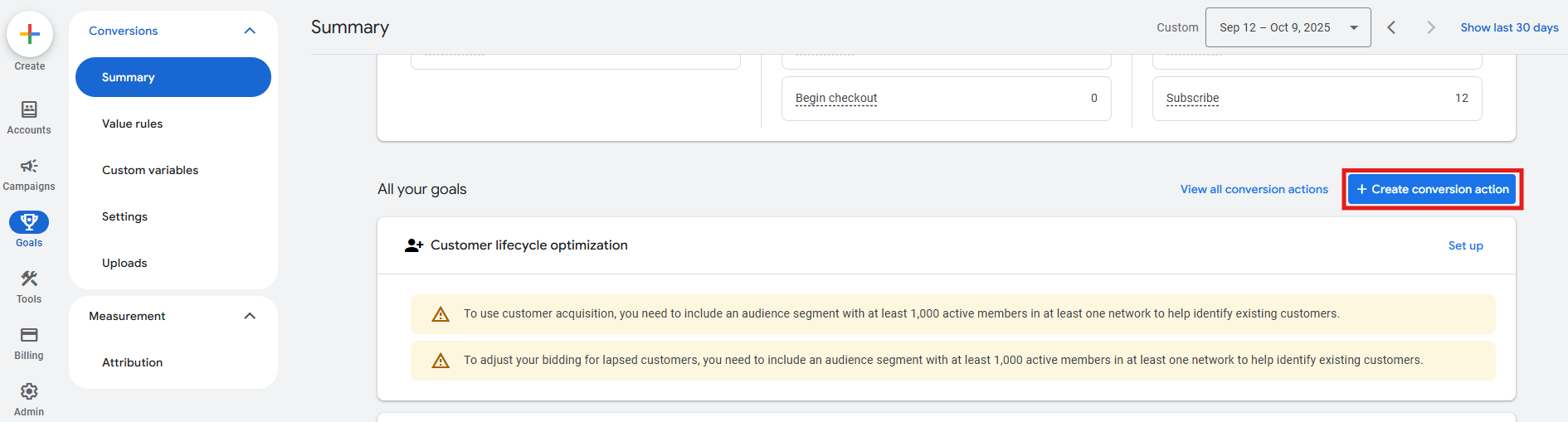
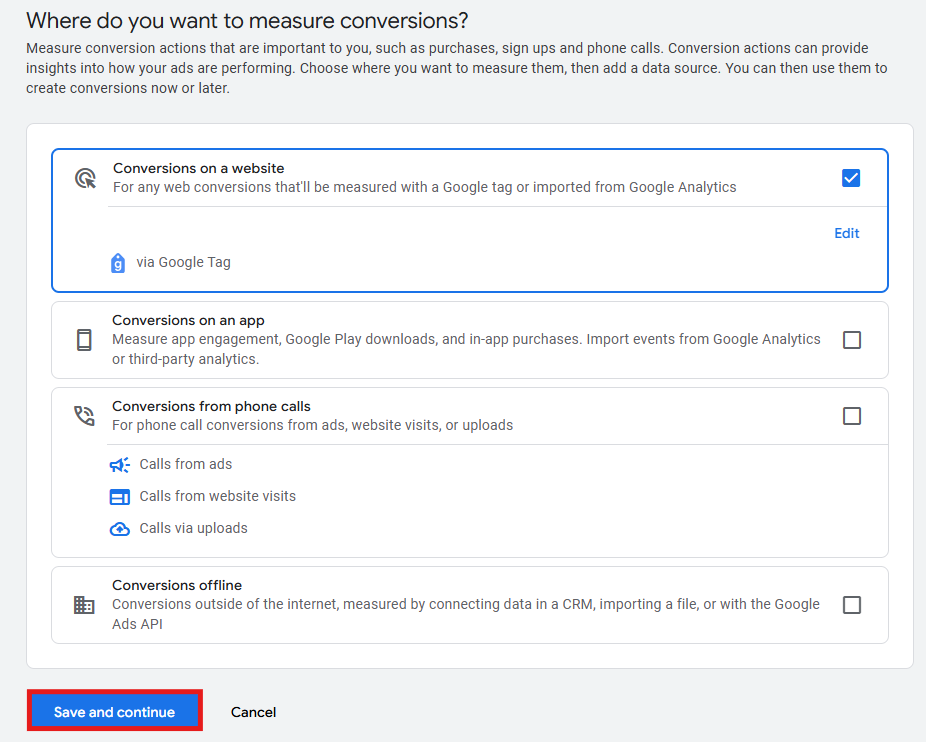
- Define where you want to measure conversions: on a website, app, from phone calls, or offline. Save and continue.
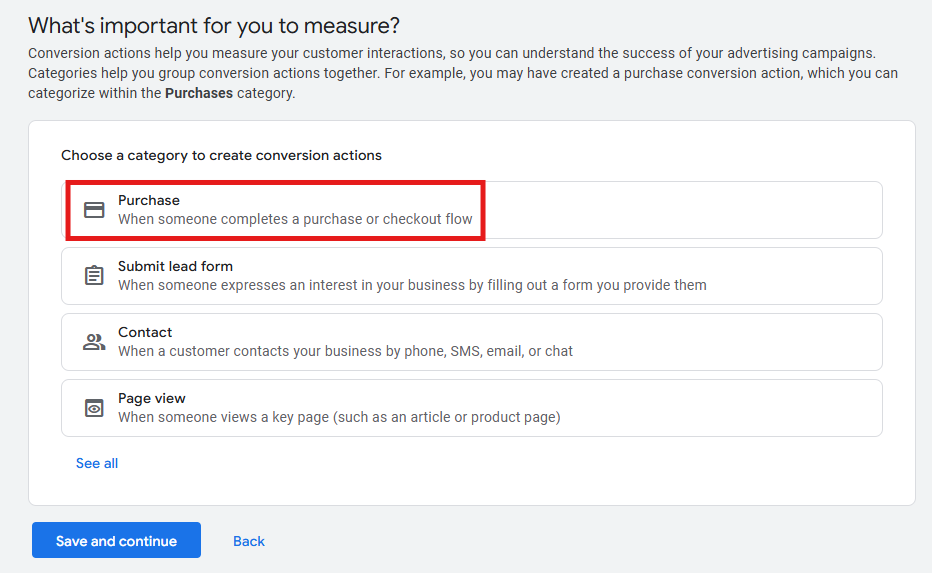
- Choose one or more categories to create conversion actions: purchase, submit lead form, contact/lead, page view, or others.
- After selecting, click on + Add conversion actions and select the Google tag in question.
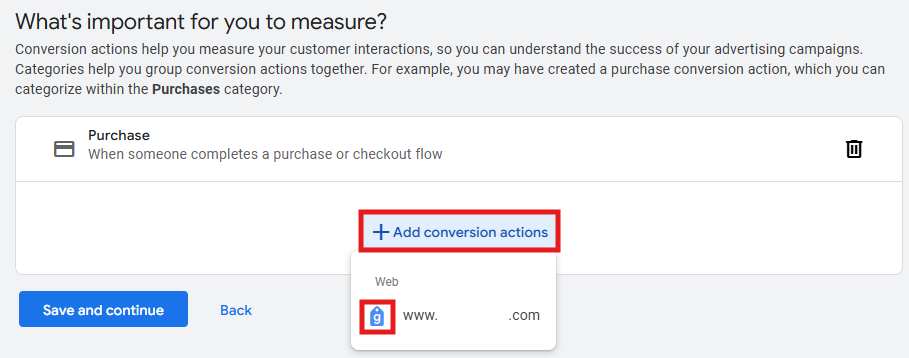
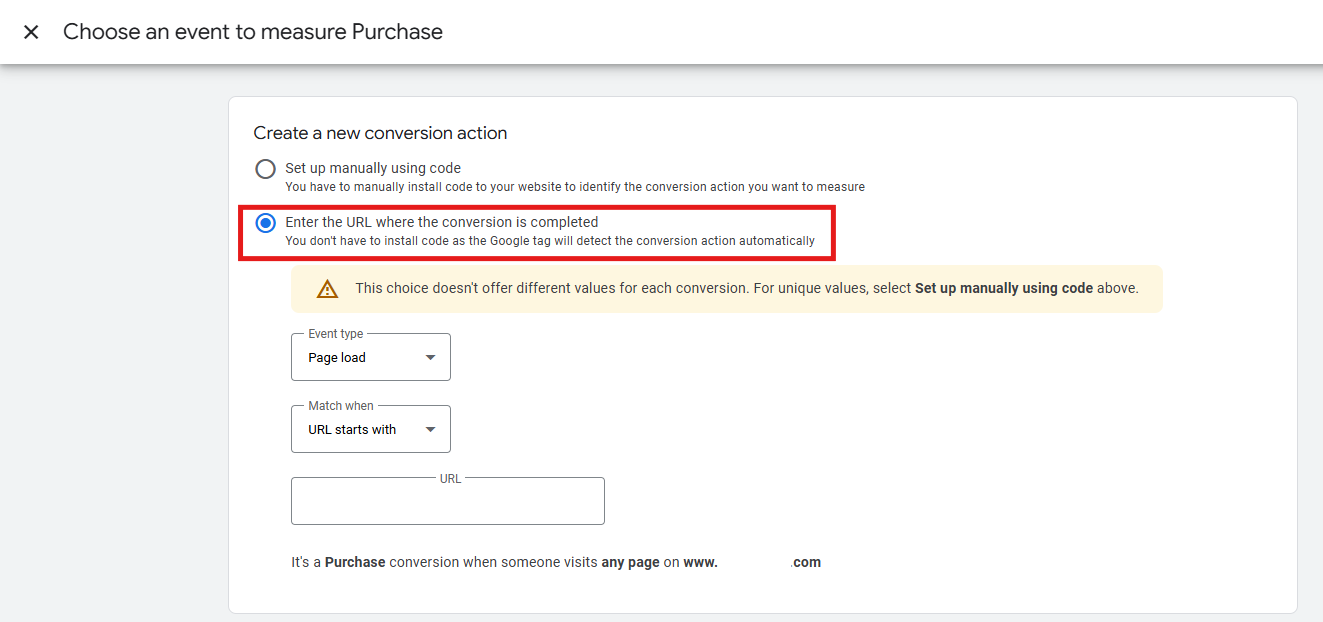
- A window will pop up for you to choose an event to measure that conversion action. Start by selecting the option Enter the URL where the conversion is completed.
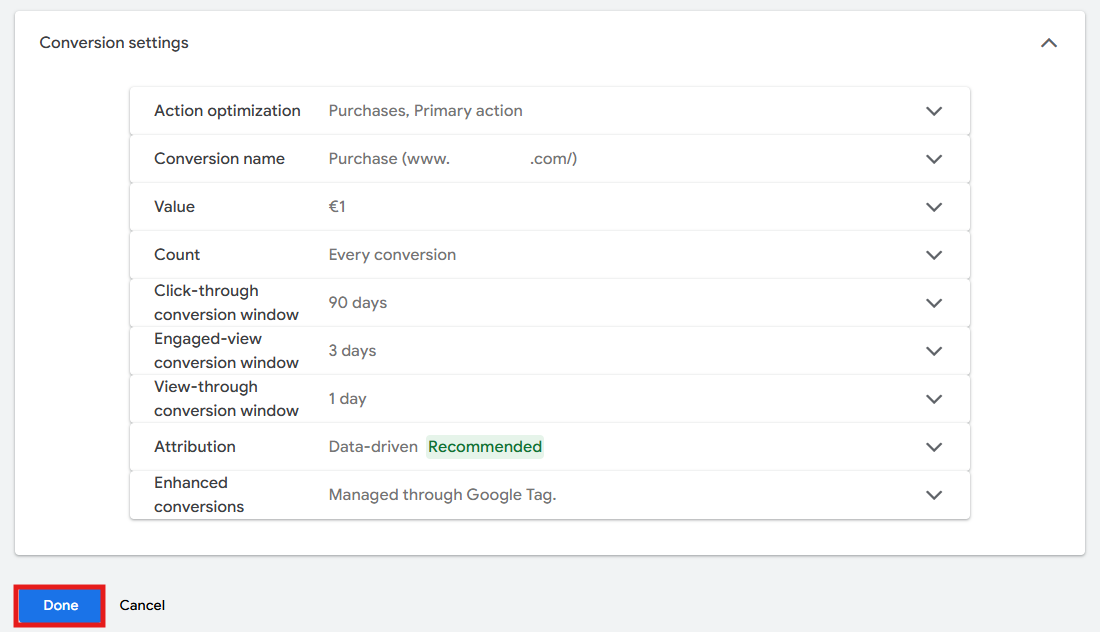
- Scroll down a bit and, under Conversion settings, define the action optimization (if it’s primary or secondary), the conversion name, the value, the counting method (every vs. one), and the attribution model. Click Done.
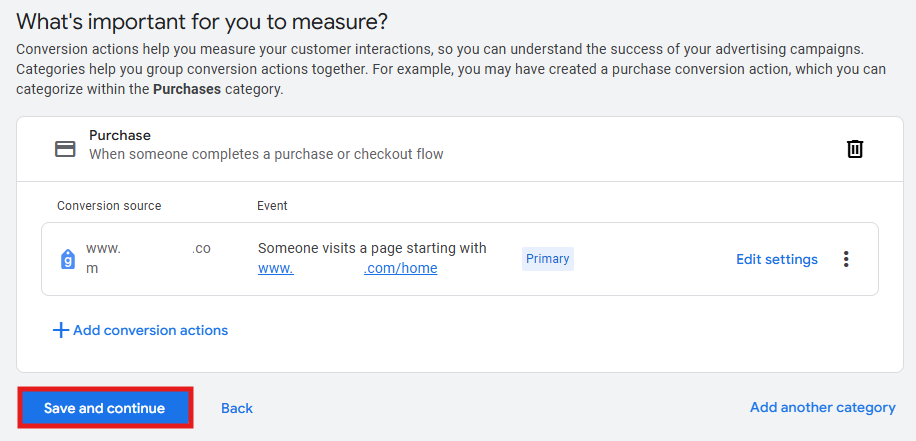
- When you’re finished creating categories for conversion actions, save and continue.
- When Google Ads asks you to review your Google tag setup, choose the option Use Google Tag Manager to get your Conversion ID and Conversion Label. Keep this window open and, when you finish the process in GTM, hit Finish in Google Ads.
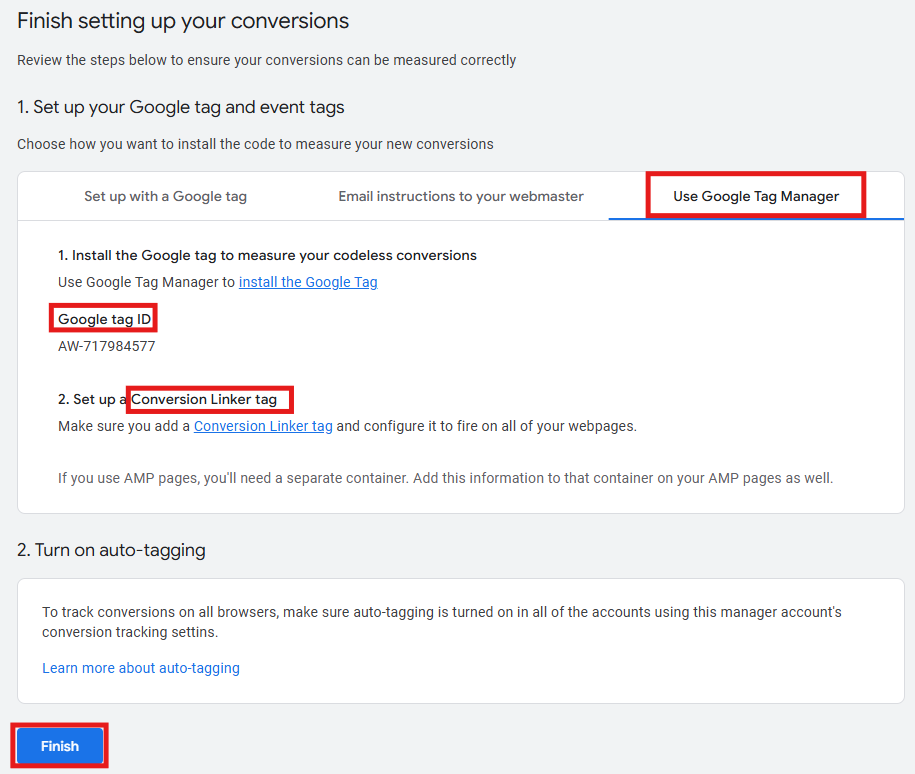
The next step is to install the Google Ads conversion event tag in Google Tag Manager. Continue like this in GTM:
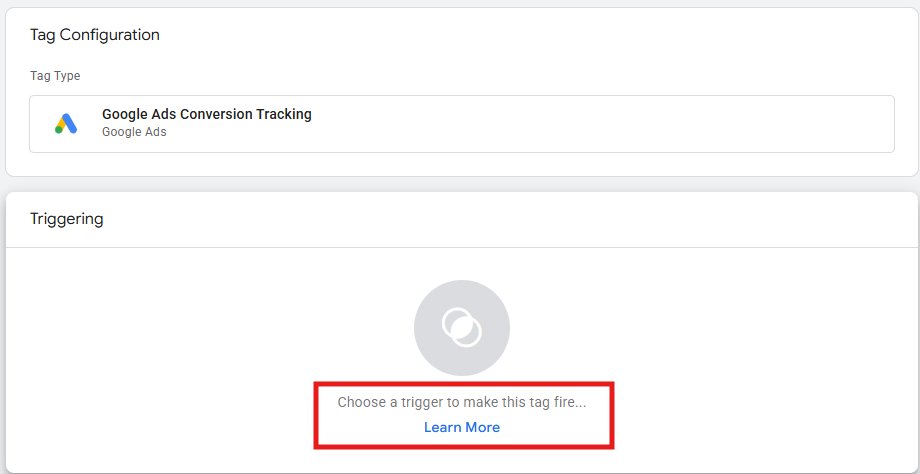
- Go to Tags > New > Google Ads Conversion Tracking.
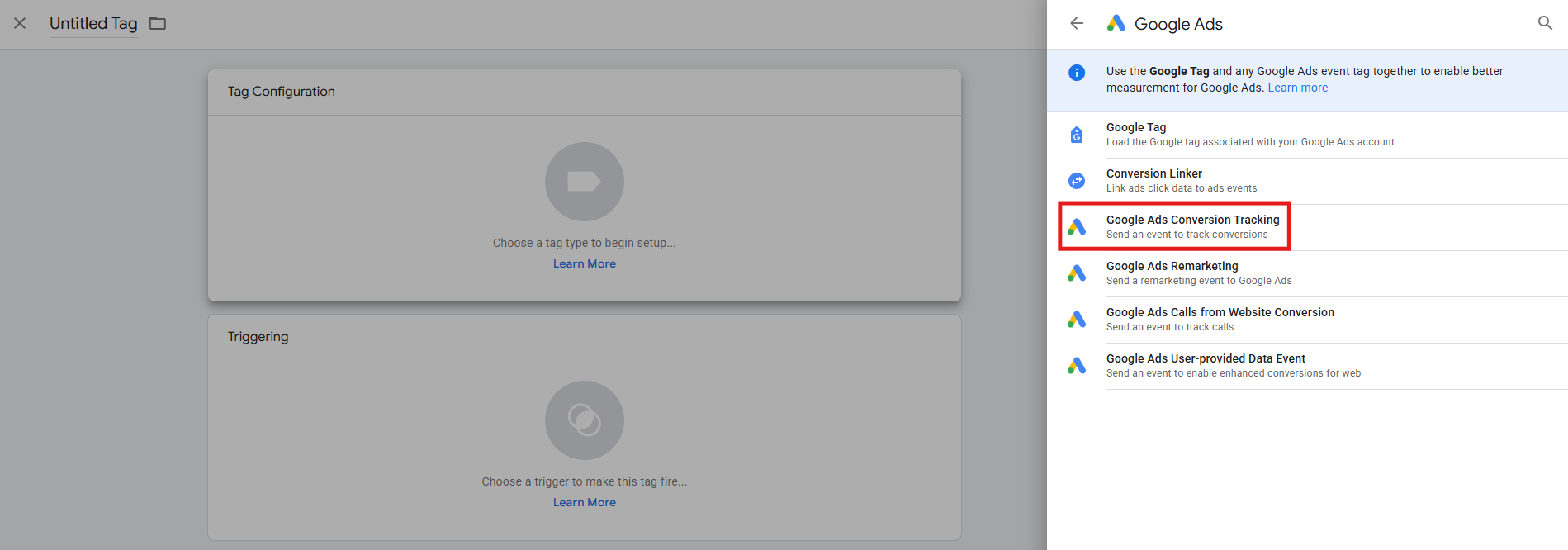
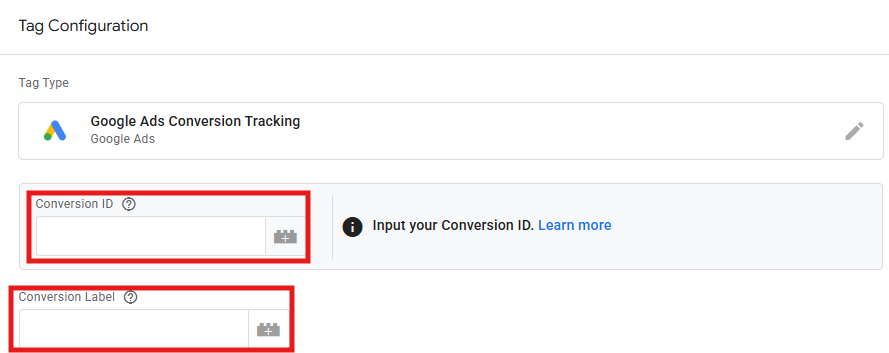
- Paste the Conversion ID and Conversion Label you copied from Google Ads.
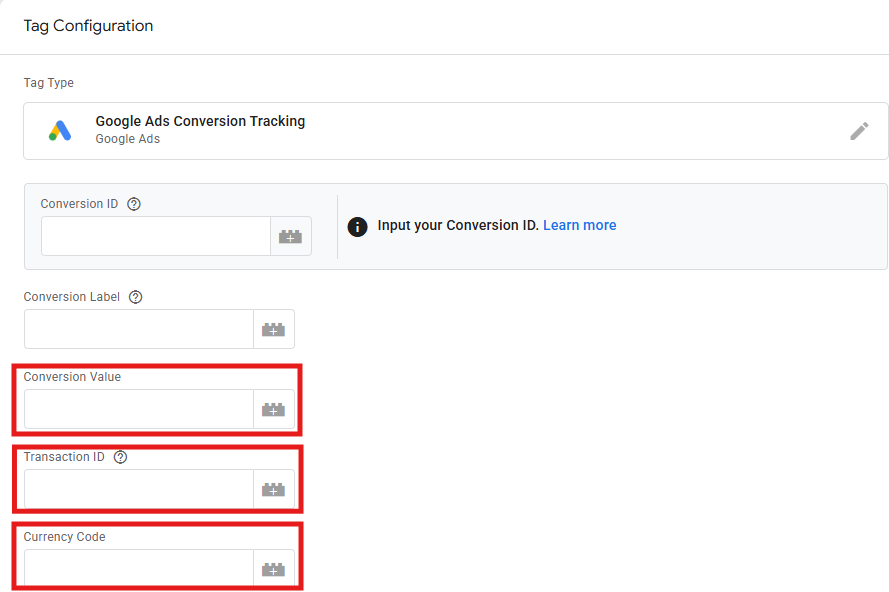
- It’s optional to fill in Value, Currency, and Transaction ID, but it’s highly recommended:
- Value: map a variable (e.g., {{Order Total}}) or enter a fixed number.
- Currency: map a variable (e.g., {{Currency}}) or set a constant like USD.
- Transaction ID: map a unique order ID (e.g., {{Order ID}}) to prevent duplicates.
- Under Triggering, set it to fire exactly when the conversion is complete (e.g., “Order Confirmation” page view, or “Form Submit – Success”).
- Save and Preview.
How to avoid double-counting
If you’re also importing GA4 conversions into Google Ads, then there’s a risk of having inflated totals. To prevent it:
- In Google Ads > Goals > Summary, set only one source as primary for each business outcome (either the Google Ads tag conversion or the GA4 imported conversion).
- Set the other source as secondary (for monitoring) or turn it off.
5) How to break a link between GA4 and Google Ads
There are a few good reasons to disconnect your GA4 property and Google Ads account:
-
Troubleshooting data discrepancies
If you’re experiencing significant data discrepancies between Google Ads and GA4 that your existing setup cannot resolve, unlinking and relinking can sometimes help.
-
Managing stale or outdated audiences
If you unlink a GA4 and Google Ads account, the remarketing audiences within your Google Ads account will stop accumulating new users, which can be useful for managing your lists.
-
Resolving conflicting links
If a Google Ads account is linked to both a manager account and a GA4 property, unlinking the direct link can prevent duplicate data and simplify your setup.
-
Changing marketing platforms
If you switch to a different advertising platform, you may no longer need the data from the previous Google Ads account in GA4.
If any of those situations apply and you want to remove the link between GA4 and Ads in Analytics, here’s what to do:
- Navigate to your GA4 property by following this link.
- Go to Admin > Product links > Google Ads links.
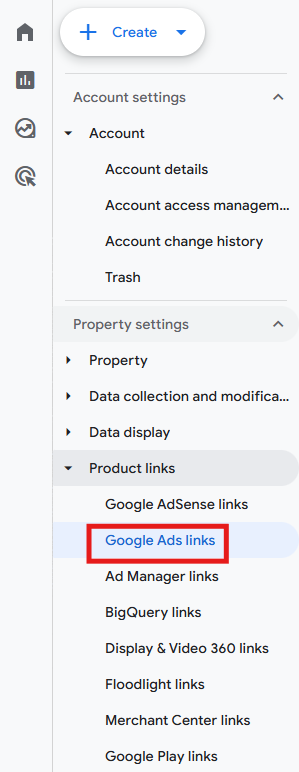
- You’ll see a list of all the Google Ads accounts linked to your property. Click on the one you wish to disconnect.
- At the top-right side of the screen, click on the three dots menu and then Delete.

- A message will pop up asking if you’re sure you want to delete that link. If that’s the case, click Delete once again.
If you wish to do it via Google Ads, do this:
- Click on Tools > Data manager.
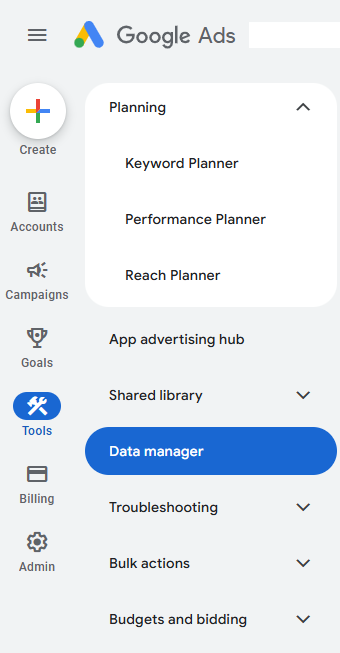
- Under Connected products, find Google Analytics (GA4), click on the three dots icon and then Manage.

- Find the GA4 property in question and click Manage.
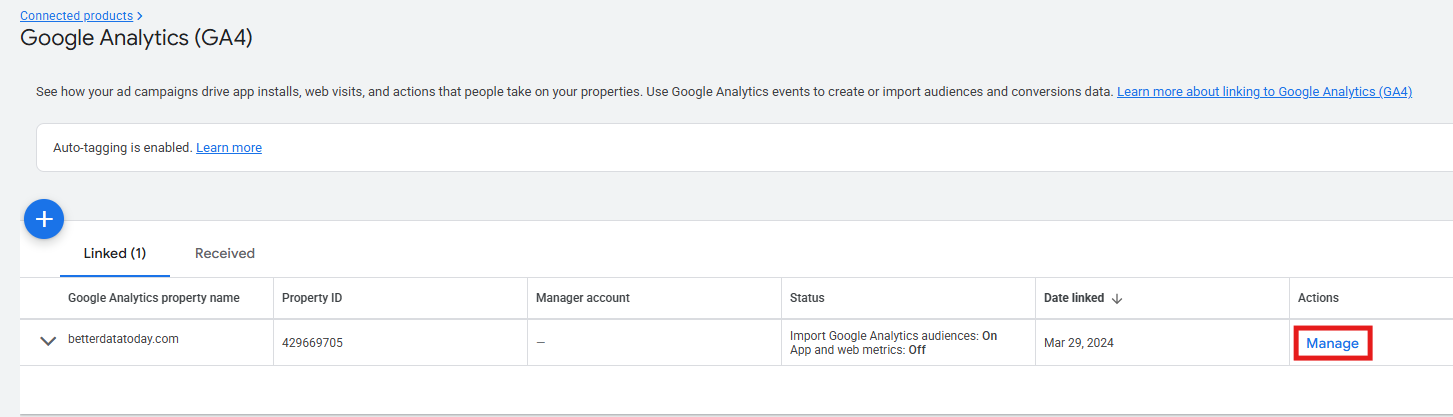
- Click Unlink.
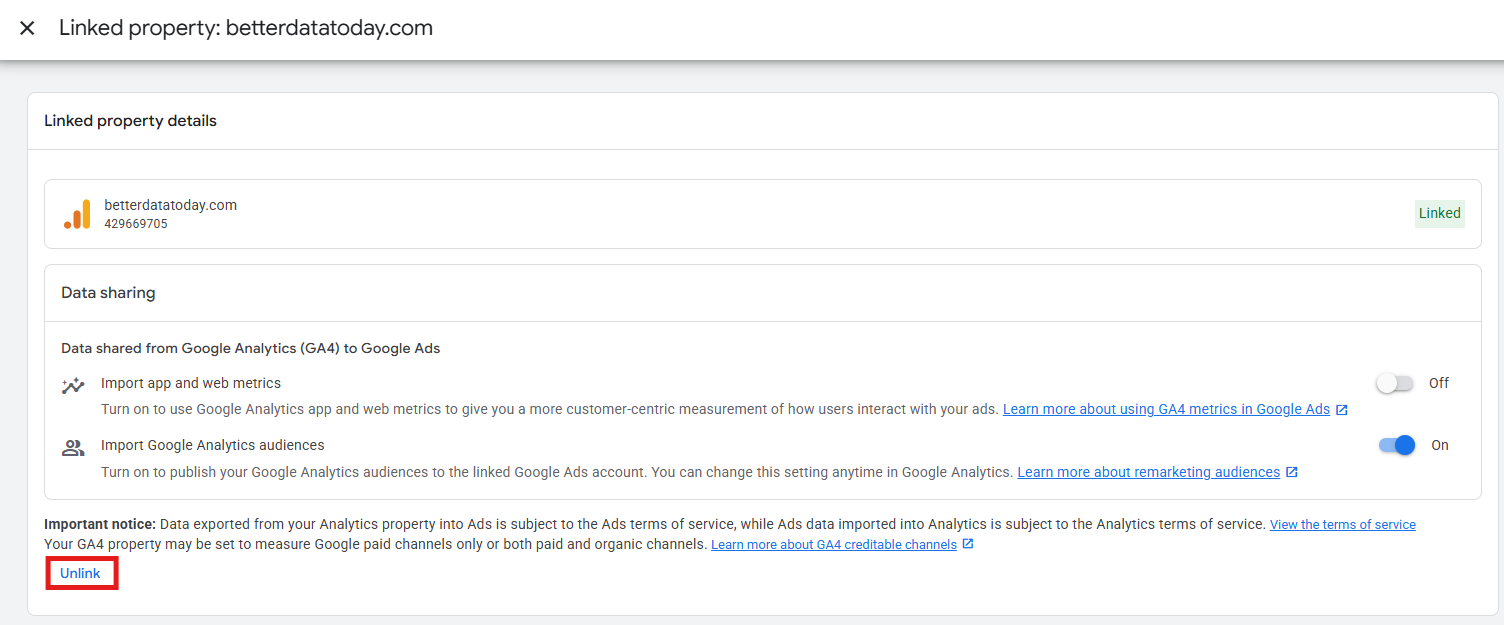
Keep in mind: breaking the link between GA4 and Google Ads will stop the flow of new data (clicks, impressions, conversions, and audience users) between the accounts, but historical data will remain visible.
6) Discrepancies between GA4 and Google Ads
It’s actually expected to see different numbers in GA4 and Google Ads, particularly if the settings aren’t the same in both. You can often fix most of these issues, but some differences will always exist. The important thing is to understand why they’re different and to use both platforms together. Here are common differences and how to address them:
| Issue | Fix | |
|---|---|---|
| Attribution models | Google Ads reports more conversions than GA4 (or vice versa), usually because GA4 defaults to data-driven, while Ads often reports on Ads-only data-driven or last-click views. | In Google Ads, check each conversion action’s attribution model. In GA4, use the Advertising workspace to compare models. |
| Lookback windows | Long-cycle purchases are undercounted in GA4. | In GA4, Admin > Data display > Events > Attribution settings, extend Key event lookback windows (e.g., 60–90 days). Match your Google Ads conversion window. |
| Counting method | GA4 shows more or fewer conversions than Google Ads. This could happen because GA4 key events count every occurrence by default, whereas Ads conversion actions can count each occurrence or only once. If GA4 counts multiple per session but Ads counts one, the totals will differ even with identical attribution. | In GA4, set the key event’s counting method to “once per session” if that matches how your Ads conversion is counted (or switch Ads to “every”, when appropriate). Keep both platforms aligned. |
| Time zone and currency | Daily totals won’t sync if the time zone or currency don’t match. | Align GA4 property time zone/currency with Ads account settings. |
| UTM tagging | Data is messed up and/or isn’t attributed to Google Ads campaigns. This happens if you manually tag or tag the URLs incorrectly. | Enable auto-tagging in Google Ads. |
| Consent/Ad blockers | Ad blockers can sometimes be on and sometimes off, which can result in partial data. GA4 may model conversions while direct hits are reduced. Ads may also model, but the scope/eligibility of the modeling can differ. | Implement Consent Mode correctly, but expect differences where storage is denied. |
| Duplicated data | Google Ads shows inflated conversions. | In Google Ads, set one conversion source (GA4 or Ads tag) to primary and the other to secondary, or remove it. |
Final thoughts
When GA4 and Google Ads are linked correctly, you can set your bids to achieve actual business results, quickly use GA4 audiences in your ad campaigns, and see your ad spending alongside data from every other marketing channel. We recommend keeping it simple: turn on auto-tagging, share audiences, and only import the most important GA4 conversions.
Most differences between the platforms come down to how they count things or the attribution model they use, so get those aligned first and document anything you deliberately keep different. Think of these as two perspectives on the same reality: Google Ads is for optimising advertising, while GA4 is for looking at the entire customer experience.