Linking GA4 to BigQuery is a significant upgrade to your analytics process, and it’s surprisingly fast – it only takes a few minutes. Once they’re connected, BigQuery will store all your GA4 data without any data sampling, retention limits, or restrictions on how you can analyze it.
This guide will walk you through the entire process, helping you use your data accurately and quickly in any way you choose.
What you need before you start
There are basic requirements you must fulfill before connecting GA4 to BigQuery:
- Having a GA4 property (if you need help with this, check out our Google Analytics 4 setup checklist for new adopters).
- Having a Google Cloud account (we’ll show how to set this up in a moment).
- Having at least Editor permissions in GA4, and Editor, Owner, or BigQuery Admin permissions in the Cloud project.
Implementation process
If you have everything you need, let’s go through all the steps of connecting GA4 to BigQuery.
1) Create a Google Cloud project
This is the “container” where your datasets, tables, and configurations will live. Proceed like this:
-
Go to the Google Cloud Console (here) and make sure you’re logged into the same Google account that has access to your GA4 property.
-
At the top left, click Select a project.

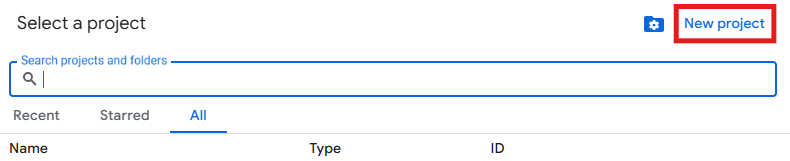
- A window will pop-up. Click on New project.
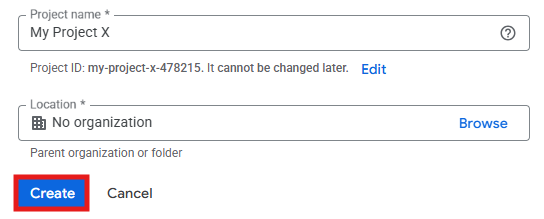
- Enter the Project name and, under Location, either choose the organization you work for or leave “No organization”. Click Create.
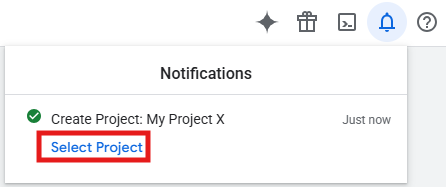
- Now switch to your new project. To do that, either click the notification or use the project selector again.
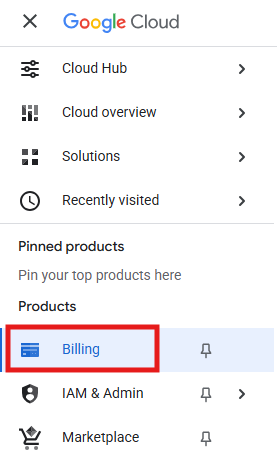
- Go to Billing, in the left menu, and connect to an existing billing account or create a new one. You can ignore this step if you want to use BigQuery Sandbox, which is free and works without a billing setup.
2) Make sure BigQuery is properly set up
After creating your Google Cloud project, you need to make sure BigQuery is active and ready to receive your GA4 exports.
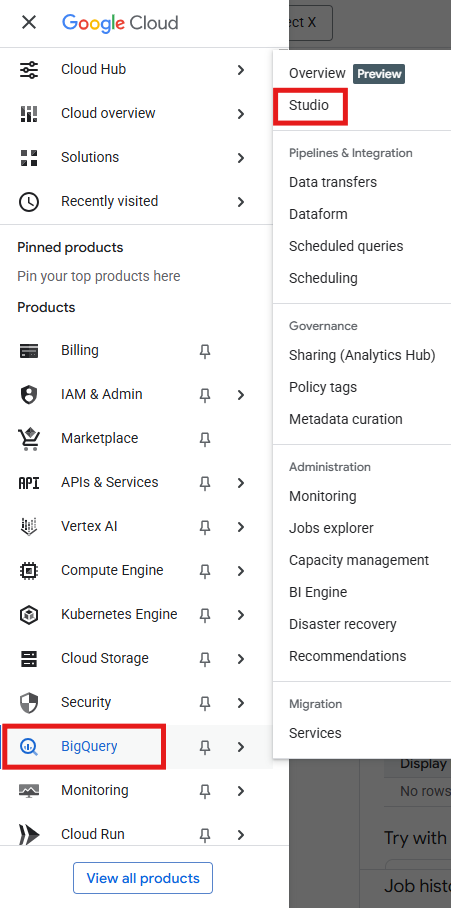
- In the Google Cloud Console menu, click on BigQuery > Studio. Make sure your Cloud project (the one you created in the previous step) is selected.
- When you open Studio for the first time, you’ll see:
- A welcome tab (“Check out what’s new in Studio”).
- A left sidebar called Explorer (with repositories, queries, notebooks, data canvases, data preparations, pipelines and connections).
- Options to create new resources (below the welcome tab) like SQL query, Notebook, Data canvas, Pipeline, etc.
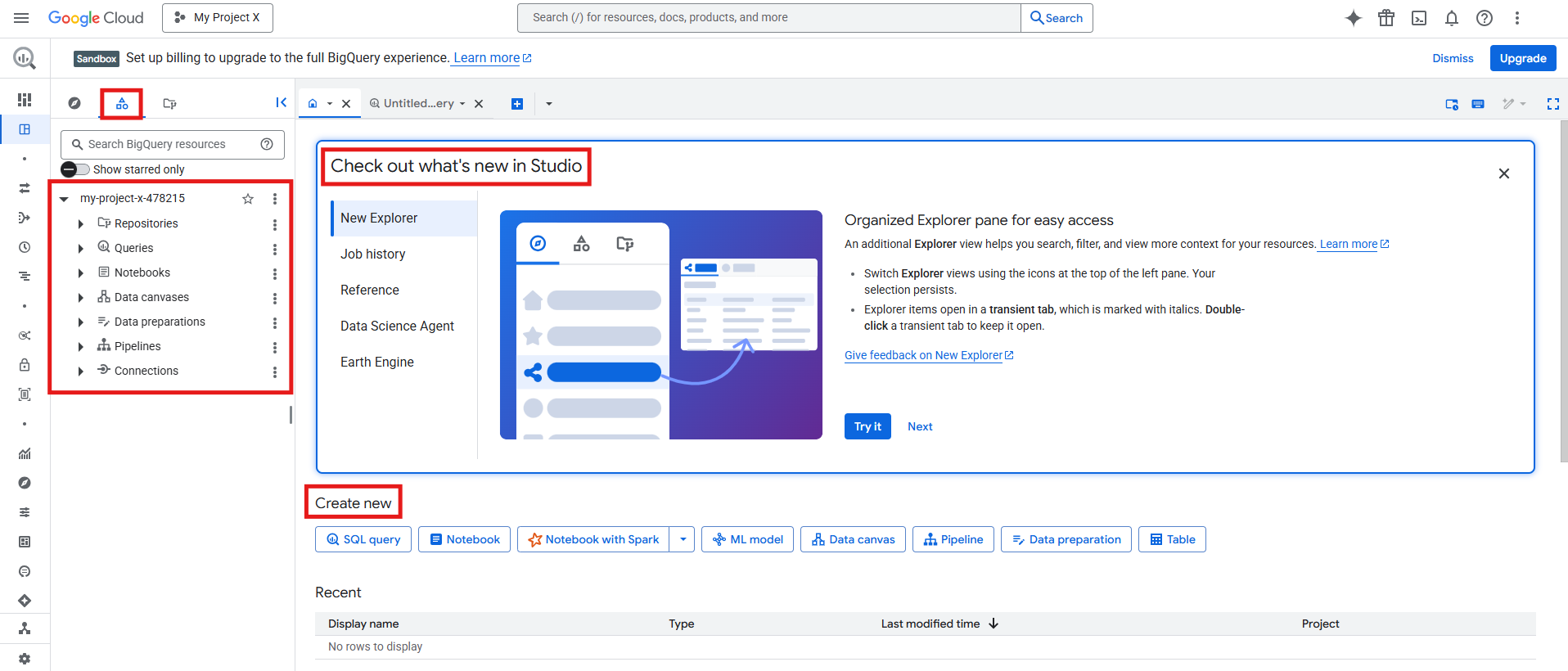
- At this stage, there are no tables or datasets yet, but GA4 will soon automatically create those for you, once the link is established.
3) Connect GA4 to BigQuery
This is where you actually connect GA4 to your Google Cloud project so that your data starts flowing into BigQuery:
-
Go to your GA4 account and select your GA4 property.
-
Click Admin > Product links > BigQuery links.
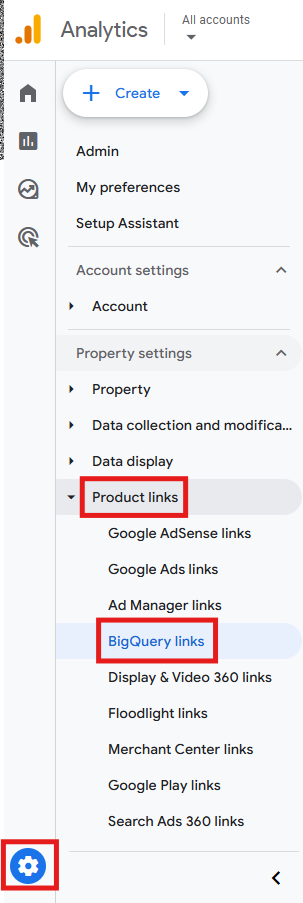
- Click the blue Link button to create a new link. GA4 will open a wizard that guides you through the next steps.

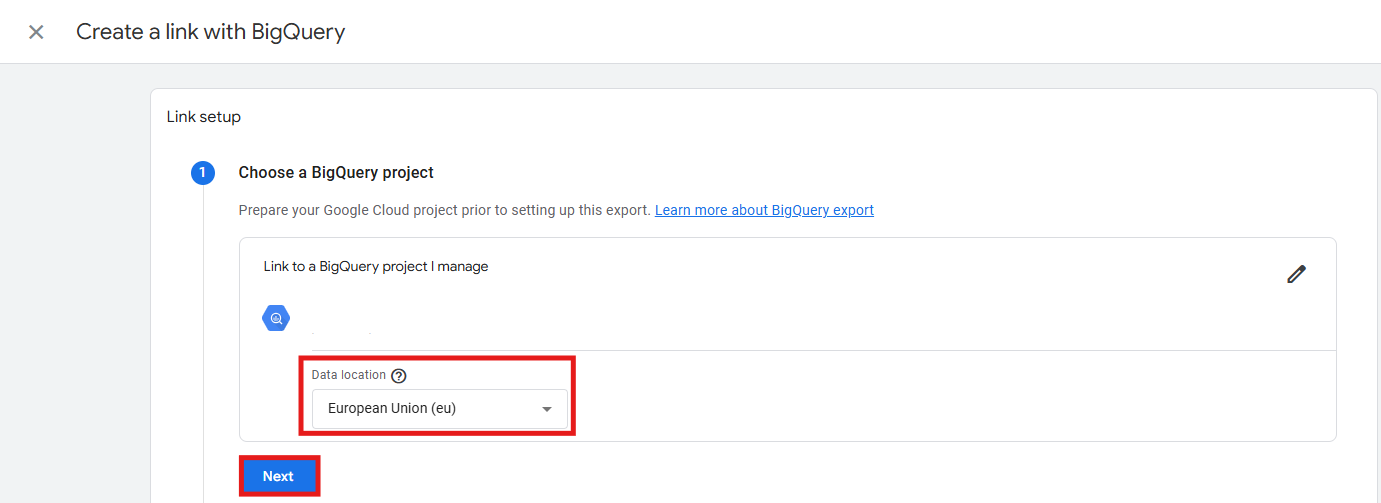
- First, choose a BigQuery project (the Google Cloud project you recently created).
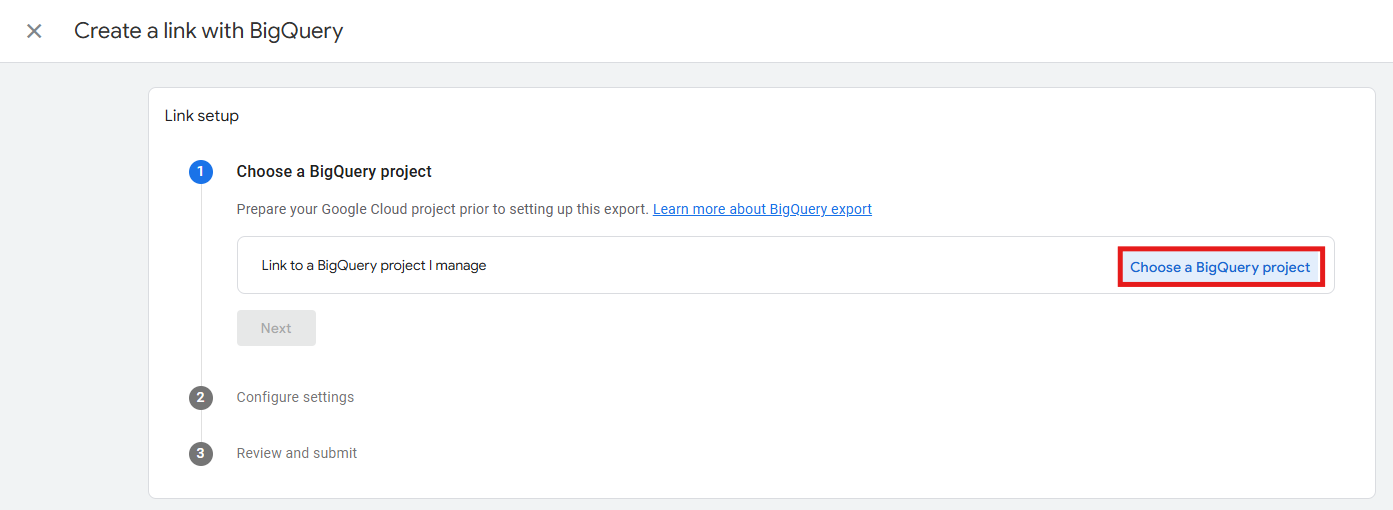
- GA4 then asks you to choose the data location (region) applicable to your dataset. Click Next.
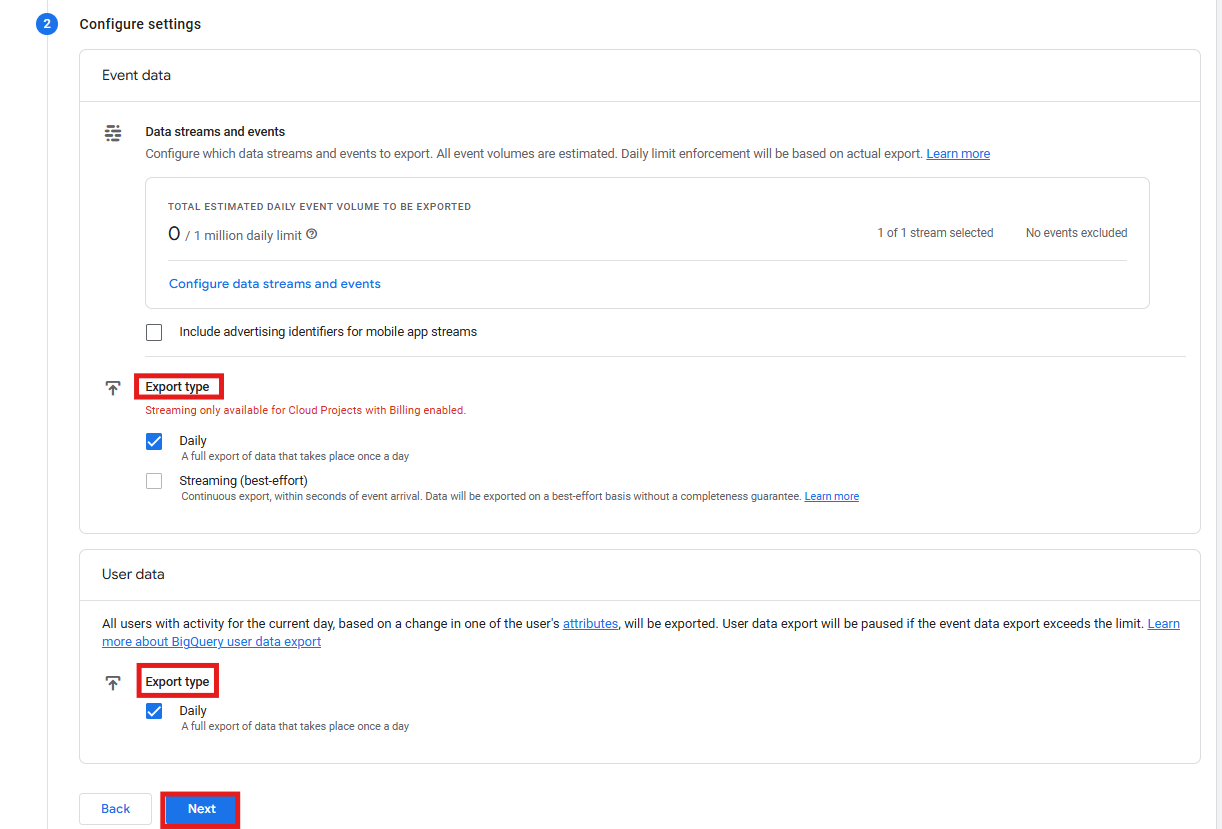
- Choose the export frequency: daily export (recommended, since it sends complete datasets once per day) and/or streaming (optional and only available for Cloud Projects with billing enabled; it sends event data throughout the day in near real-time). Click Next.
- Review your configurations and click Submit.
4) Verify that data is flowing into BigQuery
Once the link is created, ensure that GA4 is actually sending data into your BigQuery project. Here’s how:
- Go to BigQuery Studio (here) and make sure your Cloud project (the one you linked to GA4) is selected.
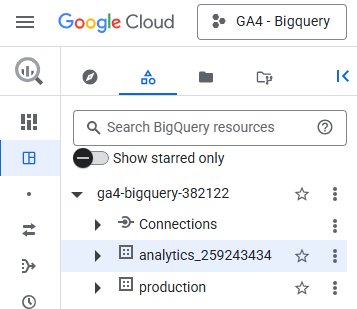
- Look for your GA4 dataset – it will appear on the left sidebar – and check for the exported tables. If you chose daily export, inside the dataset, you’ll eventually see tables (one per day) with this kind of label “events_YYYYMMDD”. If you chose the “streaming” export frequency, you’ll see something like “events_intraday_YYYYMMDD”.
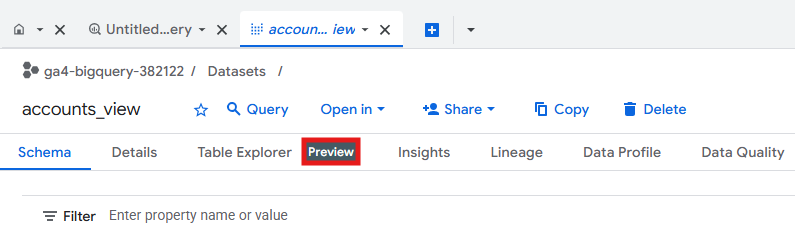
- To confirm data is arriving, click on the most recent table and then Preview. You should see rows of GA4 event data, including event name, event parameters, device, traffic source, etc.
Keep in mind: daily export tables only appear after GA4 completes its first full 24-hour cycle after linking.
Understand the structure of GA4 export tables
By now, your GA4 data is already flowing into BigQuery. It’s now time to understand how the tables in your dataset are organized so you can interpret them correctly.
The main thing to remember is that GA4 exports event-level data, meaning each row represents a single event performed by a user. If you chose the daily export option, you’ll receive one table per day containing all events for that 24-hour period.
Each table includes dozens of columns, but the ones you’ll likely work with most are:
| Columns / Categories | Rows / Values |
|---|---|
| User identifiers | user_pseudo_id (GA4’s anonymous user identifier) user_id (only populated if you send a signed-in ID) |
| Event metadata | event_name (name of the GA4 event) event_timestamp (when it happened) event_date (data in YYYYMMDD format) |
| Session traffic source | collected_traffic_source.manual_source collected_traffic_source.manual_medium collected_traffic_source.manual_campaign_name |
| Device and geography | device.category (mobile, tablet, desktop) device.operating_system geo.country geo.city |
| Event parameters | page_title page_location scroll_percentage engagement_time_msec search_term video_percent ga_session_id ga_session_number session_engaged any custom parameter you’ve configured |
| E-commerce items array | item_id item_name item_category price quantity item_revenue |
Why is data structured this way?
GA4 exports data to BigQuery using nested and repeated fields. This means that instead of distributing the same information across multiple columns or rows, GA4 stores related data inside small “containers” within a single row. This structure keeps datasets compact, reduces storage costs, and speeds up queries. However, it also means many fields aren’t flat columns; instead, they are key/value pairs inside nested lists, so you need to extract them with SQL.
Here’s an example of how to extract a nested field: let’s say you want to extract page_title from the event_params list. You need to run this SQL code:
SELECT
  (SELECT value.string_value
  FROM UNNEST(event_params)
  WHERE key = 'page_title') AS page_title
FROM `project.dataset.events_*`
What this does is:
- UNNEST(event_params) – opens the list of event parameters.
- WHERE key = ‘page_title’ – finds the parameter you want.
- value.string_value – retrieves the text inside it.
This process might seem complicated at first, but once you understand it, it’s pretty straightforward, and you just need to apply the same approach to any parameter.
Keep in mind: GA4 does not export historical data. Exports start the moment the link is created.
Understand the BigQuery cost model
It’s also important for marketers to understand how pricing works. The good news is that BigQuery’s cost model is simple, predictable, and easy to manage since there are only two things you can be charged for:
-
Storage
This is the cost of storing your GA4 export tables. It starts at about $0.023 (~€0.020) per gibibyte (GiB) per month (varies slightly by region), and is considered cheap given that GA4 event-level data is fairly compact. Even high-traffic websites usually stay under a few gigabytes. If you’re using BigQuery Sandbox, you get 10 GiB of free storage, and no billing account is needed.
-
Query processing
This is where most of the cost comes from, but it’s still easy to manage. BigQuery does not charge per query; instead, it charges based on the amount of data scanned by your query. On-demand pricing is roughly $6.25 (~€5.33) per tebibyte (TiB) scanned, and you won’t be billed for using Preview mode. If you’re using BigQuery Sandbox, you get 1 TiB of query processing each month for free.
This means that for most marketing teams, BigQuery remains highly cost-effective because GA4 exports are compact, storage is affordable, and typical marketing queries examine small data sets.
Common issues and how to fix them
Although setting up GA4 with BigQuery is simple, some challenges may arise during the process, especially related to permissions, regions, or timing. Here are some common issues marketers encounter and how to address each one:
| Issue | What it means | How to fix it |
|---|---|---|
| You don’t see “BigQuery links” in GA4 | You don’t have the required permissions to access the linking settings. | Ask a GA4 Admin to give you Editor (or Admin) access on the GA4 property. |
| You can’t select your Cloud project during the linking step | Your Google account doesn’t have the right permissions in the Cloud project. | In Google Cloud, ask someone to grant you Owner, Editor, or BigQuery Admin on that specific project. Then retry linking. |
| No tables appear in BigQuery after linking | Either the export hasn’t started yet, or something wasn’t configured correctly. | If you chose the “streaming” export frequency (intraday table), wait 5 to 10 minutes. If you chose the daily export frequency, wait until the next day. Double-check that the link is active and not disabled. |
| Dataset was created in the wrong region | GA4 and BigQuery must use the same region for the export to work. | Delete the incorrect dataset, remove the existing GA4 link, and recreate the link using a dataset in the correct region. |
| Data is missing fields (parameters are not showing up) | GA4 applies cardinality limits and thresholding in its interface, but missing fields in BigQuery usually mean a schema expectation issue or user_id not implemented. | Check the correct event_params field structure, ensure user_id is included if needed for stitching, and confirm the parameters are actually being sent from your website/app. |
| Intraday table appears but has zero rows | It’s normal behavior when the day’s first events haven’t been recorded yet. | Wait a few minutes and refresh. If it’s still empty later in the day, ensure GA4 is actually receiving data. |
| Daily tables aren’t appearing at all | GA4 only generates daily tables after its first full day of export. | Wait until the next day. If nothing appears after 24 hours, delete and recreate the BigQuery link. |
| You accidentally linked the wrong GA4 property | It’s a common mistake when managing multiple properties. | Remove the link in GA4 and repeat the setup with the correct property ID. |
| Query errors referencing missing columns | GA4 – BigQuery schema uses nested fields, so column names may differ from user interface names. | Expand the schema tab inside BigQuery Studio to see exact field names and adjust your SQL accordingly. |
Final thoughts
By now, your GA4 property should be fully connected to BigQuery and prepared to stream raw event data into your Cloud project. Your next steps are all about exploration and gaining deeper insights.
Remember to start simple:
- Run your first queries to check event counts or list event names.
- Explore the table schema to understand how GA4 structures event parameters, user properties, and items.
Once you’re feeling confident about this, use your new dataset to answer real marketing and business questions that GA4’s interface can’t fully handle.
If you need more inspiration, explore real-world use cases that demonstrate how BigQuery provides deeper insights for digital marketing teams in our article BigQuery for marketers: what is it and how can it help you?.