Your Google Ads data is in Google Ads, and your GA4 data in Analytics. That’s pretty straightforward, right? However, calculating your Return on Investment (ROI) across the customer journey (for example, finding out which Ads campaigns led to sales a couple of weeks after someone first clicked the ad) means you have to manually export the data from each platform and then combine it yourself. Otherwise, you’re making decisions based on the incomplete picture each platform provides on its own.
BigQuery solves this problem. When you get your Google Ads campaign data in there along with your GA4 event data, you can run queries that combine costs, clicks, sessions, and key events. Neither Google Ads nor GA4 can do this kind of combination, so… why wouldn’t you keep everything together in one, well-organized platform?
This article covers the two main methods to get your Google Ads data into BigQuery, and then how to connect it with your GA4 data so you can fully analyze it.
Why import Google Ads data into BigQuery?
Having your Google Ads data in BigQuery opens up analysis that’s impossible within Google Ads itself. Here’s what you gain:
-
Complete campaign performance analysis
BigQuery lets you query your Google Ads data using SQL, which means you can analyze campaign performance across any dimension, any time period, and any metric combination you need.
-
True ROI calculations
When you combine Google Ads cost data with GA4 revenue data in BigQuery, you can calculate actual return on ad spend across your entire customer journey. You can see which campaigns drive revenue days or weeks after the initial click.
-
Custom attribution models
The data in BigQuery gives you everything you need to build attribution models that match how your business actually works. You can weight touchpoints however makes sense for your sales cycle, not just use Google’s default models.
-
Cross-platform reporting
BigQuery becomes your single source of truth when you import data from Google Ads, GA4, Facebook Ads, and any other platforms you use. This way, you can build dashboards that show performance across all channels in one place.
2 ways of importing Google Ads data into BigQuery
1) BigQuery Data Transfer Service
Google’s BigQuery Data Transfer Service is the native way to automatically send data from a data source (like Google Ads) to BigQuery, regularly and on a schedule of your choice.
When you set up the Data Transfer Service for Google Ads, you get access to detailed campaign data, including:
- Campaign, ad group, and ad performance metrics.
- Keyword-level data.
- Audience performance.
- Geographic and demographic data.
- Click and conversion data.
- Cost metrics.
The data loads into date-partitioned tables in BigQuery, with each day’s data in its own partition. If you run multiple transfers for the same date, the latest data overwrites the previous partition, so you won’t get duplicates.
How the refresh window works
The refresh window determines how many days of data each transfer retrieves. If you set a 3-day refresh window, each daily transfer pulls the current day plus the two previous days. When you run the transfer for the first time, it retrieves all available data within that refresh window.
Setting up the transfer
To set up a Google Ads data transfer, you need:
- Your Google Ads customer ID or manager account (MCC).
- BigQuery Admin permissions.
- Read access to the Google Ads account.
- An existing BigQuery dataset where the data will land (or you can create one during setup).
Keep in mind: the maximum transfer frequency is once every 24 hours.
Here is the step-by-step of how to actually do it:
-
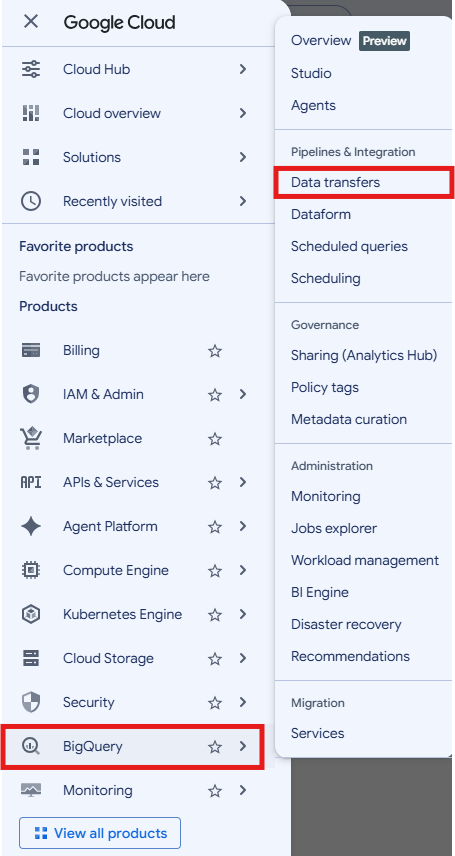
Navigate to your Google Cloud Console, make sure you’re in the correct project where you want the data to land, and either search for Data transfers in the search bar, or, in the left navigation menu, go to Big Query > Data transfers.
-
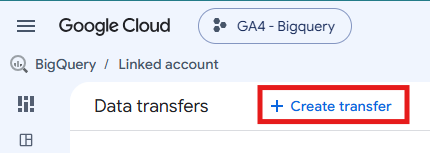
Click + Create transfer at the top of the page.
-
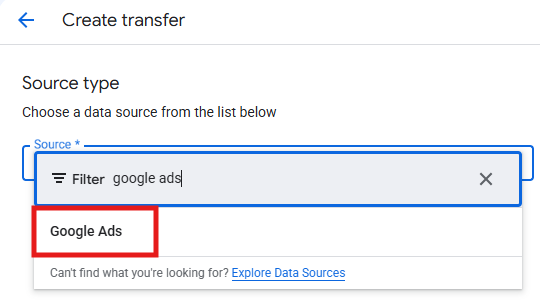
In the Source type section, select Google Ads from the dropdown menu.
-
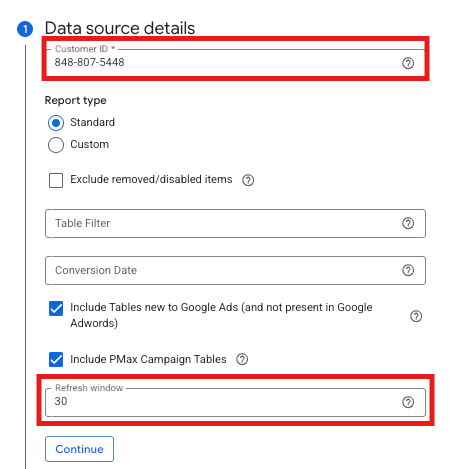
Enter your Customer ID (you can find this in the top right corner of your Google Ads account). If you’re using a manager account (MCC), you can enter that instead.
You’ll also see the refresh window here, which sets how many days of data each transfer retrieves. We recommend setting this to 30 days, since Google Ads conversions can be attributed back to a click that happened weeks earlier, and a shorter window risks missing that late-arriving attribution data.
Additionally, you can decide if you want to include tables new to Google Ads and include Pmax campaign tables. Then, continue.
-
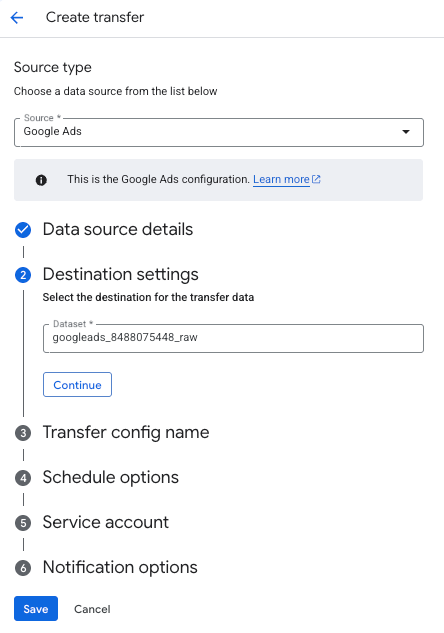
Select the dataset destination for the data transfer. You can either select an already existing dataset or create a new one by following the steps. Then, continue.
-
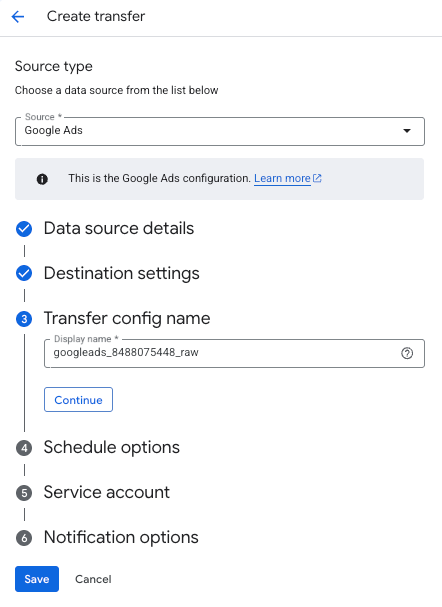
Give your transfer a display name (for example, identical to the dataset name) so you can identify it later. Continue.
-
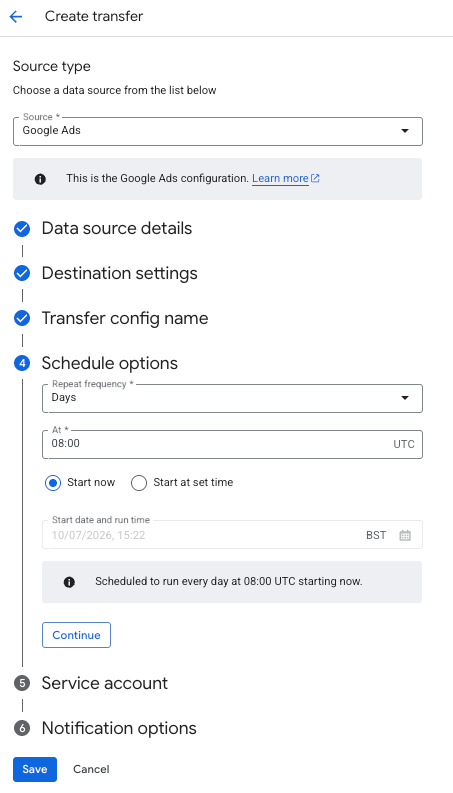
Now, choose when you want the transfer to run. The default is every 24 hours, but you can customize the start time to match when you typically need fresh data. Continue.
-
You can then select a service account associated with your Google Cloud project (if you need to create one, go to IAM & Admin > Service Accounts). Then, go to your Google Ads account and add that same service account as a user with read access before running the transfer (Admin > Access and security > Users > add user (+ icon)). Otherwise, the transfer won’t be able to extract the data. Continue to the next step.
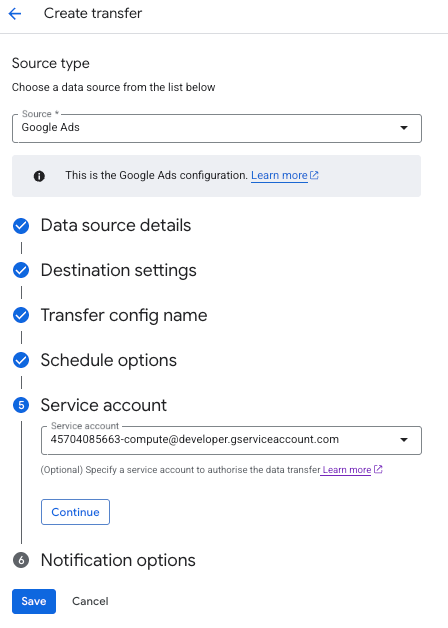
Keep in mind: you can also authorize the transfer using your own Google account credentials, but the service account approach is more stable.
-
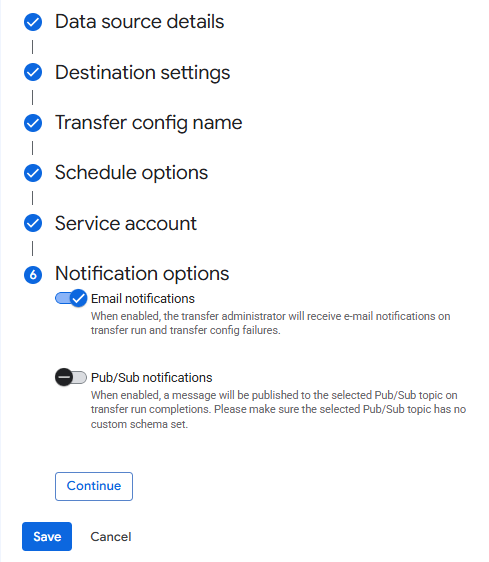
Optionally, toggle on email notifications if you want to receive alerts whenever a transfer run fails. Continue.
-
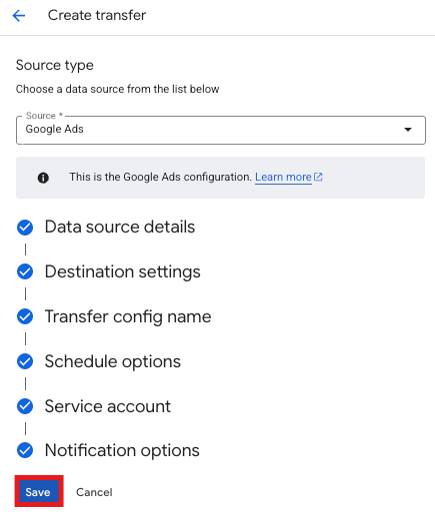
Click Save to create the transfer. The first run will execute immediately, or at your scheduled time, pulling all data within your refresh window. You’ll see the transfer appear in your data transfers list once it’s running.
By default, the transfer pulls in every available table. If you’re just getting started, focus on the tables covering campaign-level performance, keyword and search term data, and click-level data. You can narrow the transfer to specific tables using the table filter field (enter names like “Campaign”; “AdGroup”; “Keyword”).
Beyond these standard tables, you can also add a custom report using Google Ads Query Language (GAQL), which lets you pull only the specific fields you need into a customized table.
Keep in mind: you can use this same process to automate data retrievals from other sources like GA4, Facebook Ads, LinkedIn Ads, or Google Search Console. Note that the BigQuery Data Transfer Service only works one way, so you cannot use it to transfer data out of BigQuery.
2) Windsor.ai as an alternative
While Google’s Data Transfer Service is free and reliable, Windsor.ai offers a no-code alternative that some marketers prefer for its flexibility and ease of use.
It’s an ELT (Extract, Load, Transform) platform that connects Google Ads to BigQuery (and to 325+ other data sources), automating the entire data pipeline without requiring any code. This platform handles:
- Secure connection to your Google Ads account.
- Selection from over 2000 available fields.
- Automated data mapping to BigQuery structure.
- Scheduled refreshes (hourly, daily, or custom intervals).
- Backfilling historical data.
- Partitioning and clustering configuration.
When Windsor.ai makes sense
Windsor.ai charges based on data volume, so it makes sense when you:
- Need to connect multiple ad platforms beyond just Google Ads.
- Want near-real-time data (not just daily refreshes).
- Don’t have technical resources to manage Google Cloud configurations.
- Need more flexible schema options than the standard Google Ads tables provide.
- Want to switch between different warehouse destinations easily.
How to choose?
You have to look at cost versus flexibility. For Google Ads alone, the Data Transfer Service is free, but if you’re already managing data from Facebook Ads, TikTok, and other platforms, Windsor.ai’s approach can simplify your infrastructure.
So far, we’ve covered how to get Google Ads data into BigQuery, but here’s the thing: Google Ads data only tells part of the story. To understand the complete customer journey – from ad click to conversion and beyond – you need to see how Google Ads and GA4 work together.
How Google Ads and GA4 work together
If we’re talking about moving Ads data into BigQuery, it’s worth understanding how Google Ads and GA4 share data, because this impacts what you’ll see in BigQuery. When you link your GA4 property to your Google Ads account, you enable two important data flows:
-
GA4 audiences in Google Ads
You can create audiences in GA4 based on user behavior, demographics, or predictive metrics, then export those audiences to Google Ads for targeting. You can also create GA4 audiences directly within the Google Ads interface. The audiences support both static and dynamic evaluation, meaning users are automatically added when they meet conditions and removed when they don’t.
-
Key events as conversions
When you link the accounts, GA4 key events can be imported into Google Ads as conversions for bidding. This gives you more flexibility in what you optimize toward, since GA4 tracks a wider range of events than the Google Ads tag alone.
A recent update: dynamic remarketing with GA4 data
In December 2025, Google announced that Google Ads dynamic remarketing now supports GA4 e-commerce data directly. What this means, in practice, is that you can show website visitors personalized ads that contain products and services viewed on your website. In other words, if you’re already tracking e-commerce events in GA4, you can set up dynamic product ads in Google Ads without any additional tag implementation.
Google notes that using the Google Ads tag still processes faster and provides more comprehensive coverage, but the GA4 integration makes dynamic remarketing accessible to anyone already running GA4 e-commerce tracking. For many businesses, this removes a significant implementation obstacle.
Tip: for a detailed step-by-step of this integration, check out our article “Linking GA4 with Google Ads: setup, alternatives and best practices”.
GA4 data in BigQuery
While this article focuses on Google Ads data, it’s worth mentioning that BigQuery Data Transfer Service also supports GA4, which is why combining both data sources in BigQuery is so valuable.
We’ve already covered the full setup in our “Step-by-step guide to connecting GA4 to BigQuery”, but there are basically two ways to get GA4 data into BigQuery:
-
Native BigQuery export
This is the original method, which exports raw event data continuously or daily. This gives you every event and parameter exactly as it happened, with no aggregation.
-
BigQuery Data Transfer Service for GA4
This approach exports aggregated reporting data that matches what you see in the GA4 interface. It provides 12 daily-partitioned tables that mirror GA4 reports (audiences, key events, events, traffic acquisition, and so on), and it complements the raw event export.
Tip: the native export gives you maximum flexibility and granular data, while the Data Transfer Service gives you aggregated data and reports that match the GA4 UI, which is faster for standard reporting and easier for non-technical team members to work with. Most businesses using BigQuery for marketing analytics set up both.
Joining Google Ads and GA4 data
When you have both Google Ads and GA4 data in BigQuery, you can combine the datasets to get the best and most complete insights. Basically, to connect the right Google Ads clicks with the right GA4 sessions, you need common fields that exist in both datasets.
These common fields are called shared identifiers: they’re the unique IDs or values that appear in both your Google Ads data and your GA4 data, allowing you to link records together. The three main shared identifiers are:
-
gclid (Google Click ID)
Every time someone clicks a Google Ad, Google assigns a unique identifier called a gclid. This same ID gets passed to GA4 when that person lands on your website (if auto-tagging is enabled). This makes gclid the most reliable way to connect a specific ad click to the session it generated. In your Google Ads data exported to BigQuery, you’ll find gclid in the clicks table. In your GA4 data, it’s in the collected_traffic_source.gclid field.
-
client_id
This is GA4’s way of tracking individual users across their visits to your website or app. When properly configured, you can use client_id to link user behavior in GA4 with their exposure to your Google Ads campaigns.
-
Campaign parameters
The UTM parameters you add to your URLs (utm_source, utm_medium, utm_campaign) appear in both Google Ads and GA4 data. While less precise than gclid (since multiple clicks might share the same campaign parameters), they provide another way to join the datasets.
How to actually join datasets
In BigQuery, you use SQL “JOIN” operations to match records from your Google Ads tables with records from your GA4 tables. The most common approach is joining on gclid: you match each Google Ads click to the GA4 events that came from that same click.
Once the datasets are joined, you can calculate metrics that neither platform provides on its own, such as:
- Cost per engaged session: Google Ads cost divided by GA4 engaged sessions that came from those ads.
- Time from ad click to conversion: to see how long it takes users to convert after clicking your ad.
- Multi-touch attribution: track paths from first ad exposure through organic visits to final conversion.
The SQL queries for these joins can get complex depending on your data structure and what you’re trying to calculate. We cover specific joining techniques and query examples in separate articles focused on BigQuery analysis.
Which approach should you use?
For most marketers working with Google Ads data, here’s what we recommend:
-
Start with BigQuery Data Transfer Service for Google Ads
It’s free, reliable, and it handles the majority of use cases. Set your refresh window to match how often you need updated data (typically 3-7 days), schedule daily transfers, and you’re done.
-
Link GA4 and Google Ads
You need the link active for audience sharing and conversion tracking, and the December 2025 update makes dynamic remarketing significantly easier if you’re running e-commerce.
-
Set up GA4 BigQuery Export alongside your Google Ads import
This way, you can join the data. The raw event export is the bare minimum, so add the Data Transfer Service for GA4 if you want aggregated reporting data as well.
-
Consider Windsor.ai if you’re managing multiple advertising platforms
…and if you want a unified data pipeline. The cost is reasonable if you’re already paying for other data integration tools, and the no-code approach means your marketing team can own the configuration without involving engineering.
The end goal is to have all your marketing data in one place where you can run a 360º analysis.