Keywords and the insights they reveal about user intent remain, to this day, the core of digital strategy. However, GA4 doesn’t make it easy for any of us, since it can’t display search queries for privacy reasons.
To achieve full keyword visibility, whether organic or paid, you need to connect GA4 with complementary tools like Google Search Console (GSC) and Google Ads. Here’s what actually happens behind the scenes and how to access that data.
Why can’t you see keywords in GA4 by default?
Back in 2011, Google started encrypting search queries for users who were logged into their Google accounts or using HTTPS search as a way to protect their privacy. Since then, the Secure Sockets Layer (SSL) / Transport Layer Security (TLS) encryption features have expanded to include all users, which means that nearly all organic keyword data stopped being sent to analytics platforms.
As a result, Google Analytics and similar platforms could no longer identify the specific keywords people were using to reach certain websites and started displaying them as “(not provided)” – that’s the label you’ve probably seen many times.
In GA4, specifically, the shift to an event-based model and the increased focus on user privacy (compared to its predecessor, Universal Analytics (UA)) mean that organic keyword data remains mostly hidden from standard reports. Practically speaking, by default, your acquisition reports in GA4 will show you “Google / Organic” as a source, but the keyword dimension might be missing or mostly filled with “(not provided)”.
The million-dollar question: how can you gain access to those “lost” keywords?
Well, you have no choice but to rely on additional tools and integrations to capture keyword or search query-level insights. More specifically, you need to link GA4 to Google Search Console and Google Ads to get access to organic and paid search keywords data, respectively. So, before moving on, make sure to read our “GA4 – Google Search Console integration guide” and our “Linking GA4 with Google Ads: setup, alternatives and best practices” article.
Now that you understand why GA4 hides keyword data, the next step is to know which types of keyword information are actually available.
Types of keyword data
It’s helpful to understand the different types of keywords or search terms. The most important ones are:
-
Organic keywords
These show the search queries typed in Google that led to organic clicks to your website. GA4 doesn’t automatically get this keyword information, so you have to get it from Google Search Console.
-
Paid search keywords
These are the keywords you target and bid on in your paid campaigns, usually through Google Ads. They help you understand how your ads are doing in terms of Return on Investment (ROI), conversions, or engagement, all broken down by keyword. In GA4, you can actually see which keywords from your ads caused people to spend more time on your site or be more likely to make a purchase.
-
Google Ads queries
These are the exact queries people typed into Google that caused your ad to appear – and they are often, though not always, different from the keywords you’re bidding on. This helps you discover what people are actually searching for and improve your keywords with high-performing search queries.
Knowing what sort of keyword you’re searching for will make finding it in GA4 much easier.
The importance of keyword research
Understanding what users search for is essential – it’s the only way to reveal user intent and align content, campaigns, and measurement accordingly. Specifically, these are the main benefits of keyword research and analysis:
-
Connecting traffic, intent, and business goals
Every search query has intent, whether it’s purely informational or transactional. By combining GA4 metrics (sessions, engagement, conversions) with Search Console keyword data (clicks, impressions, click-through rate), you can identify which intents actually lead to results. For example, a keyword with few clicks but a high conversion rate might indicate a niche, high-value opportunity.
-
Different insights for different teams
Keyword research offers valuable insights into search behavior and on-site performance for various teams: for content teams, it reveals topics that need more coverage or updates; for advertising teams, it indicates which search terms justify investment; and for analysts, it links pre-click behavior (search queries) with post-click outcomes (engagement, revenue, or conversions).
-
Evaluating SEO strategies
Are you targeting the right keywords? Should you be adjusting your SEO strategy to improve business results? Keyword research in GA4 can help answer these questions by showing you which keywords lead to longer engagement, drive repeat visits or high conversion rates, and cause quick exits.
-
Focusing on quality and performance
Once you’ve gathered all the necessary keyword data, you can confidently update and optimize your website, blog, landing pages, and campaigns.
How to find keyword data in GA4
A) Organic keywords (via Search Console)
Here, the goal is to identify which search queries are driving organic clicks to your website from Google Search. At this point, we assume you’ve already ensured these steps:
- Connected your website to Google Search Console.
- Linked your GA4 web data stream to your GSC property.
- Added the Search Console report to GA4’s library.
If not, go through each of them with the help of our “GA4 – Google Search Console integration guide”.
Then, in GA4, proceed like this:
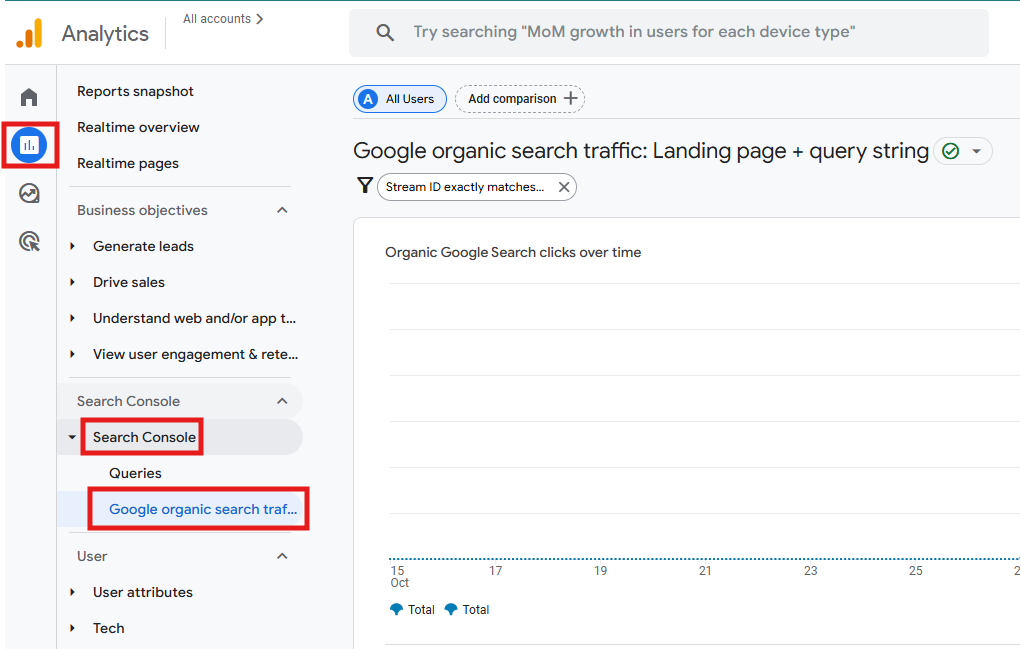
- Navigate to Reports > Search Console. There you’ll see two types of reports: Queries and Google organic search traffic.
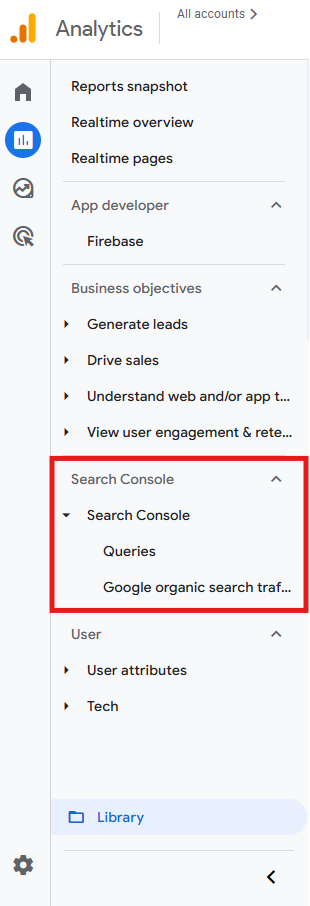
- Click on Queries. Below the graphic, you’ll find a ranking of the top organic keywords that are driving traffic to your website, along with metrics like clicks, impressions, click-through rate, and average position.

- If, on the other hand, you choose the Google organic search traffic report, you’ll see how those queries affect on-site performance. This view emphasizes landing pages over search terms and shows which pages users arrive at from Google Search and how those pages perform after visitors land.
B) Paid keywords (via Google Ads)
If your goal is to analyze which ad keywords drive conversions, then this is the way to go. At this point, we assume you’ve already completed these steps:
- Created a Google Ads account.
- Linked your GA4 web data stream to your Google Ads account.
If not, go through each of them with the help of our article “Linking GA4 with Google Ads: setup, alternatives and best practices”.
Then, in GA4, proceed like this:
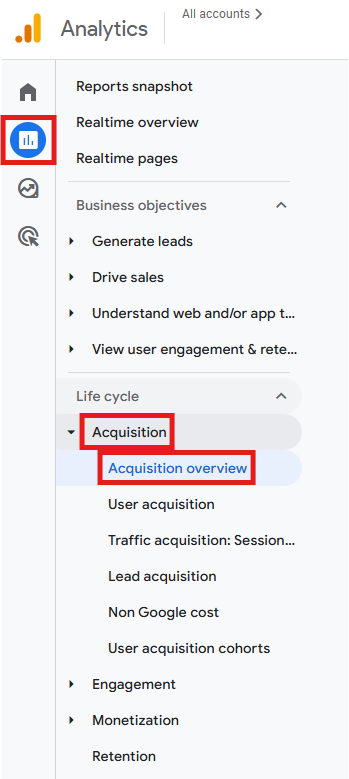
- Go to Reports > Acquisition > Acquisition Overview.
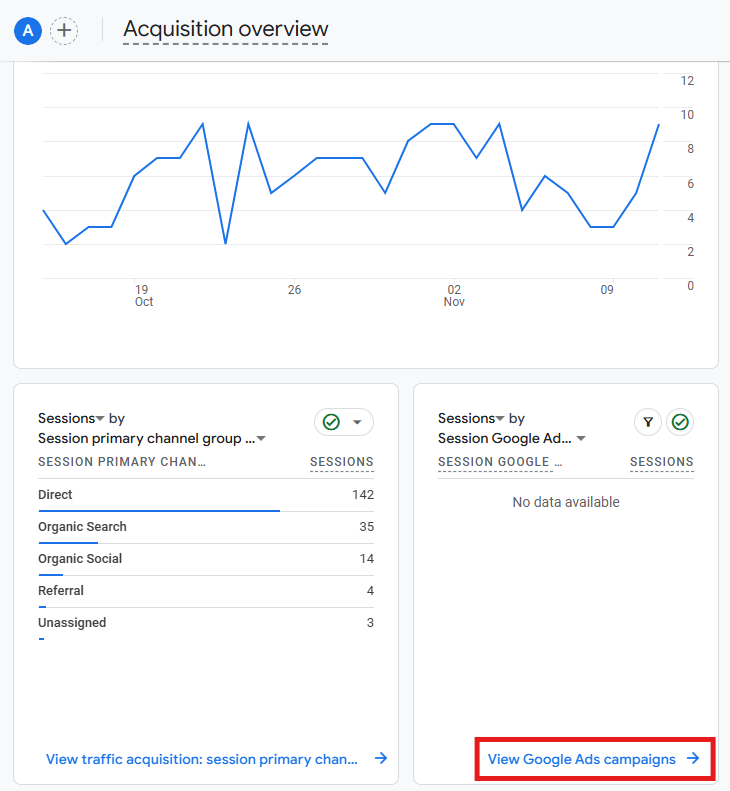
- Under the main graphic, search for the board with the option View Google Ads campaigns, and click on it.
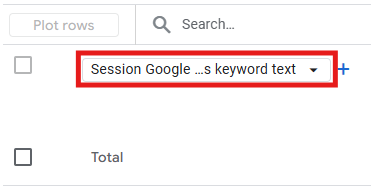
- To see the keywords associated with each of your campaigns (and corresponding metrics), below the graphic, change the dimension to Session Google Ads Keyword Text.
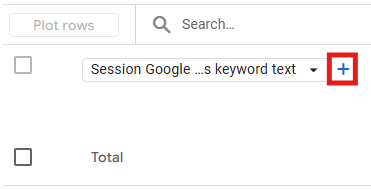
- You can also include a secondary dimension in case you want a more in-depth analysis. To do so, click on + and select whichever dimension you want to explore.
C) Google Ads queries
If your goal is to find out what users actually typed into Google Search before clicking your ad, you should look beyond the keywords you bid on (keyword text) and examine search terms (the real queries that triggered your ads).
In GA4, proceed like this:
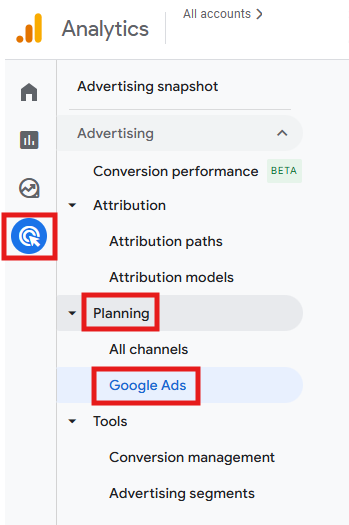
- Navigate to Advertising > Planning > Google Ads. This section shows performance data imported directly from Google Ads – it’s event-driven, emphasizing key events and conversions over sessions.
- Click the dropdown below the graphic to change the dimension to Google Ads query (sometimes labeled “search term”, depending on the interface).
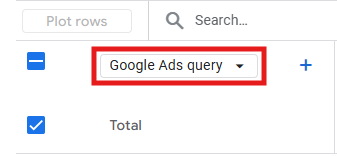
- You’ll see the actual search terms matched to your keywords and key metrics such as key events, ad cost, cost per key events, ad clicks, ad cost per click, among others.

- To see how closely your bidding keywords match real-world user queries, add a secondary dimension such as Google Ads keyword text.
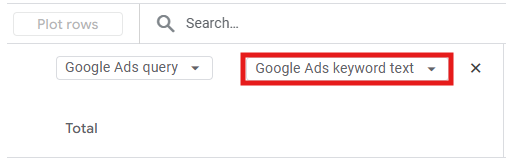
Keep in mind: the “Google Ads keyword text” dimension here is not the same as the “Session Google Ads keyword text” used in section B). In this case, you’re analyzing ad-level events and query matches (Google Ads reporting layer) rather than website sessions driven by paid keywords.
Limitations and how to work around them
GA4 won’t show you all the keywords people type into Google to find your site, and that’s intentional due to Google’s privacy policies. Here are the main issues with this and some practical solutions to work around them.
-
Limited GA4-GSC connection
Each GA4 web data stream can link to only one Search Console property. If you oversee multiple websites or subdomains and need a unified analysis, link each one to its own GSC property and GA4 data stream, then combine all datasets in Looker Studio.
-
Metric discrepancies between GA4 and GSC
Search Console and GA4 use different counting models: while GSC tracks clicks and impressions when your website appears in Google Search results, GA4 tracks sessions and events only after a user lands on your website. This means totals will never match perfectly, so treat both platforms as complementary.
-
Privacy and data-retention limits
Both GA4 and Search Console limit historical data access for privacy and storage reasons. GA4 standard properties keep event data for up to 14 months, while GSC retains query data for 16 months. This naturally impacts any long-term keyword analysis you might want to do. If needed, export data to BigQuery or set up automated Looker Studio reports.
-
Aggregated and delayed data
Search Console data is collected and delayed by about 48 hours. Google Ads data, on the other hand, updates nearly in real time but only includes paid traffic. The key to managing this is to shift your mindset: instead of expecting immediate results, focus on analyzing trends and performance over time by combining GA4, GSC, and Ads metrics over longer periods in Looker Studio or GA4 Explorations.
-
Missing search terms
In Google Ads reports, low-volume or sensitive queries are automatically hidden to protect user privacy. As a result, the number of clicks may be higher than the visible rows in your reports. To address this, compare the “keyword text” (what you bid on) with the “query” dimension (what users actually searched) – large discrepancies indicate campaigns triggering many hidden or irrelevant searches, which suggests adjusting match types or adding negative keywords.
Final thoughts
You’ll never have a complete keyword list in GA4; that’s simply how it is. However, if you connect it to Search Console (for organic queries) and Google Ads (for paid search terms), you can start seeing again which searches are driving the customers and successes you want.
Basically, think of GA4 as a place where you see how things are performing, and Search Console and Google Ads as tools for how you discover things. Also, you don’t need every single keyword, only the important ones that actually lead to results.